BUSY account
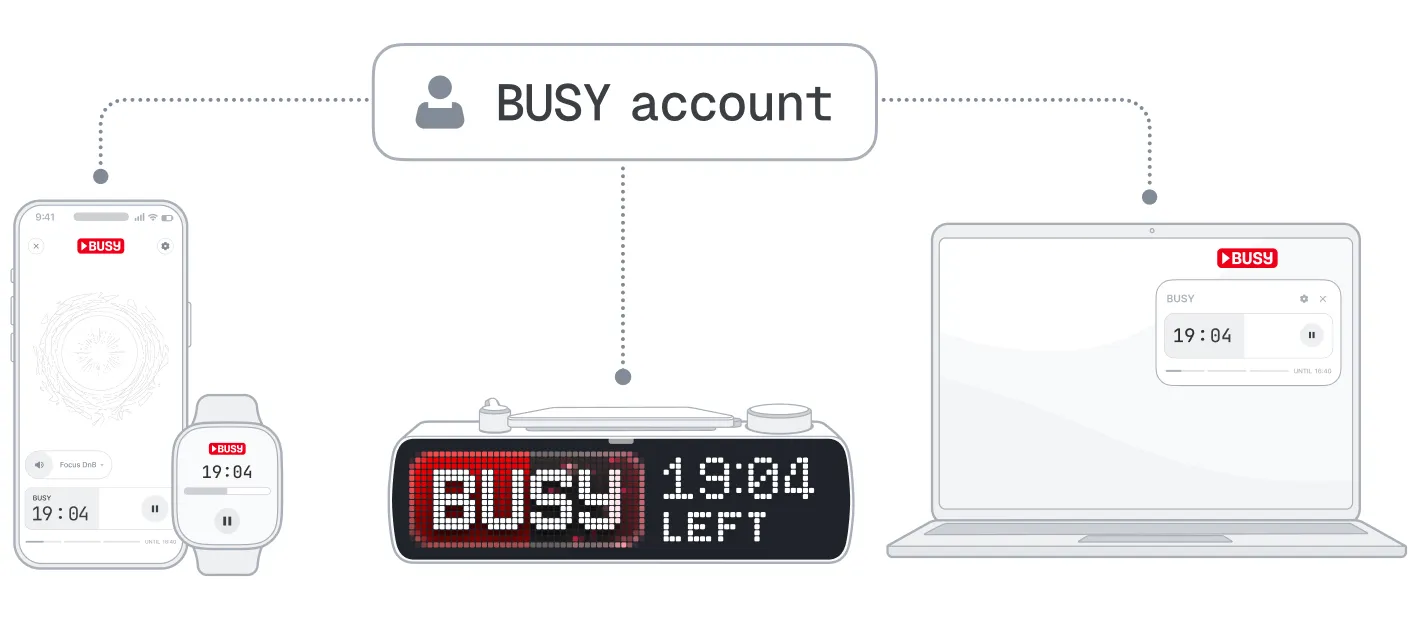
BUSY account is the cloud service that keeps the entire BUSY ecosystem in sync, including BUSY App on mobile and desktop and your BUSY Bar. It syncs your focus sessions, timers, and integrations across all your devices, enables secure remote access to your BUSY Bar over the internet, and manages API access for connected services and automations.
To use these cloud features, connect your BUSY Bar to your account and log in to the account on your mobile and desktop devices.
On this page, you‘ll find:
- BUSY account features%section%BUSY account features%section%
- Log in to your BUSY account%section%How to log in on your devices%section%
- Delete your BUSY account%section%Delete your BUSY account%section%
BUSY account features
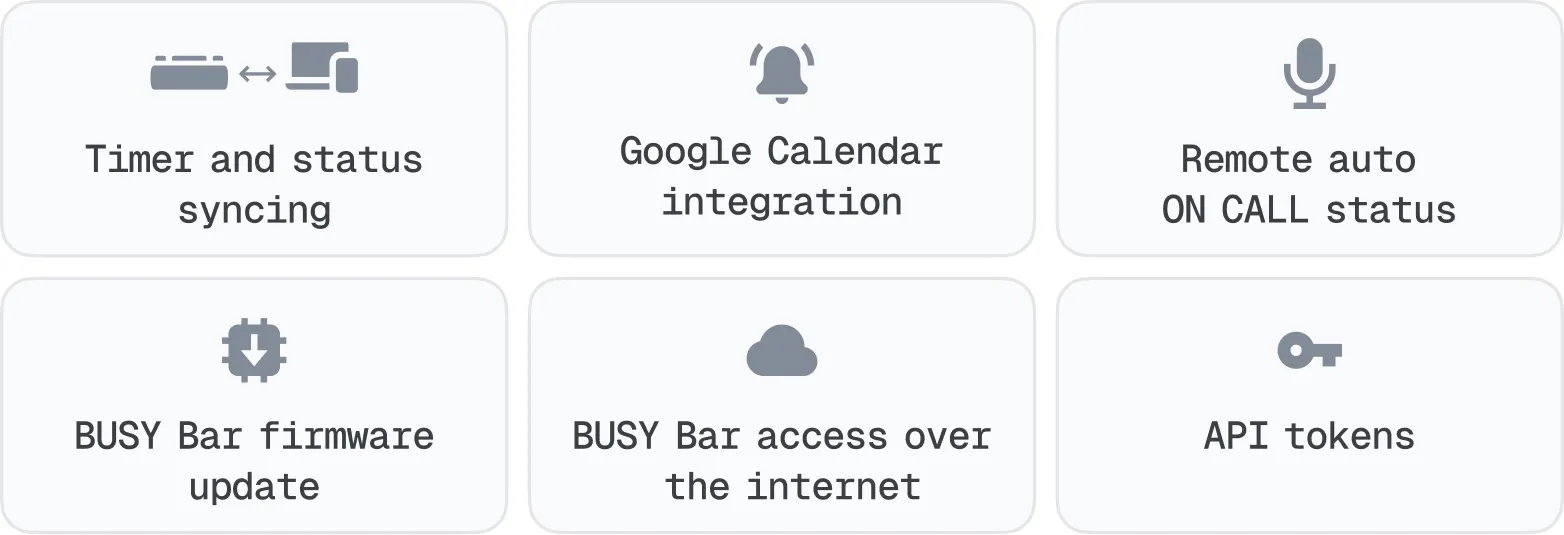
- Google Calendar integration%page%Integration with Google Calendar%page%
- Automatic ON CALL status over the internet%page%Automatic ON CALL status over the internet%page%
- BUSY Bar firmware update%page%Firmware update%page%
- HTTP API access to BUSY Bar%page%HTTP API access to BUSY Bar
- API token management%page%API token management%page%
Log in to your BUSY account
To sync timers, connect integrations, and enable HTTP API access, you’ll need to create a BUSY account, connect your BUSY Bar to it, and log in on your mobile and desktop devices.
- Using your phone%section%Using your phone%section%
- Using your Mac%section%Using your Mac%section%
- Using the local web interface (any platform)%section%Using the local web interface (any platform)%section%
 Log in on your phone
Once you’ve paired your BUSY Bar with BUSY App, logging in automatically connects your BUSY Bar to your account — no extra steps needed.
Pair your BUSY Bar with your phone via Bluetooth.Pair your BUSY Bar with your phone via Bluetooth.
Connect your BUSY Bar to Wi-Fi.Connect your BUSY Bar to Wi-Fi.
Tap  Log in in the top-left corner. The browser will open the sign-in page.
Log in with your email, or continue with your Google, Apple, or Microsoft account.
Having trouble logging in or creating an account? Please see BUSY account issues%page%
 All done!
You’re now logged in to your BUSY account on your phone, and your BUSY Bar is connected to your account.
 Log in on your Mac
Once you’ve paired your BUSY Bar with BUSY App, logging in automatically connects your BUSY Bar to your account — no extra steps needed.
Connect your BUSY Bar to BUSY App.Connect your BUSY Bar to BUSY App.
Connect your BUSY Bar to Wi-Fi: BUSY Bar tab → Settings → Wi-Fi.
Click Log in in the top-left corner. The browser will open the sign-in page.
Log in with your email or continue with your Google, Apple, or Microsoft account.
Having trouble logging in or creating an account? Please see BUSY account issues%page%
All done!
You’re now logged in to your BUSY account on your Mac, and your BUSY Bar is connected to your account.
 Log in via the web interface
If you don’t have access to a phone or Mac, you still can log in to your BUSY account and connect your BUSY Bar to it via the BUSY Bar’s local web interface.
Connect your BUSY Bar to the PC via USB.
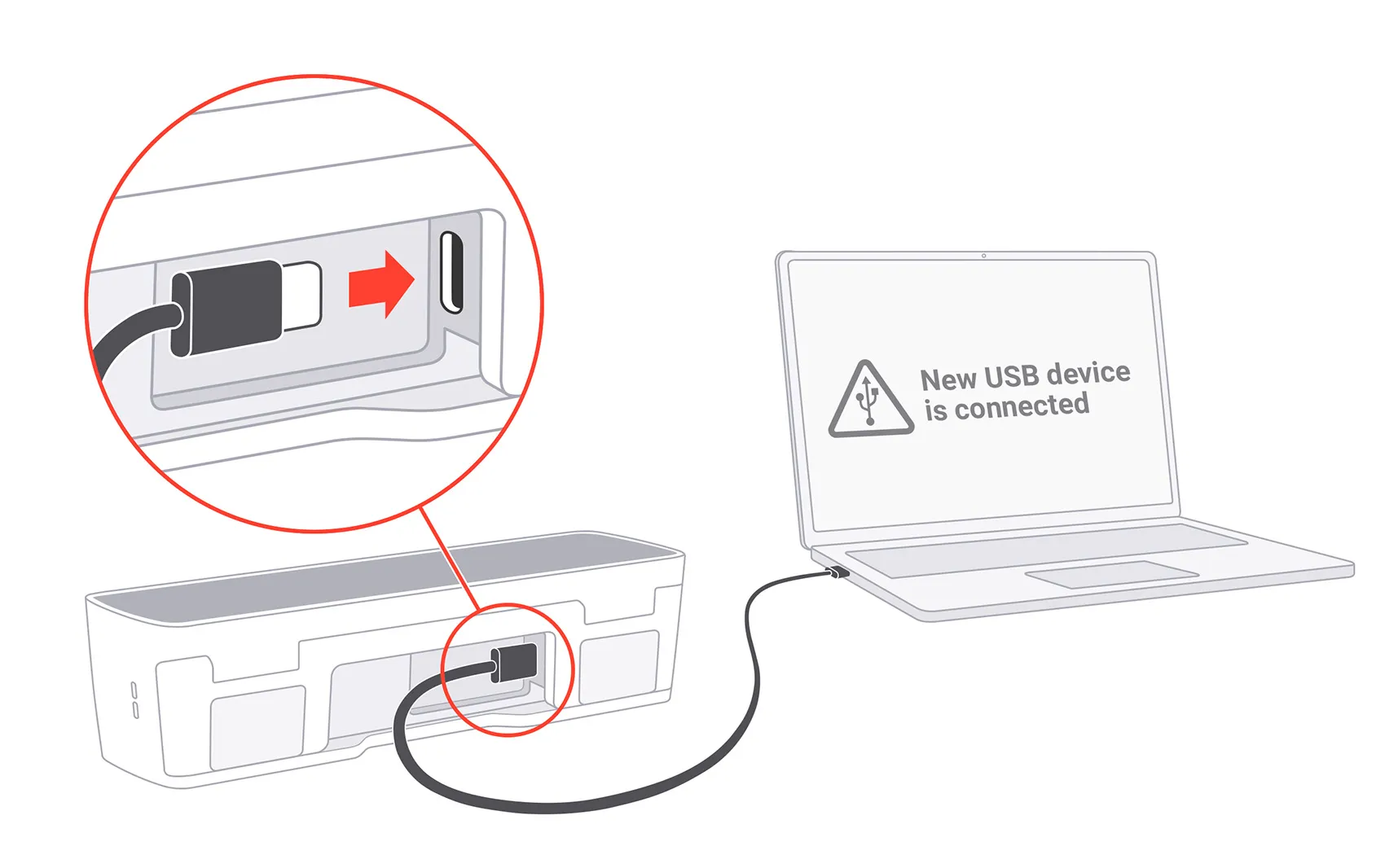
On your PC, open a web browser and go to http://10.0.4.20. The local web interface will load automatically.
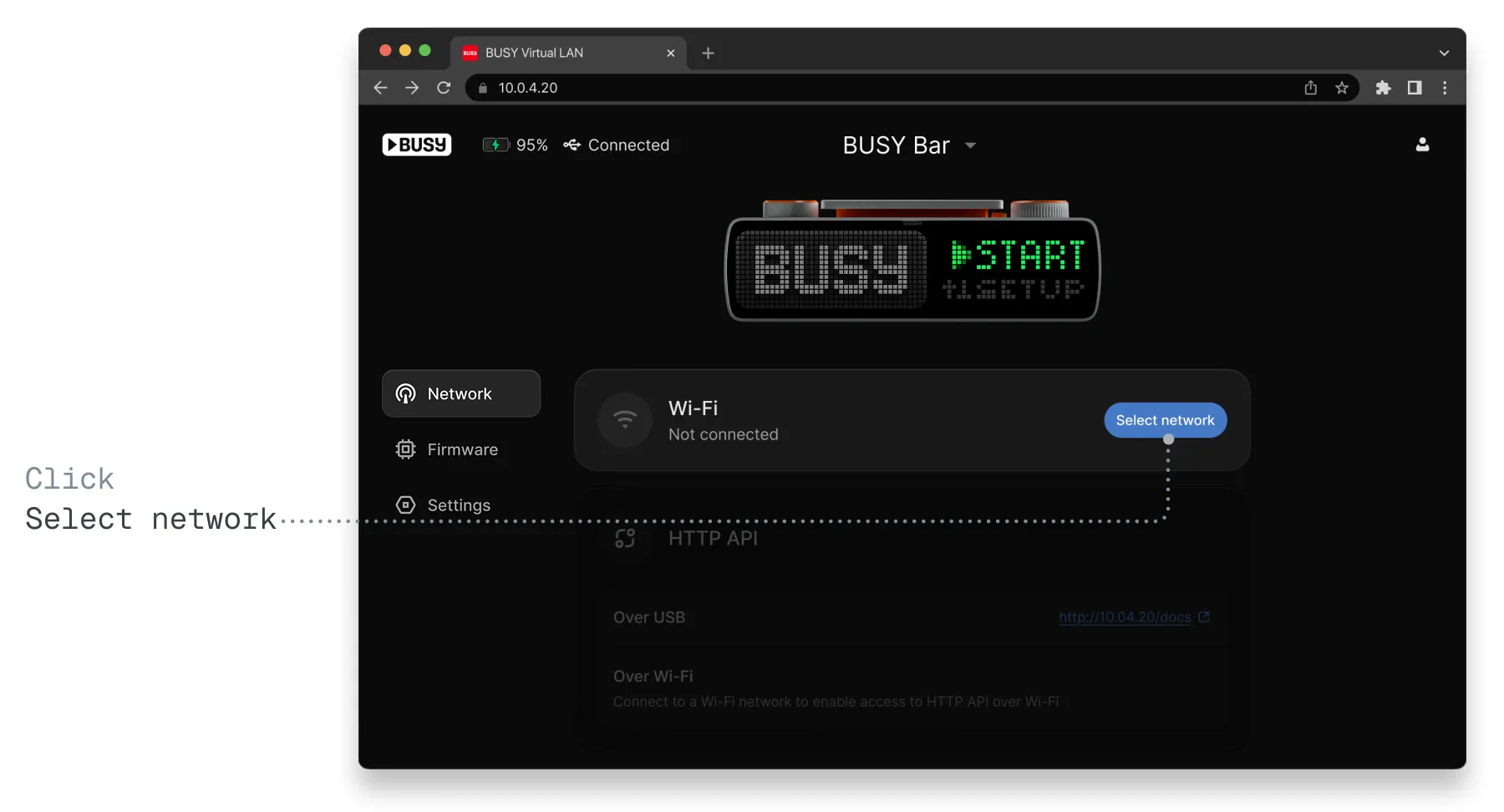
Connect your BUSY Bar to Wi-Fi: go to the  Network tab, then click Select network.
Click Account in the top-right corner.
Click  . The browser will open the sign-in page.
Log in with your email or continue with your Google, Apple, or Microsoft account.
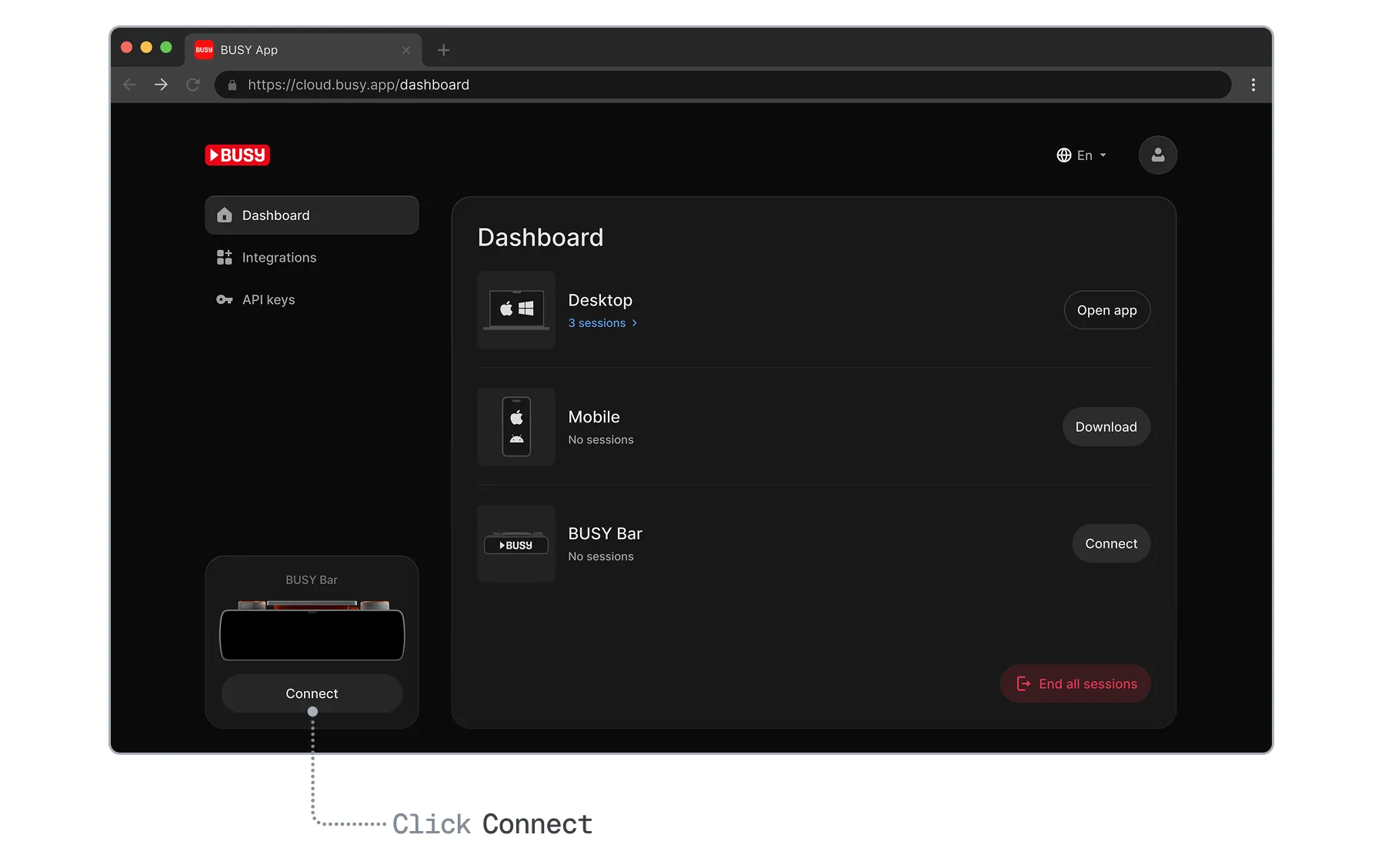
In your BUSY account, click Connect under the BUSY Bar screen.
On your BUSY Bar, go to Settings → Account → Get pairing code — BUSY Bar will display a pairing code.
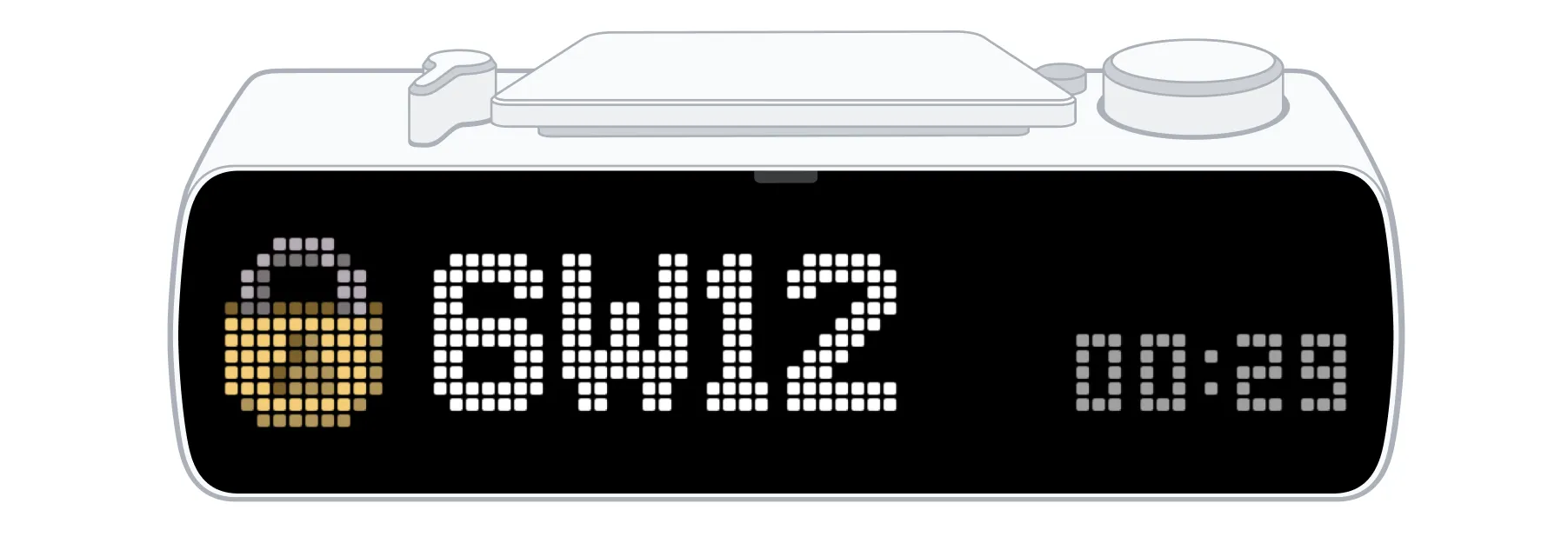
In your BUSY account, enter the code and click Connect.
Having trouble logging in or creating an account? Please see BUSY account issues%page%
All done!
You’re now logged in to your BUSY account in the local web interface, and your BUSY Bar is connected to your account.
Delete your BUSY account
 This will delete your user data and API tokens and remove your integrations.
You can delete your account in the mobile BUSY App or from the BUSY account dashboard in a web browser.
Delete your account using mobile BUSY App
Open  BUSY App on your phone.
Go to Account in the top-left corner.
Tap Delete account.
In the pop-up, tap Delete to confirm.
Delete your account using a web browser
In your browser, go to cloud.busy.app
Log in to your BUSY account.
Click Account in the top-right corner.
Go to Account.
Click Delete account.
In the pop-up, click Delete to confirm.
Delete your account using a desktop BUSY App
Open BUSY App on your computer.
Click Account in the top-left corner.
Click Delete account.
In the pop-up, click Delete to confirm.