Set up modes via mobile app
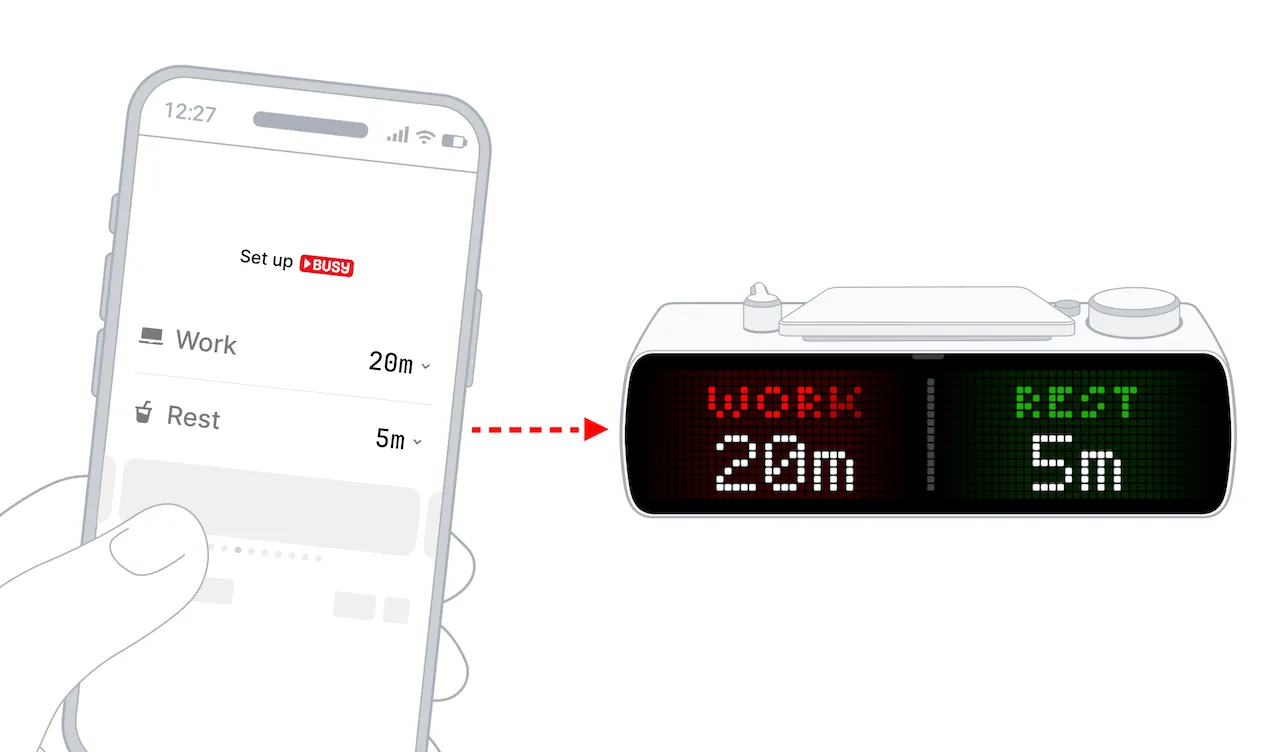
You can set up your BUSY and CUSTOM modes using BUSY App on your phone. Alternatively, you can configure them right on your BUSY Bar.
On this page, you’ll learn how to sync timers between the mobile app and your BUSY Bar, and how to edit them.
Sync app timers with BUSY Bar
Before syncing mobile app timers with your BUSY Bar, make sure:
-
 Your phone has BUSY App installed

To sync app timers with your BUSY Bar:
Open  BUSY App and tap the BUSY Bar icon.
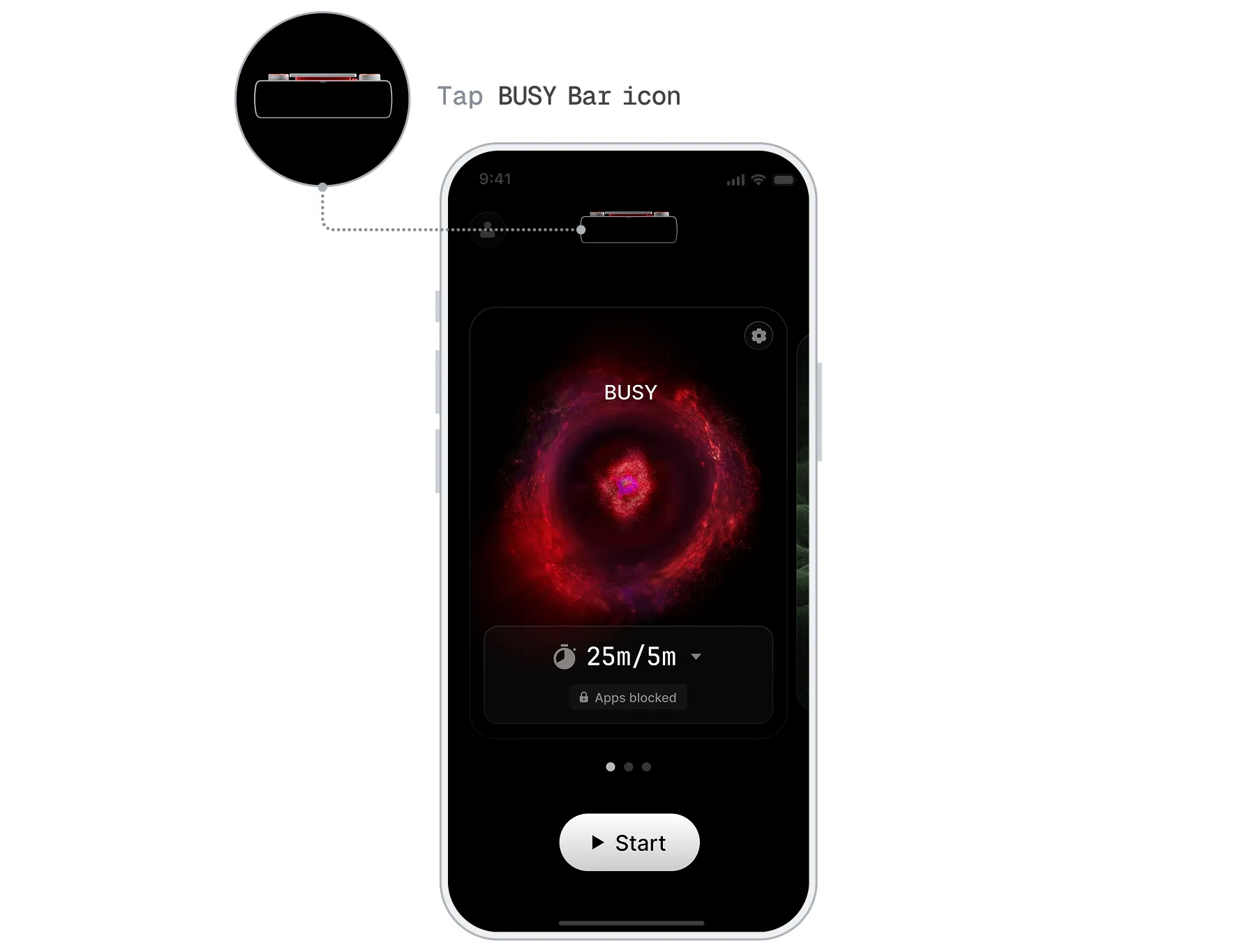
Tap  or
or  to set up your chosen mode.
In App mode, select the timer you want to assign to the chosen mode on your BUSY Bar.
(Optional) You can also change the BUSY Bar theme, enable Show work phase only, and toggle smart home automation.
Now, when you start a synced timer on either your BUSY Bar or in BUSY App, it will start across all synced devices. Unsynced timers started from your phone will also appear on your BUSY Bar.
Editing timers in mobile app
Open BUSY App and tap the BUSY Bar icon.
Swipe to the timer you want to edit. If it’s synced with your BUSY Bar, changes will apply across devices.
Tap  to change the timer name and mobile theme.
Tap the time to adjust timer settings.
Tap Block apps to disable opening distracting apps on your phone.
Whenever you change timer settings, they will update on both your BUSY Bar and in BUSY App.
If multiple BUSY Bar devices are connected
All connected BUSY Bars remain fully synced as long as they are online and logged into the same account. When you start a timer on one device, it will start on all other connected devices as well.