Firmware update
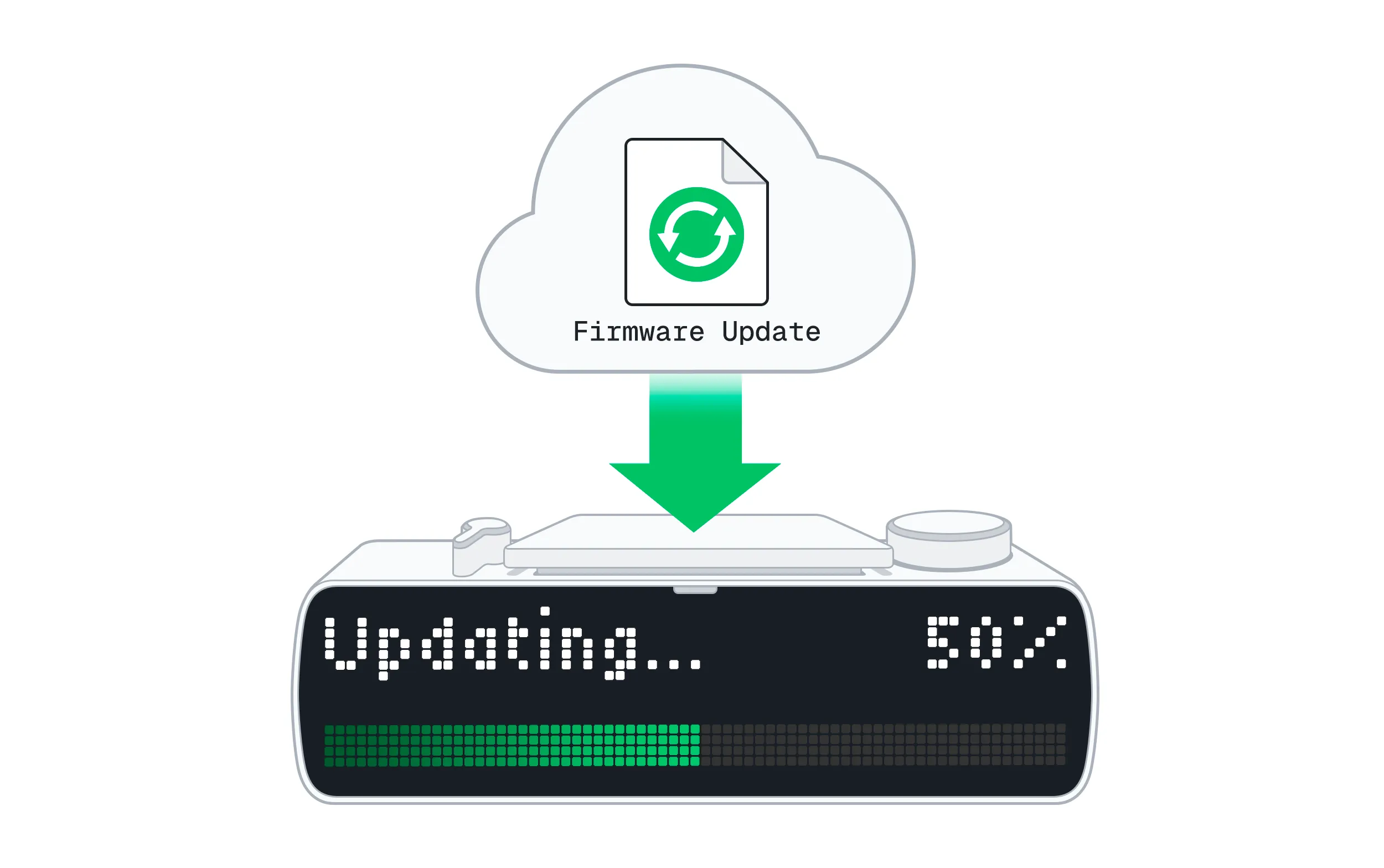
We recommend updating your device’s firmware regularly to get the latest features and improvements. Updating to the latest firmware will not affect your data or settings. On this page, you’ll learn how to update your BUSY Bar firmware:
Update the firmware directly on your BUSY Bar
Before updating the BUSY Bar firmware, make sure:


To update the BUSY Bar firmware:
On your BUSY Bar, go to Settings → Firmware.
If a new firmware update is available, you’ll see New next to Firmware.
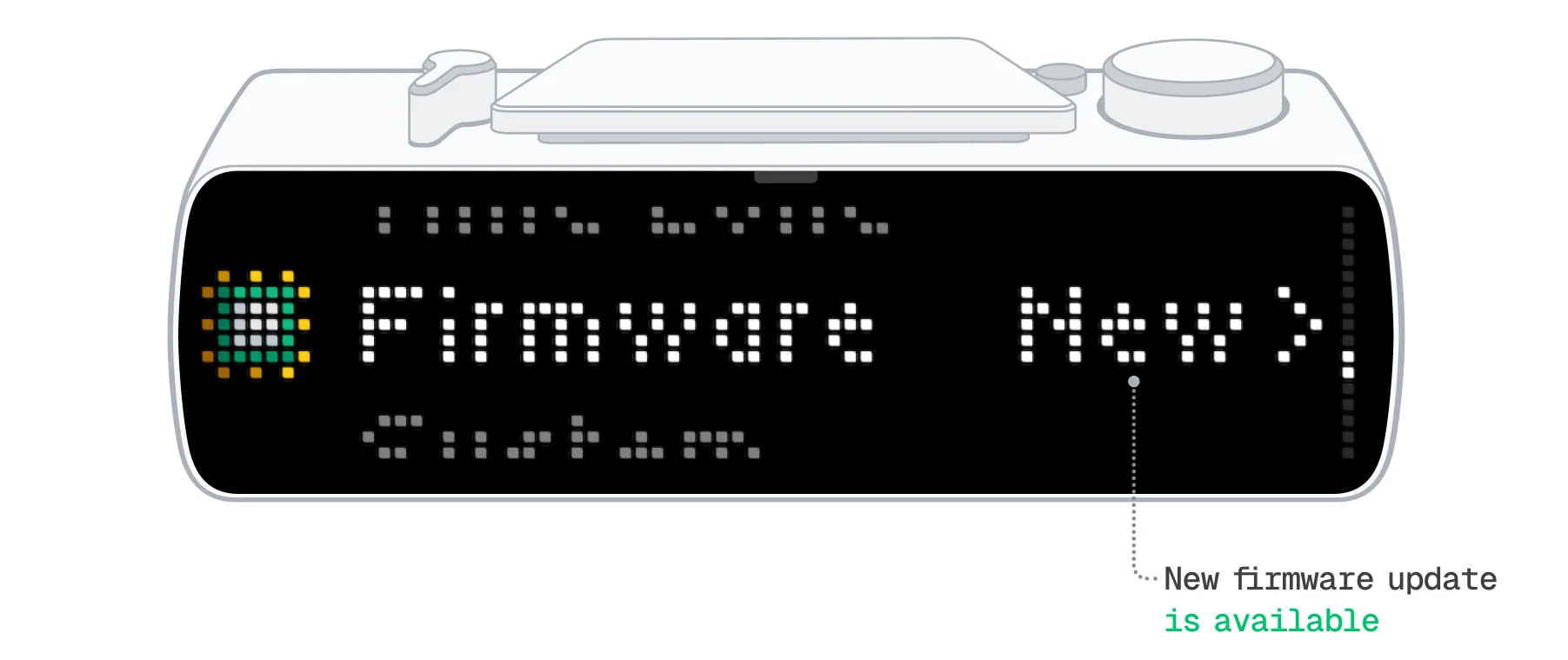
Confirm the installation of the new firmware on your BUSY Bar. The update will take around 3 minutes.
Automatic overnight firmware updates
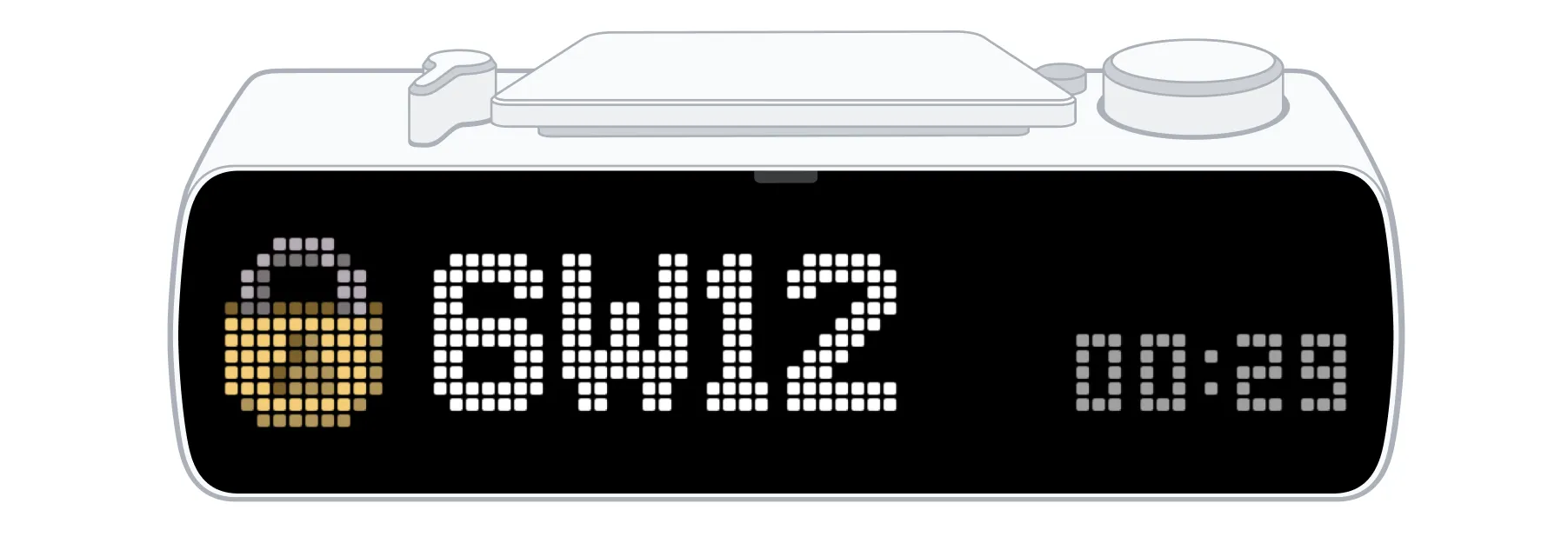
BUSY Bar can automatically update its firmware overnight whenever a new version is available. Automatic updates are enabled by default and run between 2 AM and 5 AM, according to your BUSY Bar's system time.
To disable automatic firmware updates:
On your BUSY Bar, go to Settings → Firmware → Settings.
Set Auto-update to Off.
Use your phone to update the BUSY Bar firmware
Before updating the BUSY Bar firmware using your phone, make sure:
To update the BUSY Bar firmware:
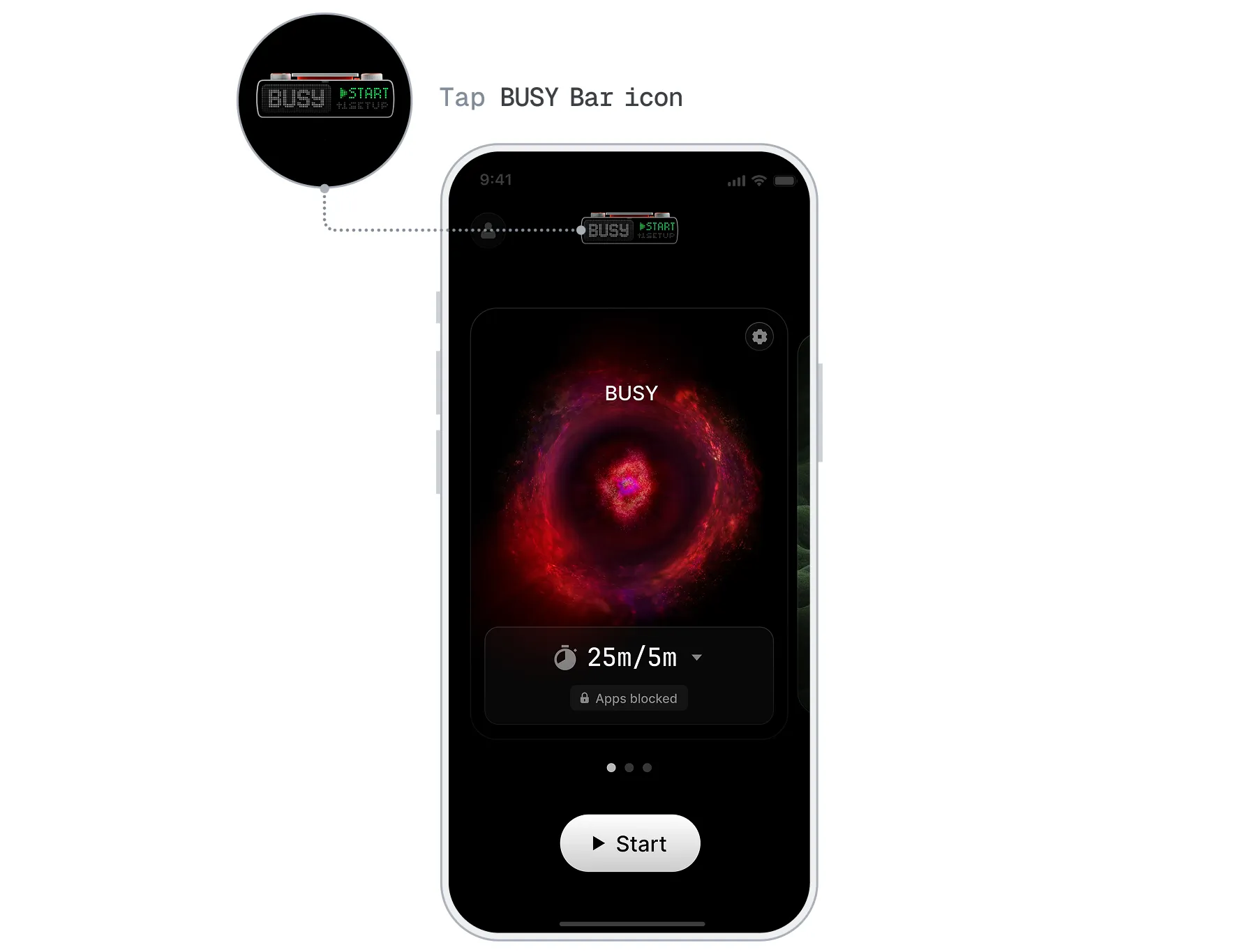
Open  BUSY App and tap the BUSY Bar icon.
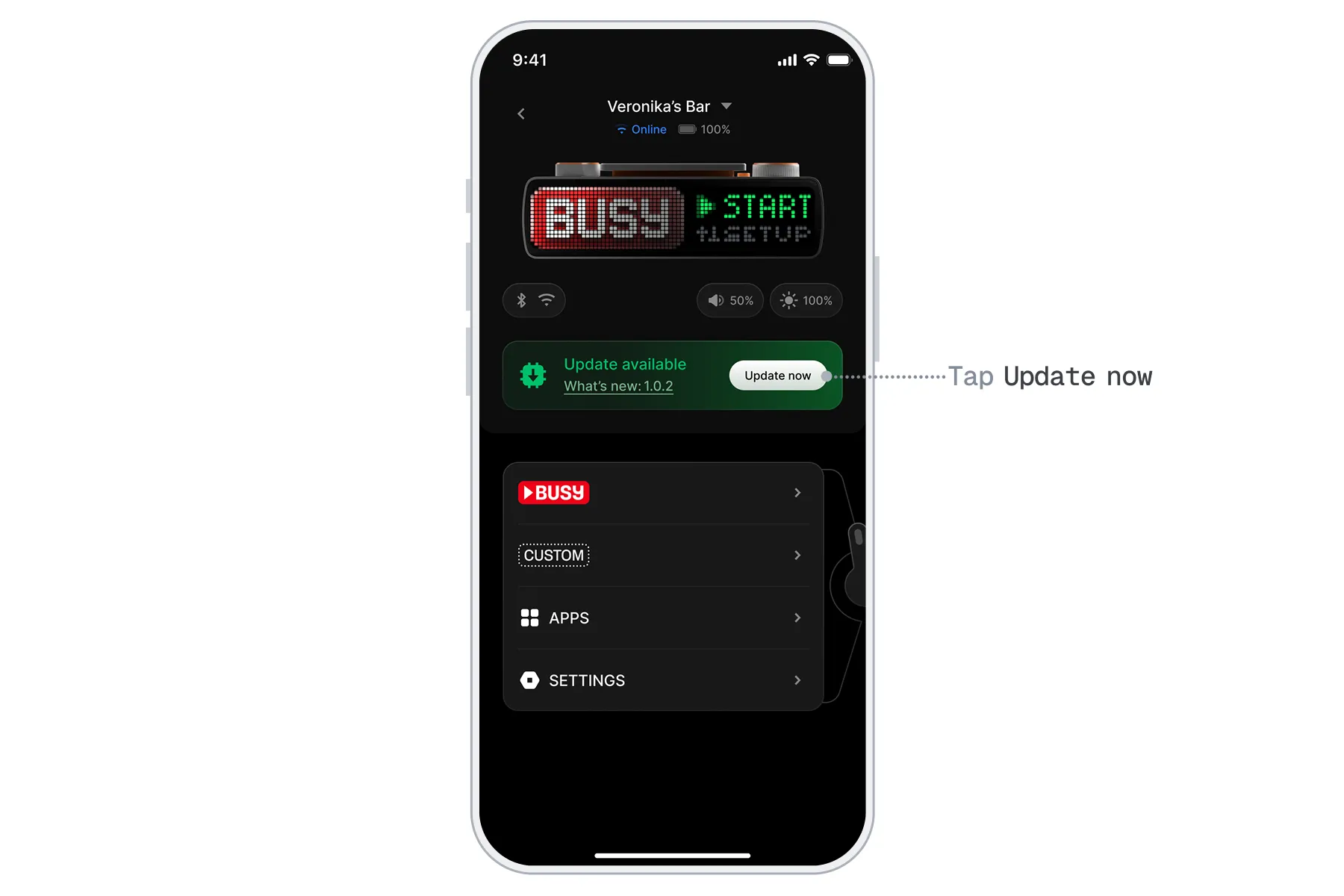
Tap Update now. The update will start automatically and take around 3 minutes.
Use your computer to update the BUSY Bar firmware
You can update your BUSY Bar firmware from your PC in four ways:
- From a file using the local web interface%section%From a file using the local web interface%section%
Using the local web interface
This method works on Windows, macOS, and Linux. Before updating the firmware, make sure:
To update the BUSY Bar firmware:
Connect your BUSY Bar to the PC via USB.
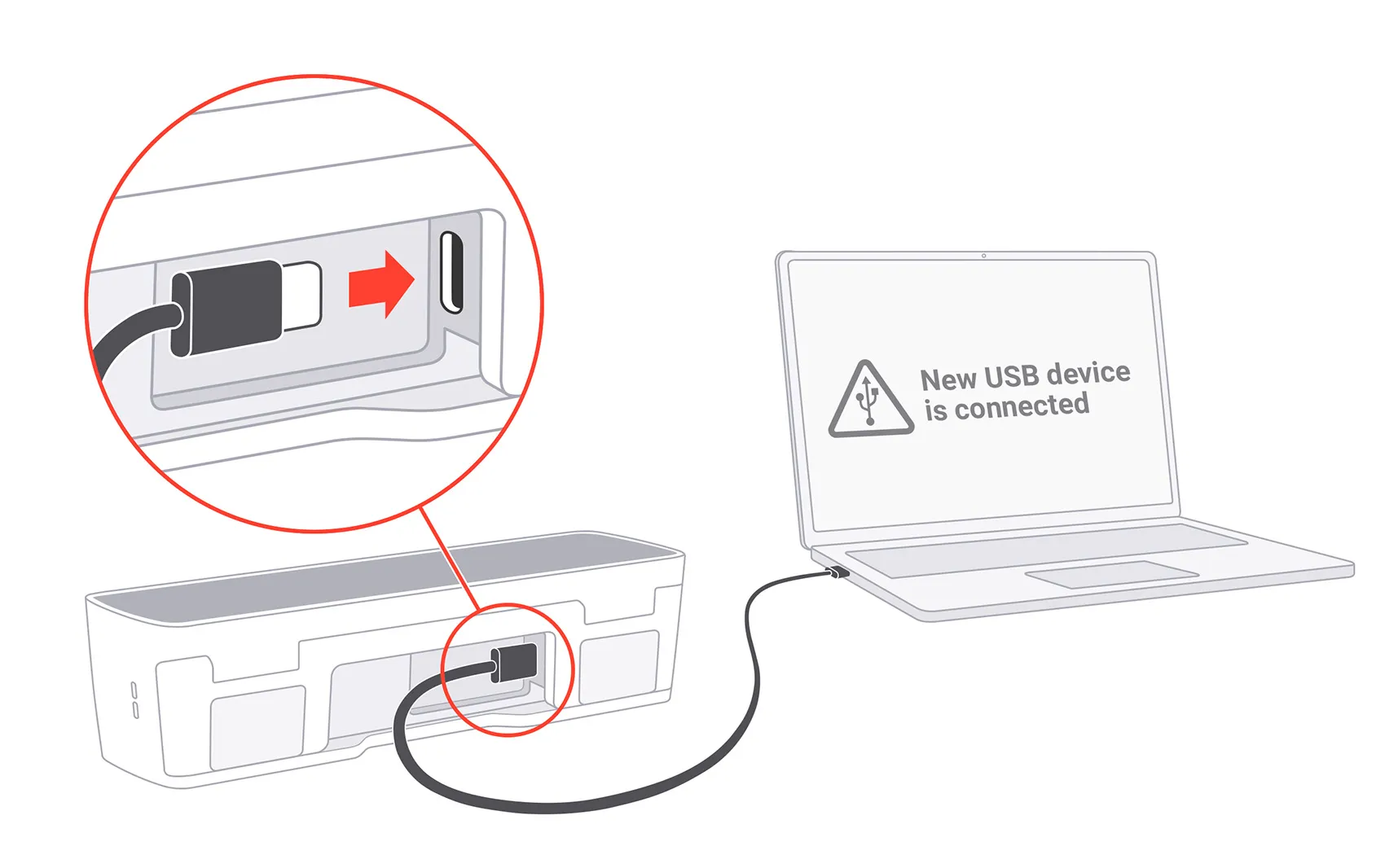
On your PC, open a web browser and go to http://10.0.4.20. The local web interface will load automatically.

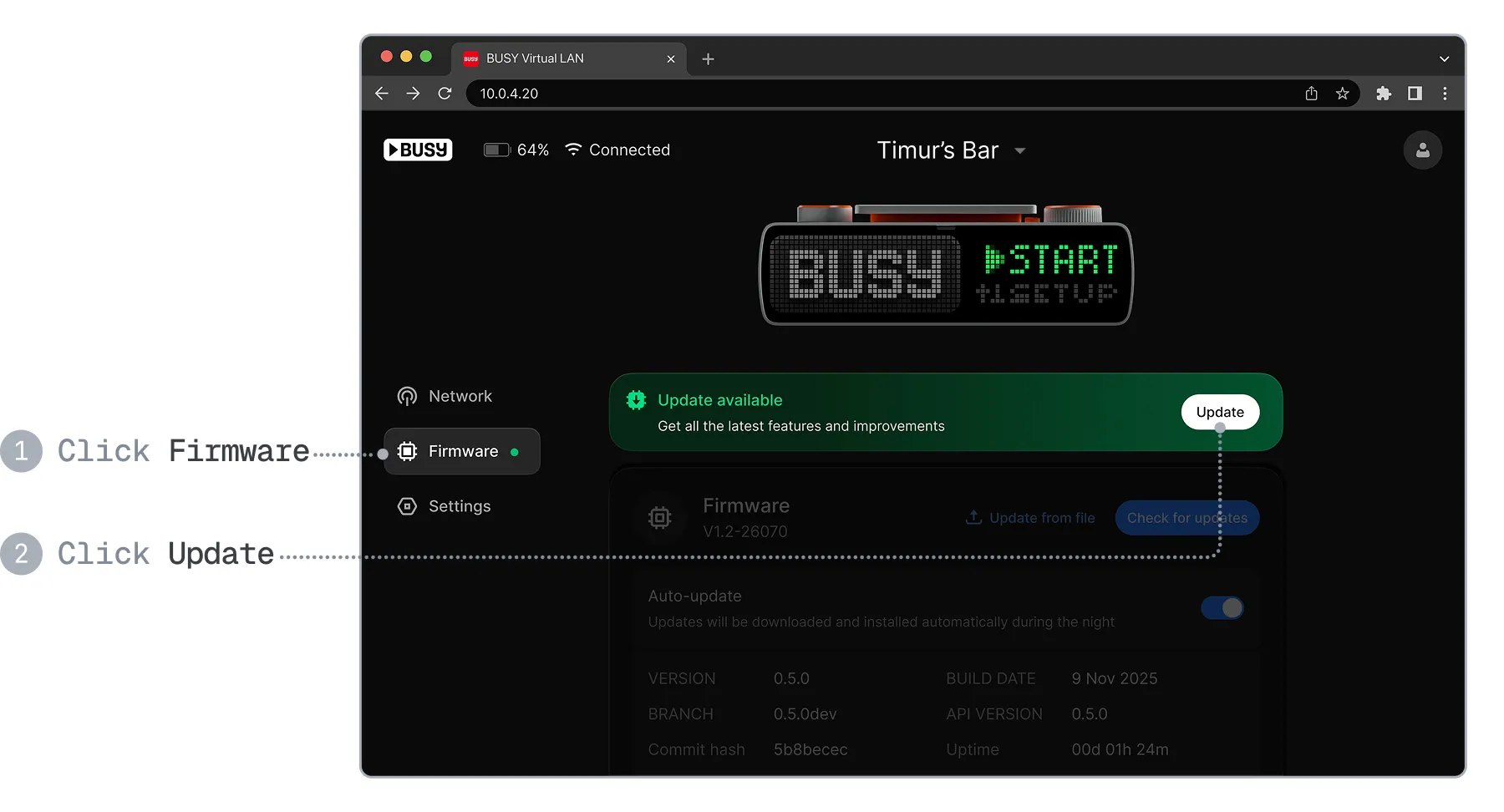
In the web interface, go to the  Firmware tab, then click Update.
In the window that opens, click Start update — the update will take around 3 minutes.
Using your BUSY account
This method works on Windows, macOS, and Linux. Before updating the firmware, make sure:
To update the BUSY Bar firmware:
In the web browser on your PC, go to https://cloud.busy.app
Log in to your BUSY account with your email address, or continue with Google, Apple, or Microsoft.
Link your BUSY Bar to your BUSY account if not already linked.
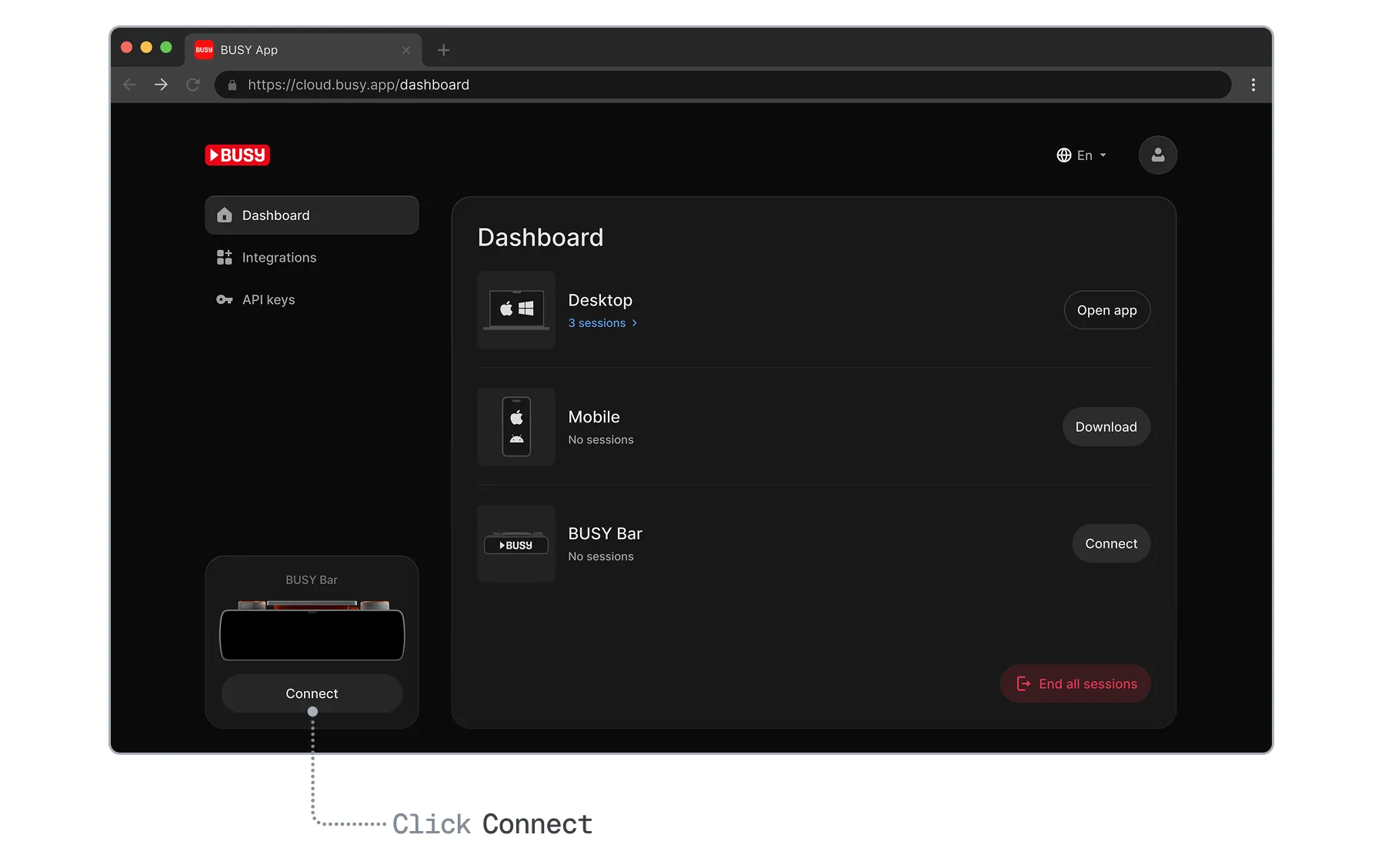
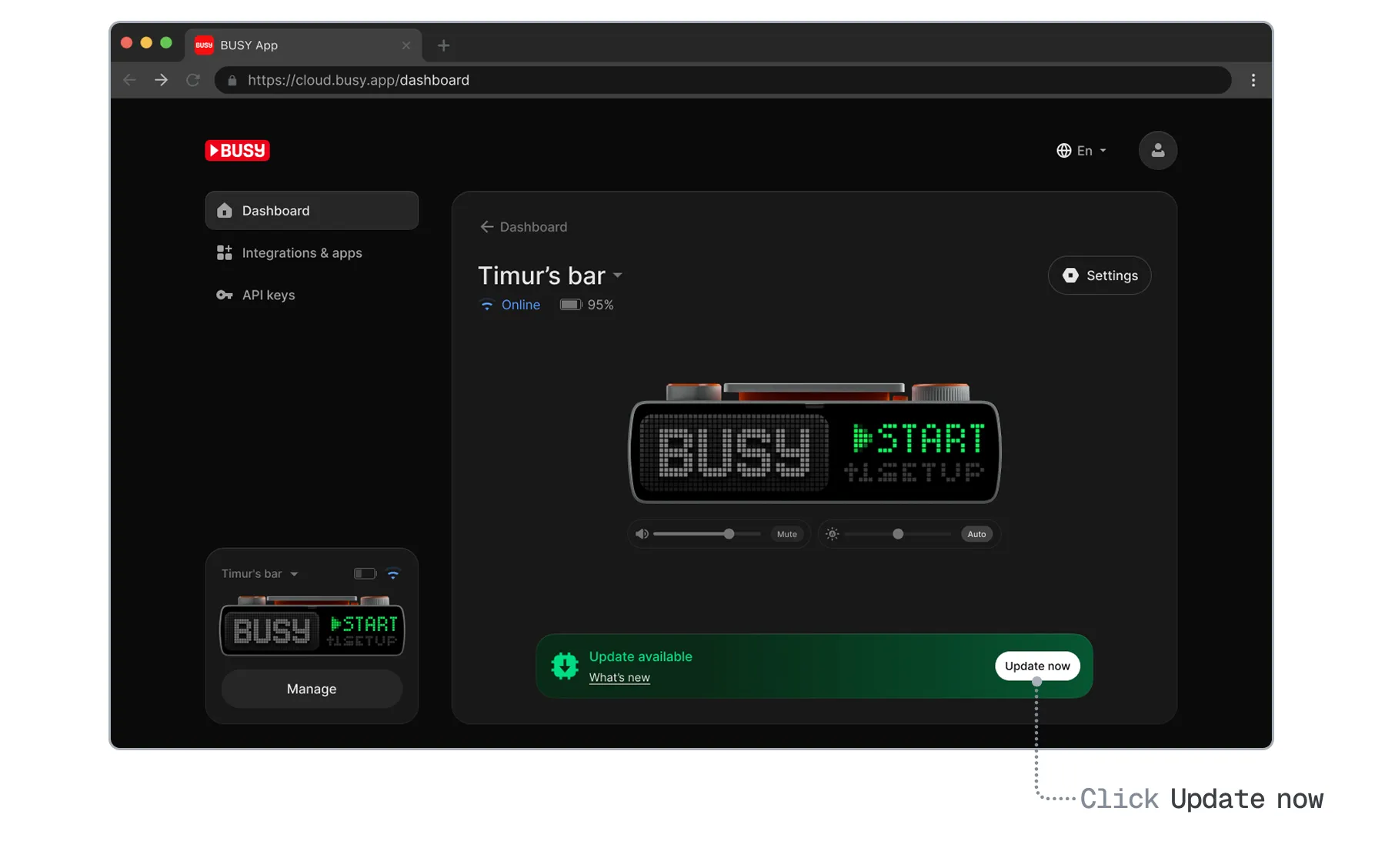
In the  Dashboard tab, click Update now, then click Update — the update will take around 3 minutes.
Using BUSY App on your Mac
Before updating the firmware, make sure:
To update the BUSY Bar firmware:
Open BUSY App on your Mac.
Click the  BUSY App in the menu bar, then click Connect.
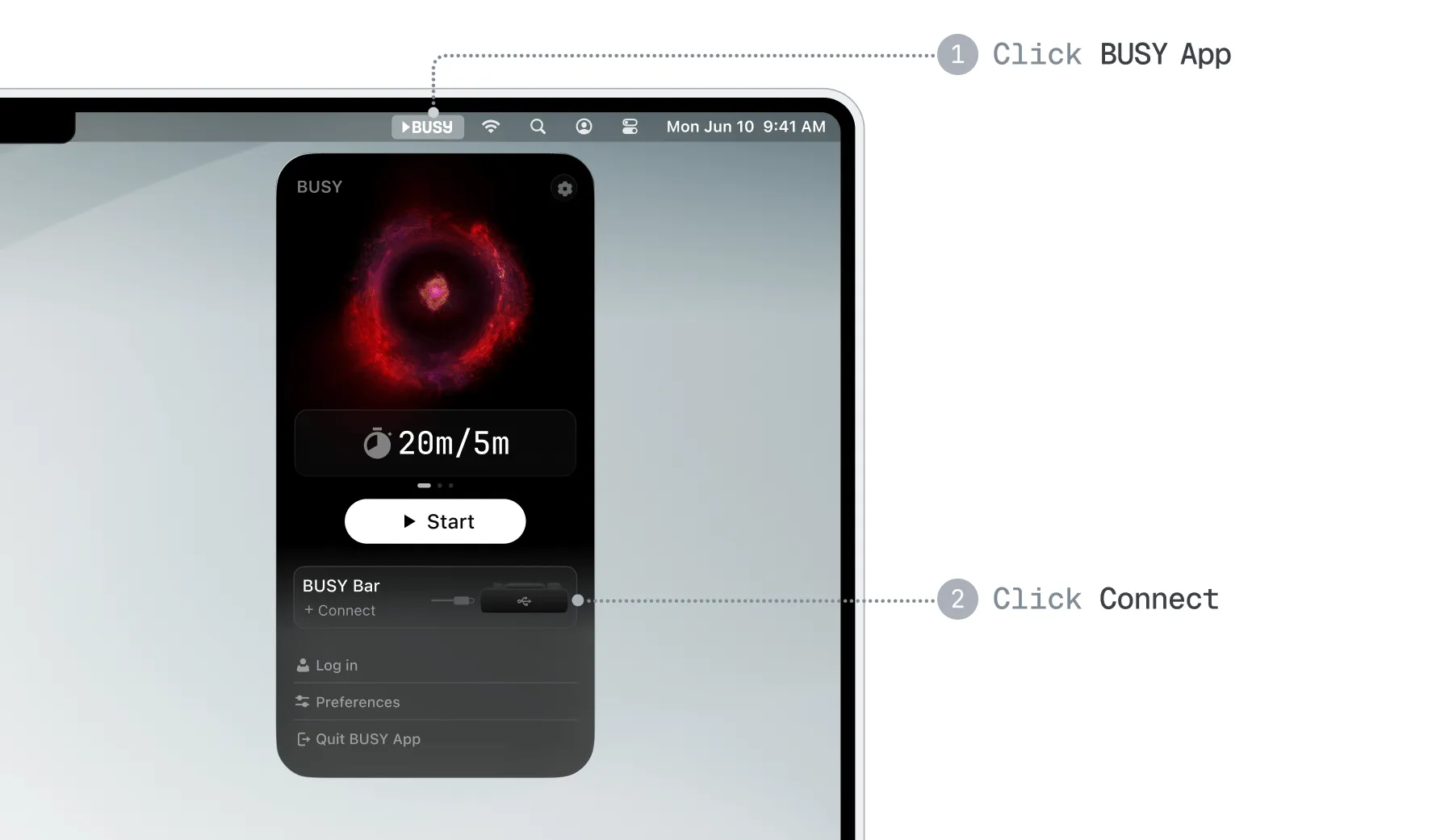
Alternatively, you can click the BUSY App icon in the Dock.
Connect your BUSY Bar to the PC via USB.
You’ll see a window asking for your permission to connect the BUSY Bar — click Connect.
 Important
Don’t unplug your BUSY Bar while it’s connecting to your Mac!
Once the BUSY Bar is connected, in the  BUSY Bar tab, click Update now.
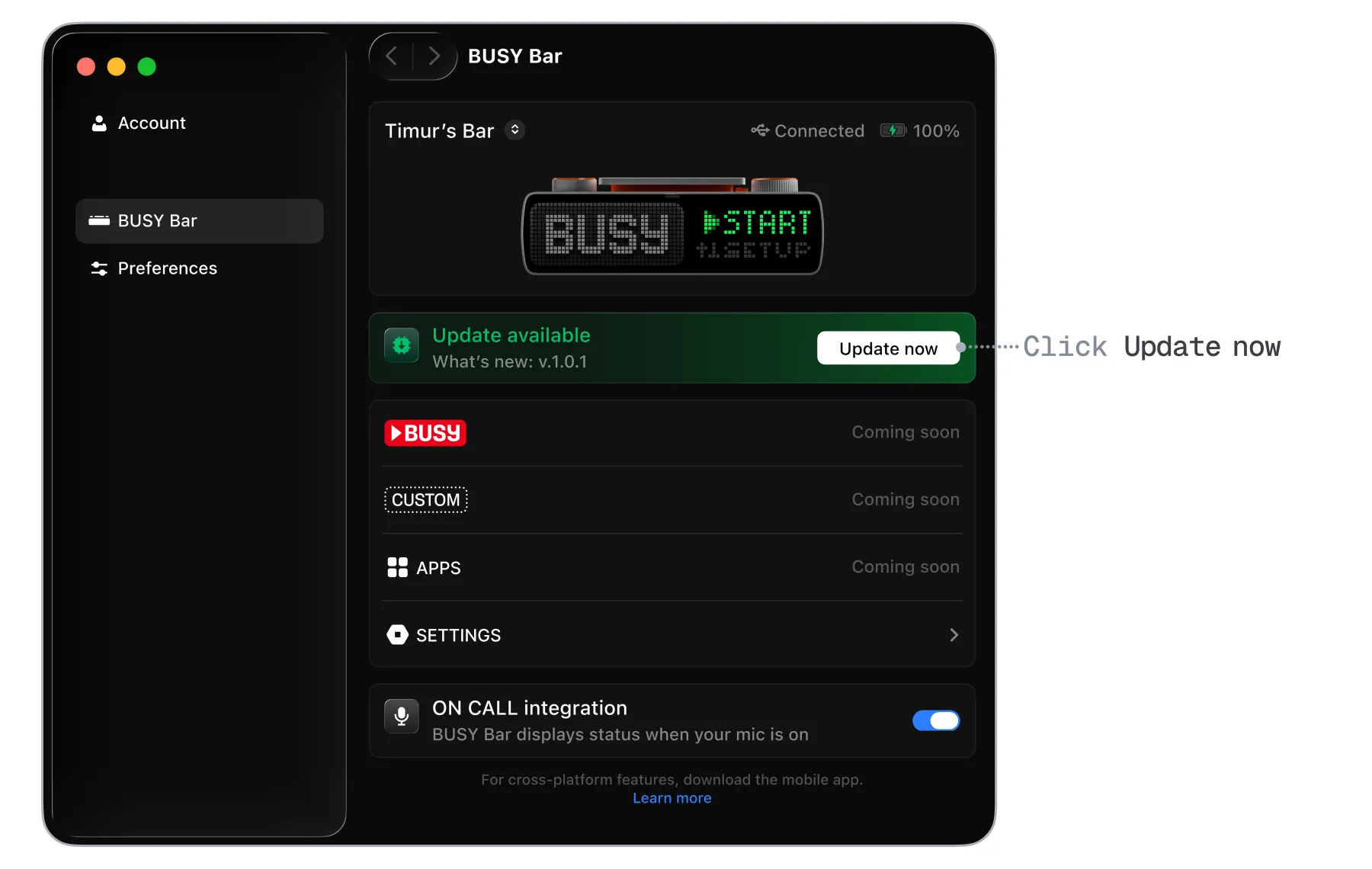
In the window that opens, click Update — the update will take around 3 minutes.
From a file using the local web interface
You can download the latest firmware version from the official BUSY Bar firmware repository and update the BUSY Bar firmware via the local web interface.
Before updating the firmware, make sure:
Step 1. Download the firmware file
On your PC, go to the firmware releases page on GitHub.
Find the latest firmware version.
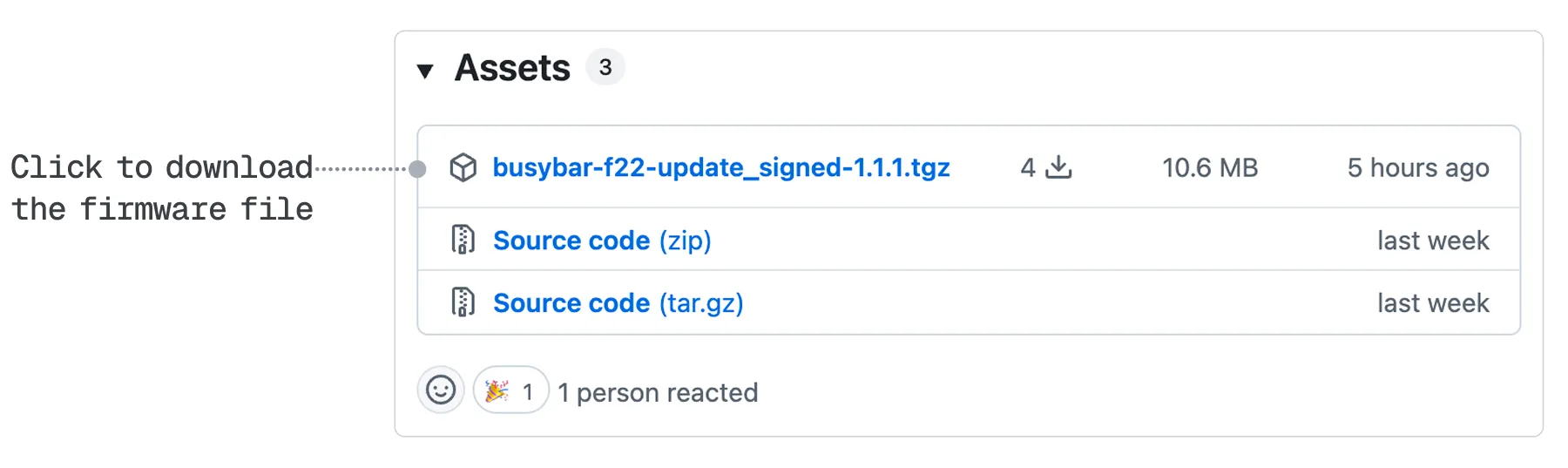
In the Assets section, click the .tgz file to download it:
Step 2. Upload the file to install the firmware on your BUSY Bar
Connect your BUSY Bar to a PC using a USB cable.
In the browser, go to http://10.0.4.20
Go to Firmware and click Update from file.
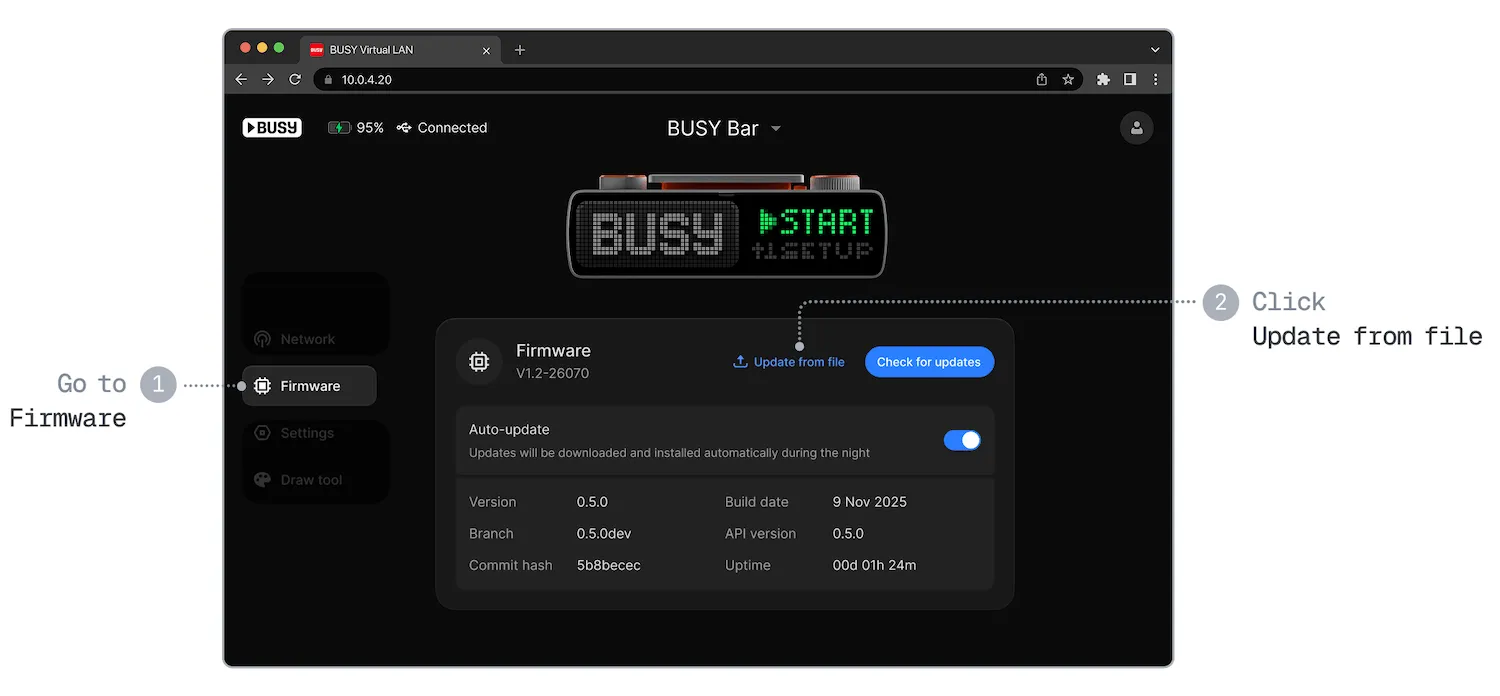
Select the .tgz file you downloaded, then click Start update.
The firmware update will take around 3 minutes.