Local web interface
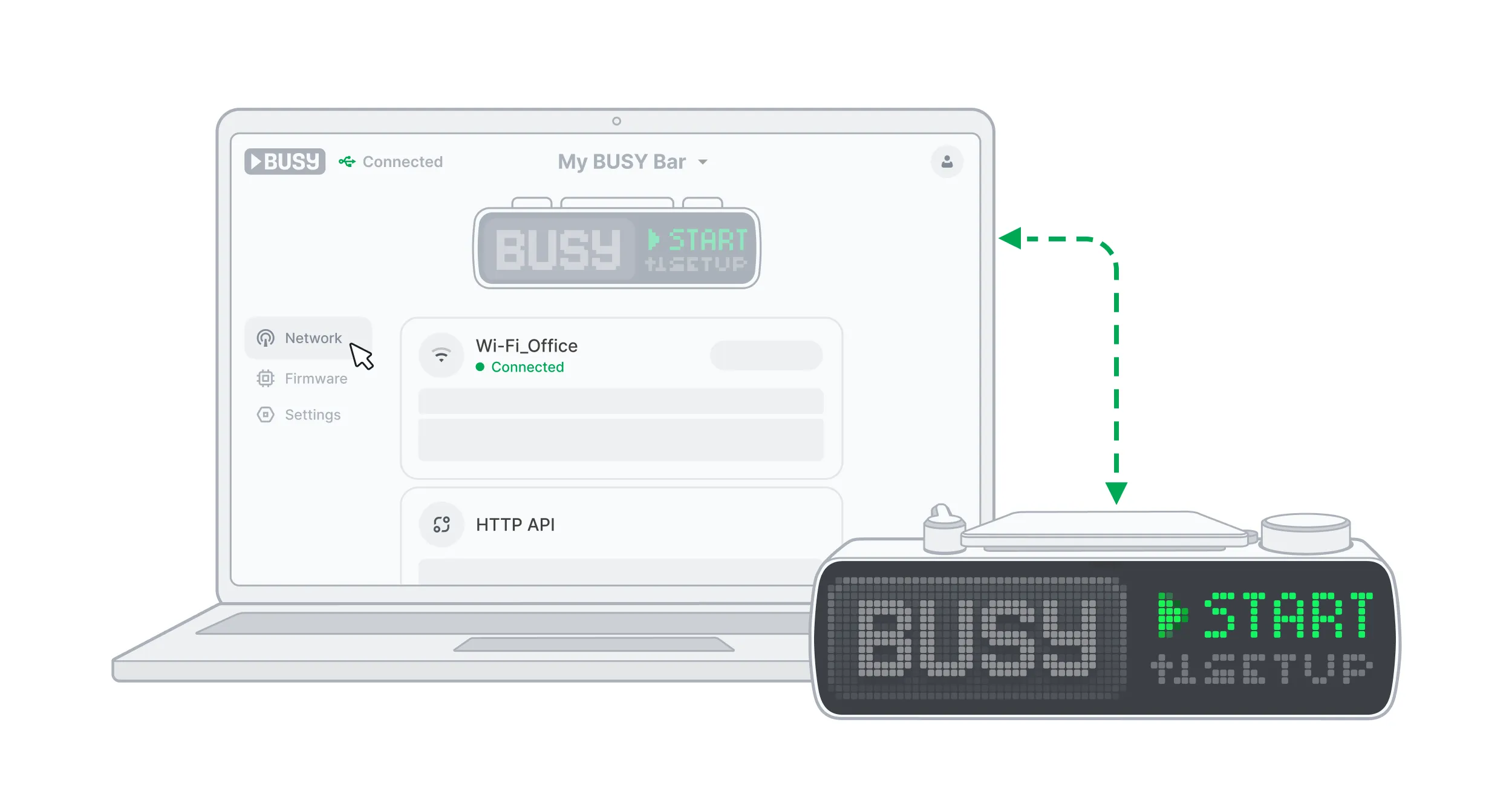
The local web interface is a control panel for your BUSY Bar. Built into the device, the interface allows you to set up BUSY Bar, update its firmware, design custom statuses, enable HTTP API access, and view the HTTP API reference. You can open the web interface in any browser on Windows, macOS, or Linux via USB or Wi-Fi (LAN).
On this page, you’ll learn:
- Access the local web interface%section%Access the local web interface%section%
- Overview%section%Overview%section%
- Troubleshooting%section%Troubleshooting%section%
Access the local web interface
You can access the local web interface via USB or Wi-Fi. An internet connection is not required.
Connect your BUSY Bar to the PC via USB.
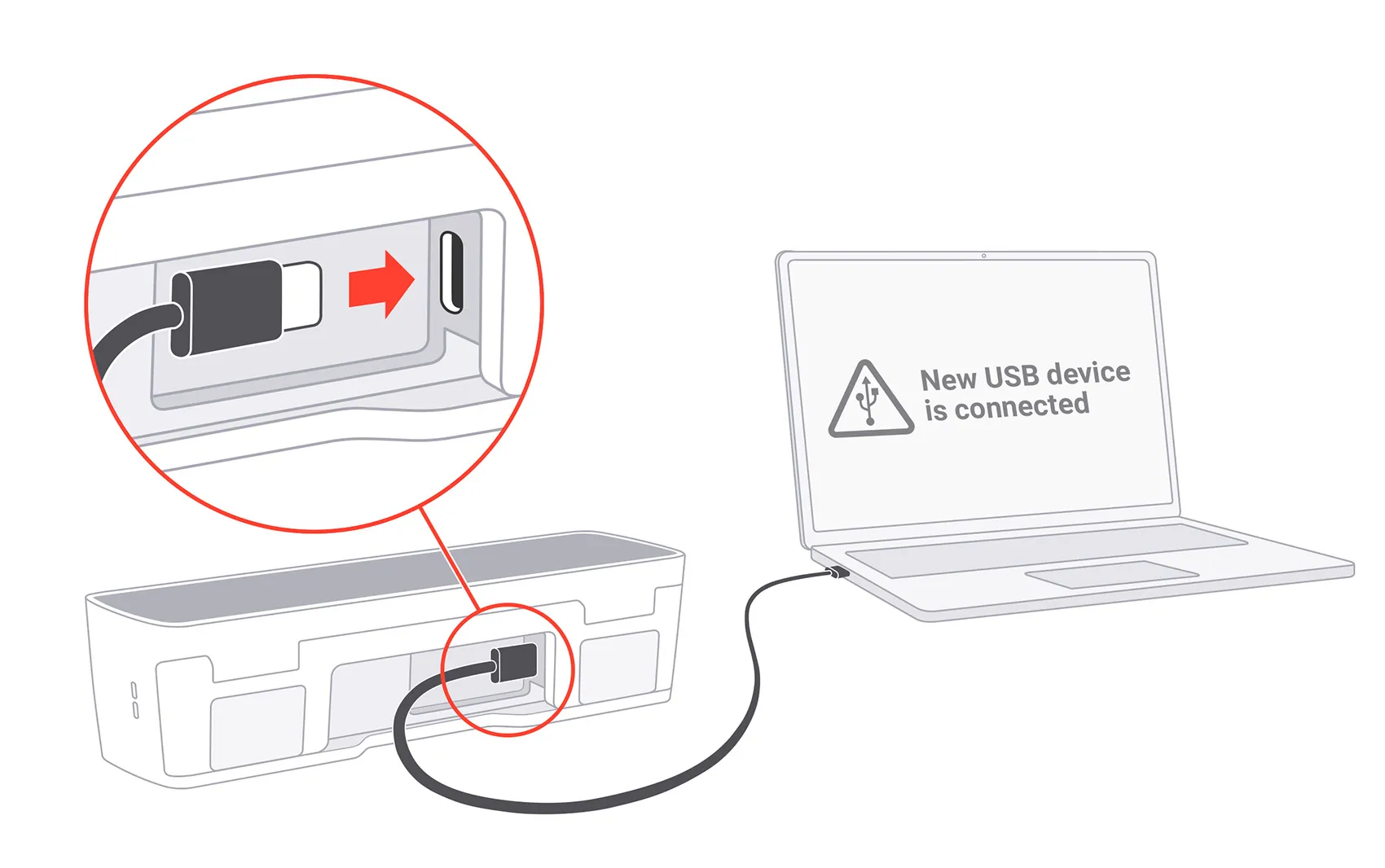
On your PC, open a web browser and go to http://10.0.4.20. The local web interface will load automatically.
- Restart your BUSY Bar: Press and hold the
 Start / Pause and
  Back buttons for 3 seconds.
- Make sure your browser is allowed to find devices on local networks: How to enable this on macOS and Windows 11.
- Try a hard reboot of your BUSY Bar: Press and hold the Back button for 20 seconds.
Before opening the web interface via Wi-Fi, make sure:


Step 1. Enable remote access
Connect your BUSY Bar to the PC via USB.
On your PC, open a web browser and go to http://10.0.4.20. The local web interface will load automatically.
Turn on the HTTP API access toggle.
(Optional) Set a password to secure the web interface.
Step 2. Check the BUSY Bar's IP address
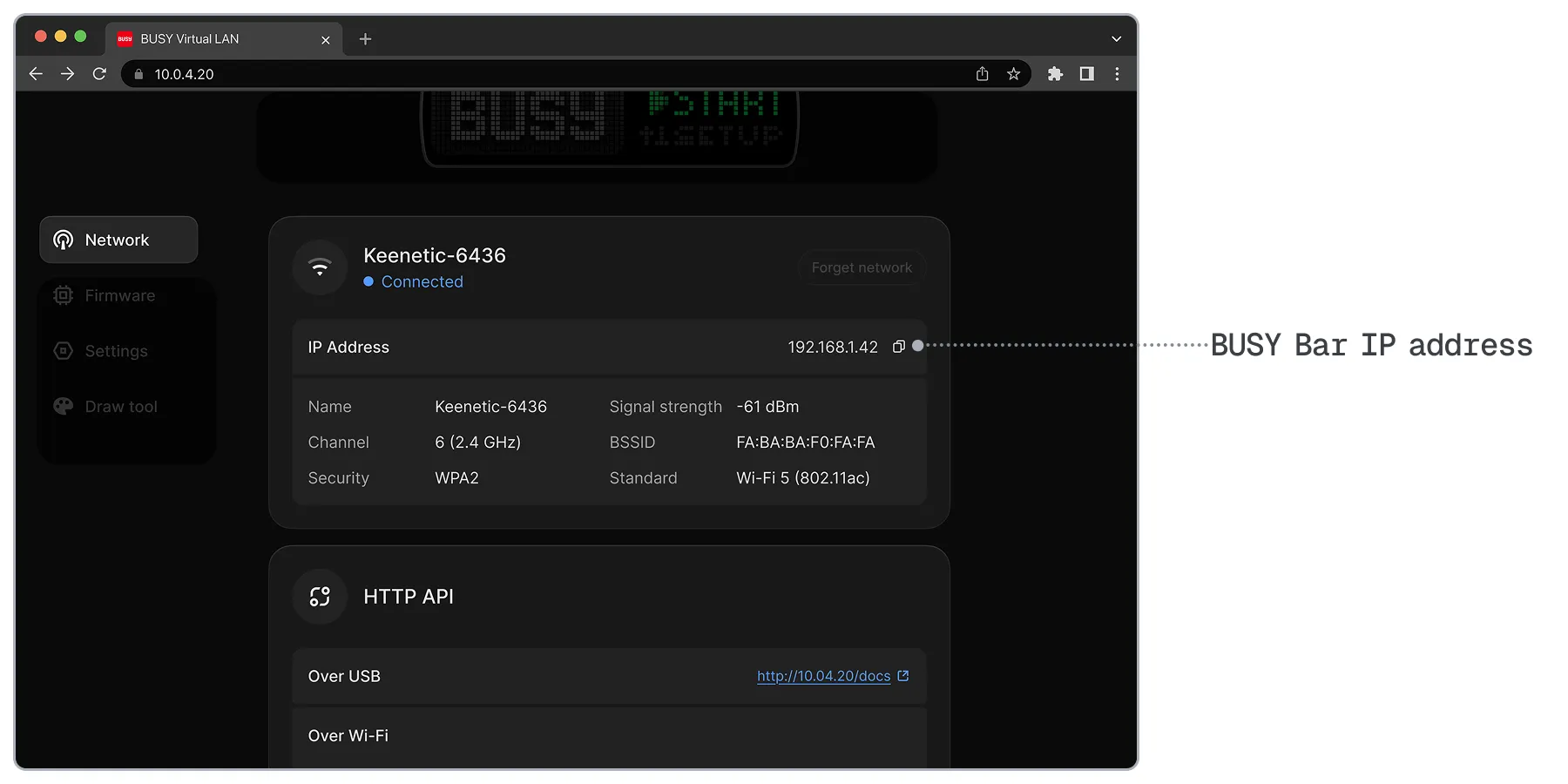
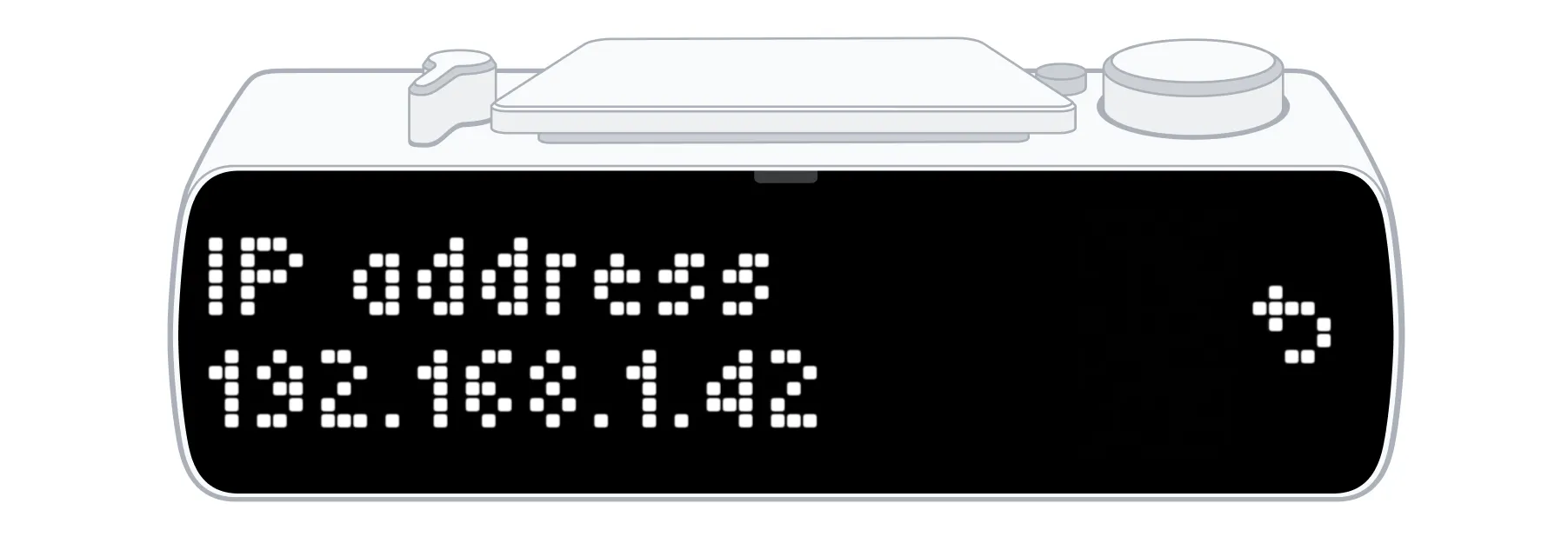
Step 3. Access the web interface via Wi-Fi
Open a browser and enter the BUSY Bar's IP address. The web interface will load automatically.
(Optional) Enter your password if you‘ve set any and click Unlock.
Overview
The local web interface has four tabs:
-
 Network — Manage BUSY Bar’s Wi-Fi connection and access the HTTP API
-
 Firmware — View firmware info and update BUSY Bar's firmware
-
 Settings — Configure BUSY Bar's settings, smart home integration, and time zone
-
 Draw tool — Create custom statuses and display them on the BUSY Bar screen
At the top of each tab, you’ll see the battery level, web interface connection status, your BUSY Bar name, and a live stream of the BUSY Bar screen. In the top-right corner, you can open the account menu to change the web interface theme, secure the web interface with a password, and link your BUSY account.
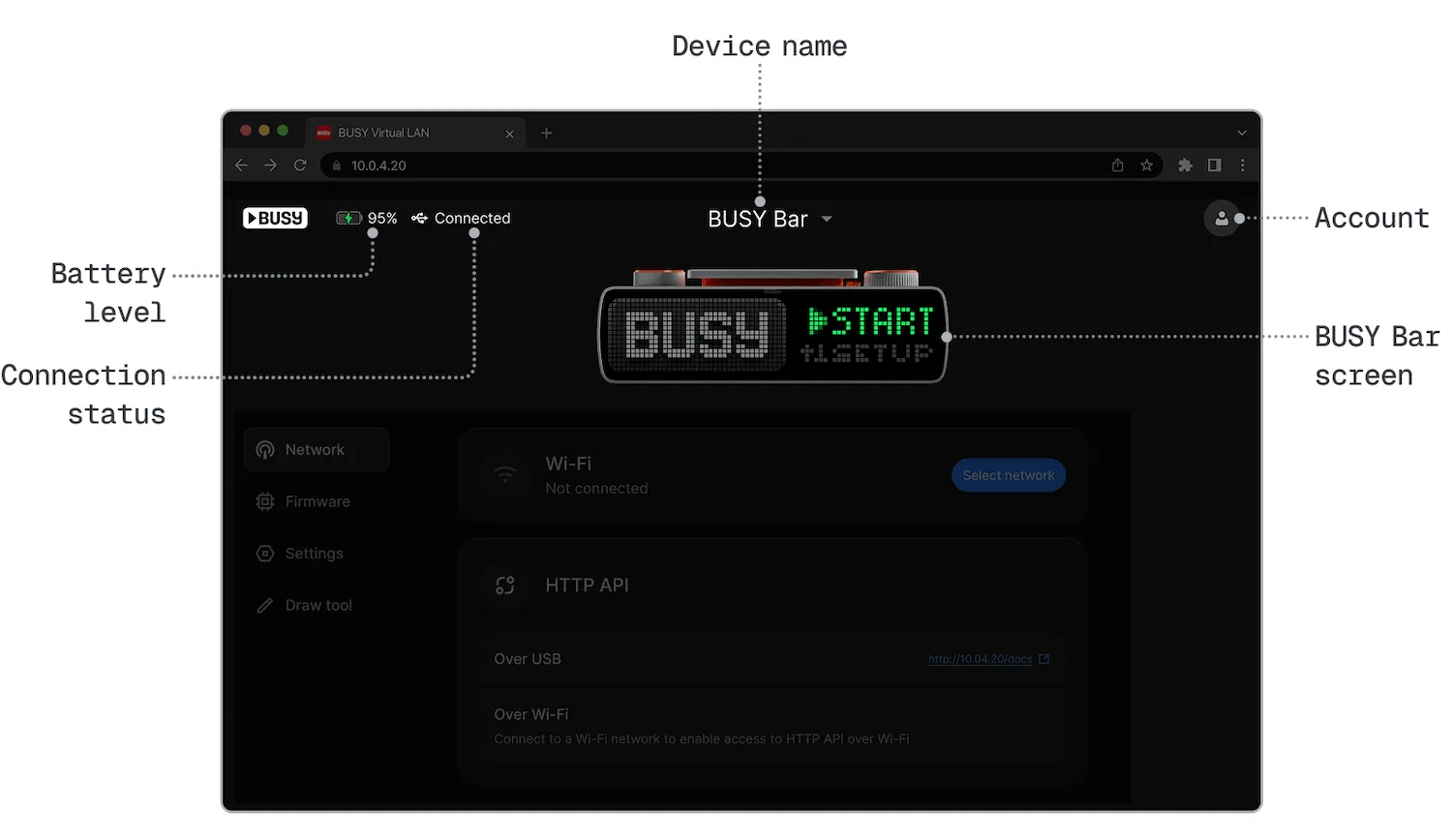
Rename BUSY Bar
Click the BUSY Bar name at the top of the screen and click Rename.
Enter the new name and click Rename.
Change the web interface theme
Сlick the  Account icon in the top-right corner.
Click Switch to light theme (or Switch to dark theme).
Set a password for the web interface
You can restrict access to the web interface by protecting it with a password. The password will be required when connecting over Wi-Fi. When connecting via USB, no password is required.
Сlick the Account icon in the top-right corner.
Click Set password.
Enter the password and click Set password.
Remember your web interface password carefully — it cannot be recovered, but only reset via a wired connection.
Link your BUSY account
To link the BUSY Bar to your BUSY account and sync your data across all platforms:
In the web interface, click the Account icon in the top-right corner.
Click Log in to BUSY account.
Log in to your BUSY account with your email address, or continue with Google, Apple, or Microsoft.
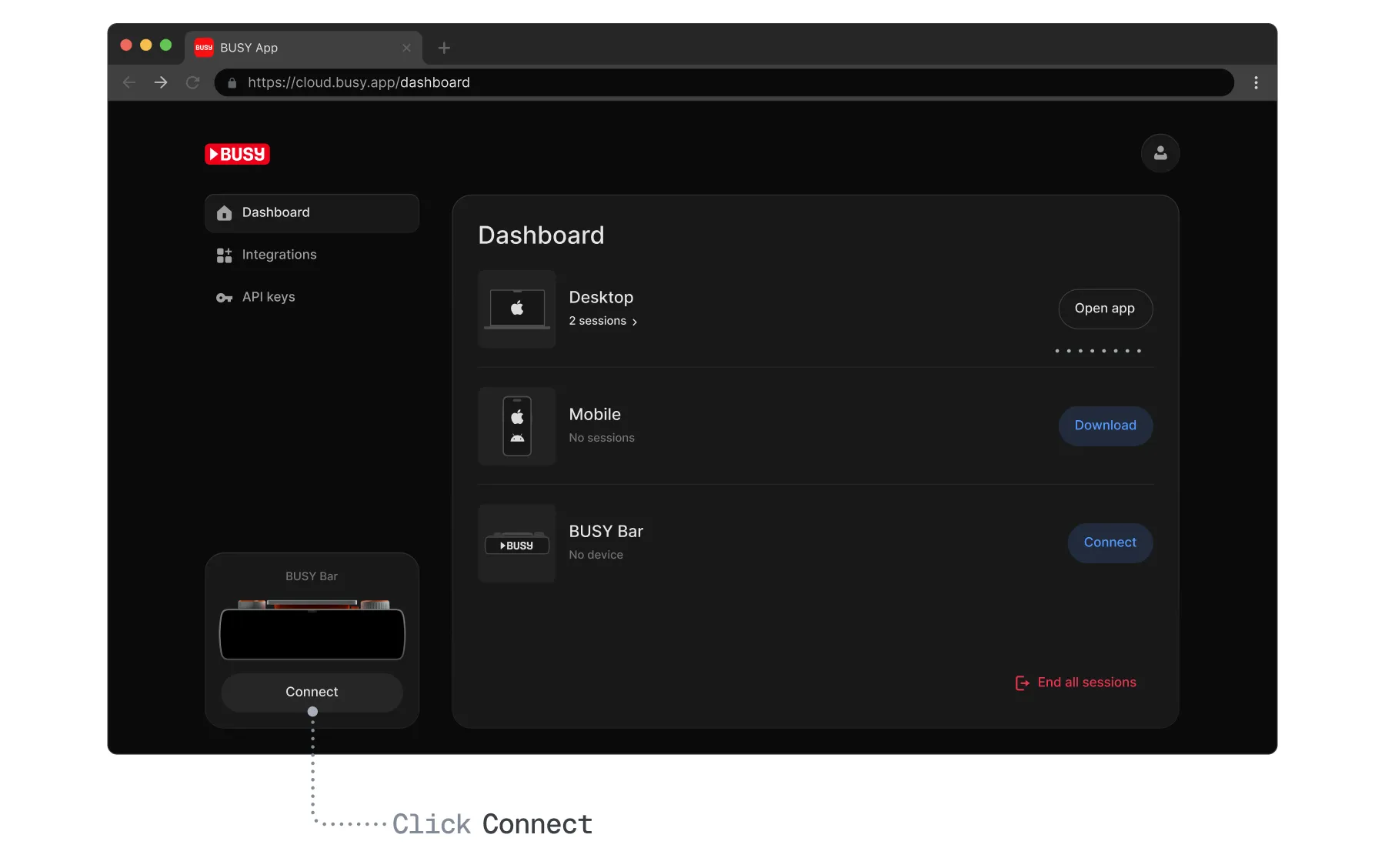
In your BUSY account, click Connect under the BUSY Bar screen.
On your BUSY Bar, go to Settings → Account → Get pairing code — BUSY Bar will display a pairing code.
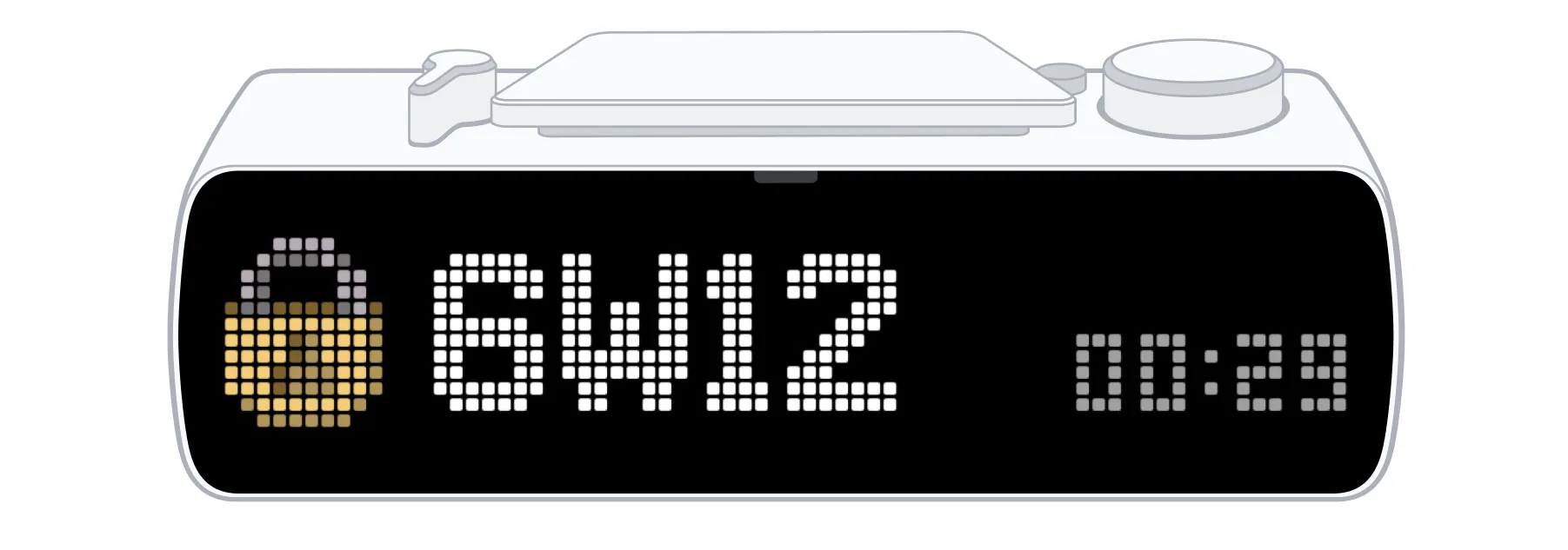
In your BUSY account, enter the code and click Connect.
Network tab
In the Network tab, you can manage the BUSY Bar‘s Wi-Fi connection, view the BUSY Bar's IP address, and access the HTTP API:
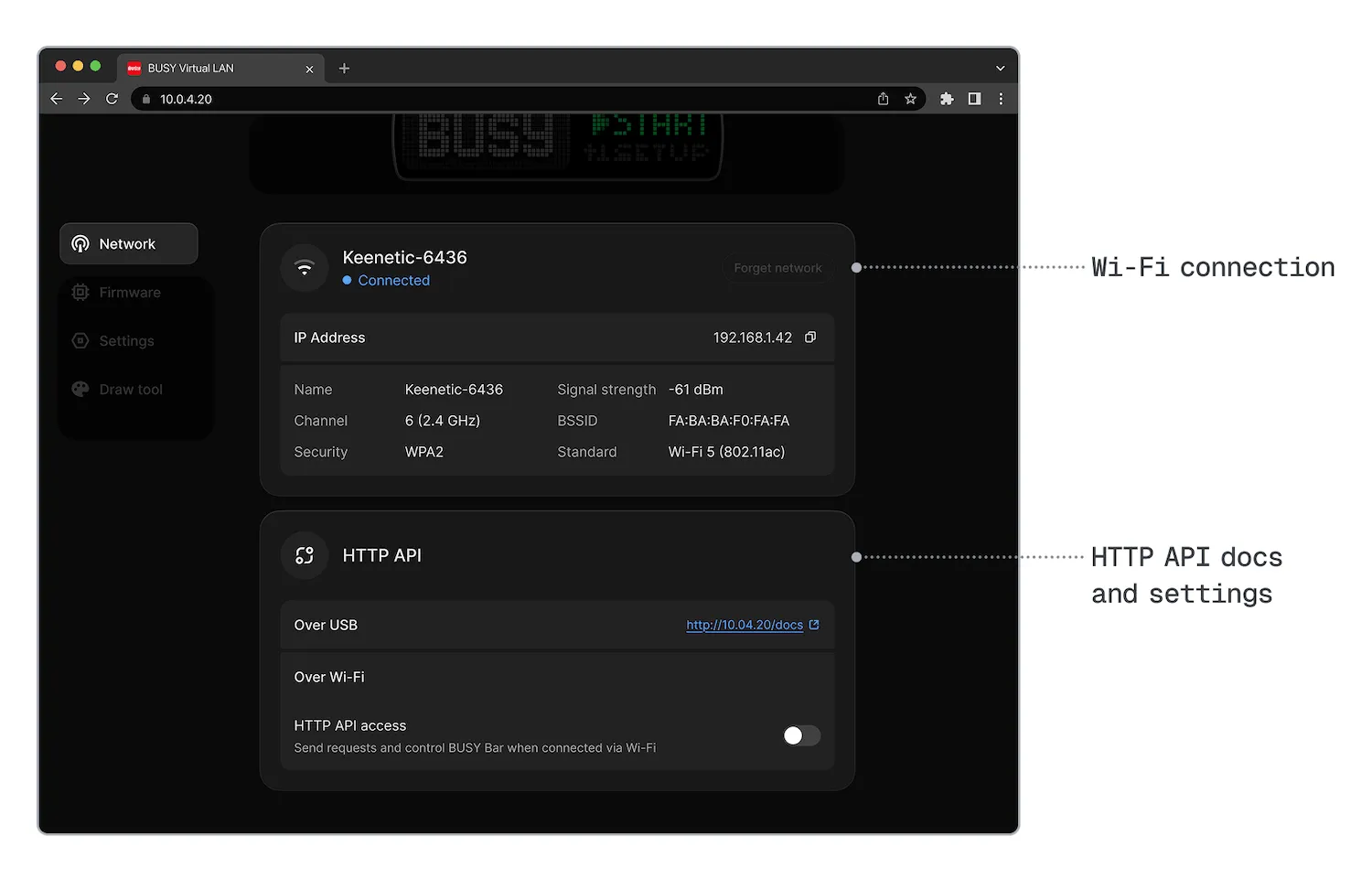
Connect BUSY Bar to Wi-Fi
The web interface allows you to connect your BUSY Bar to Wi-Fi and manage its Wi-Fi connection. Learn more in Connect to W-Fi.
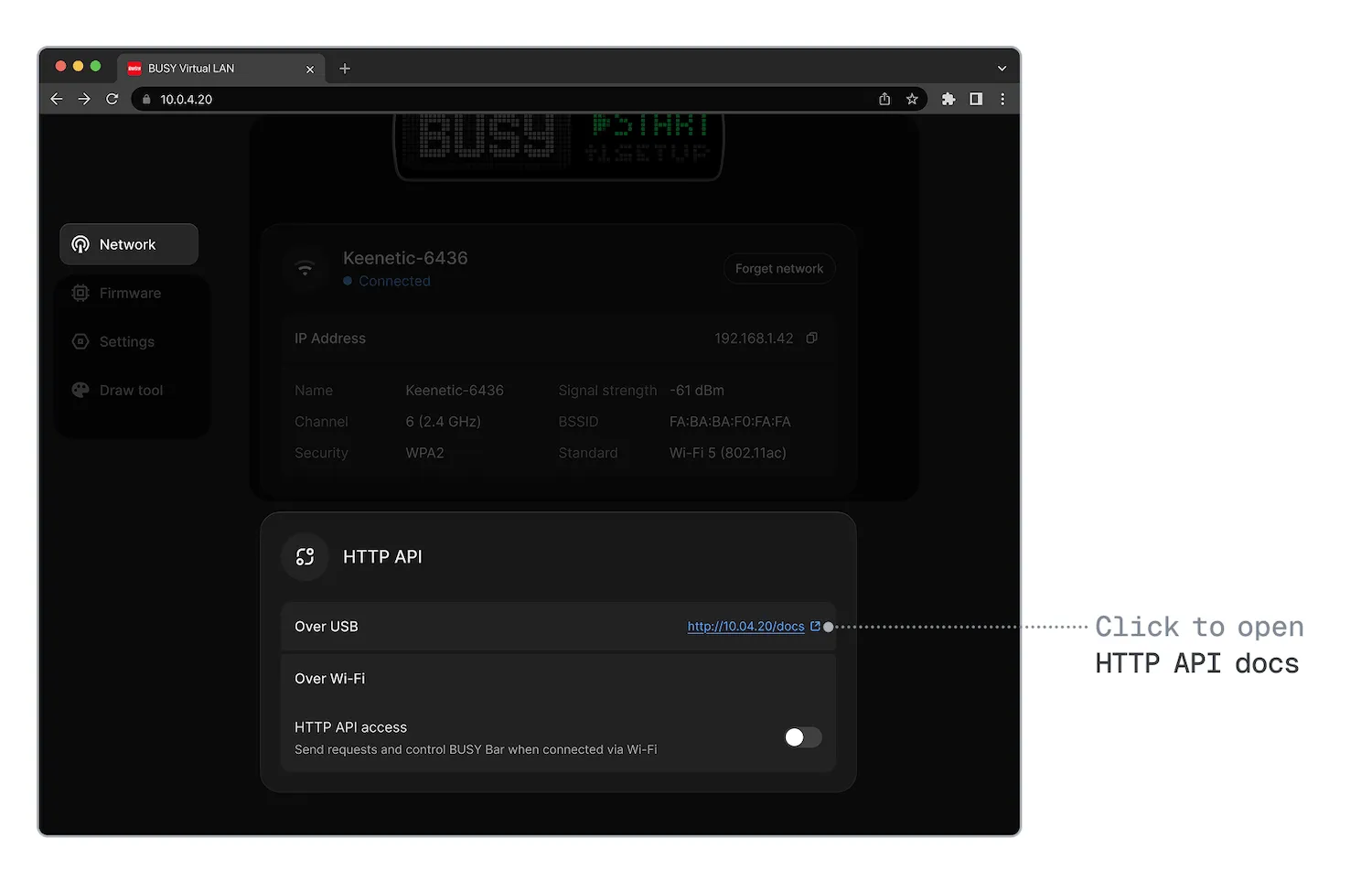
View HTTP API documentation
Access the HTTP API reference locally by opening the HTTP API docs in the Network tab. It is also published online in BUSY Docs. Learn more about BUSY Bar HTTP APILink.
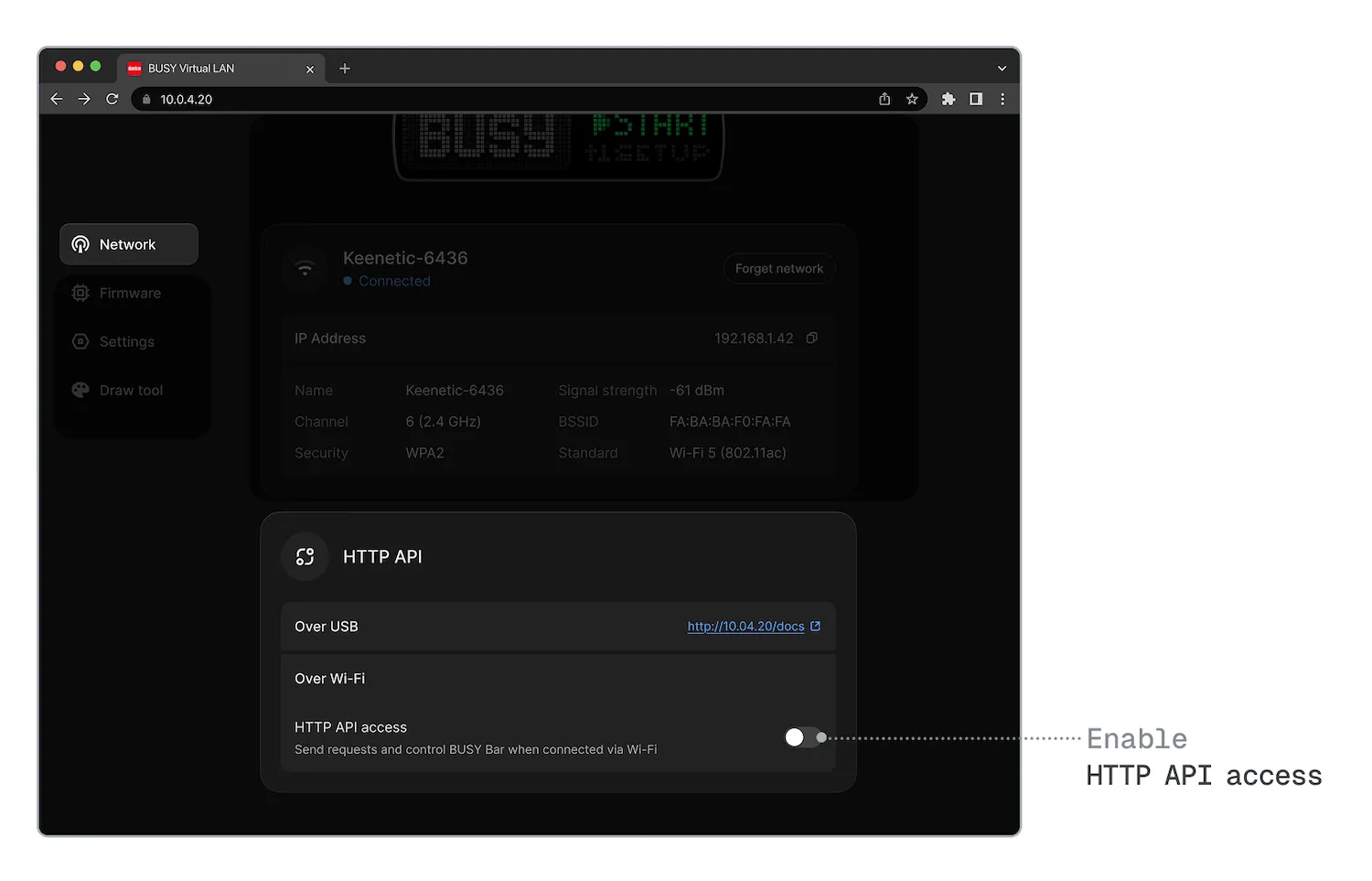
Enable HTTP API access
You can enable HTTP API access to send requests and control BUSY Bar when connected via Wi-Fi. By default, access via Wi-Fi is disabled. To enable it, you need to switch on the HTTPI API access toggle and set a password — it will be required each time you open the web interface via Wi‑Fi as well as for authorizing HTTP API requests.
Remember the HTTP API access password carefully — it cannot be recovered, but only reset via a wired connectionreset via a wired connection.
Firmware tab
In the Firmware tab, you can view the current firmware version, update your BUSY Bar, and manage automatic overnight updates.
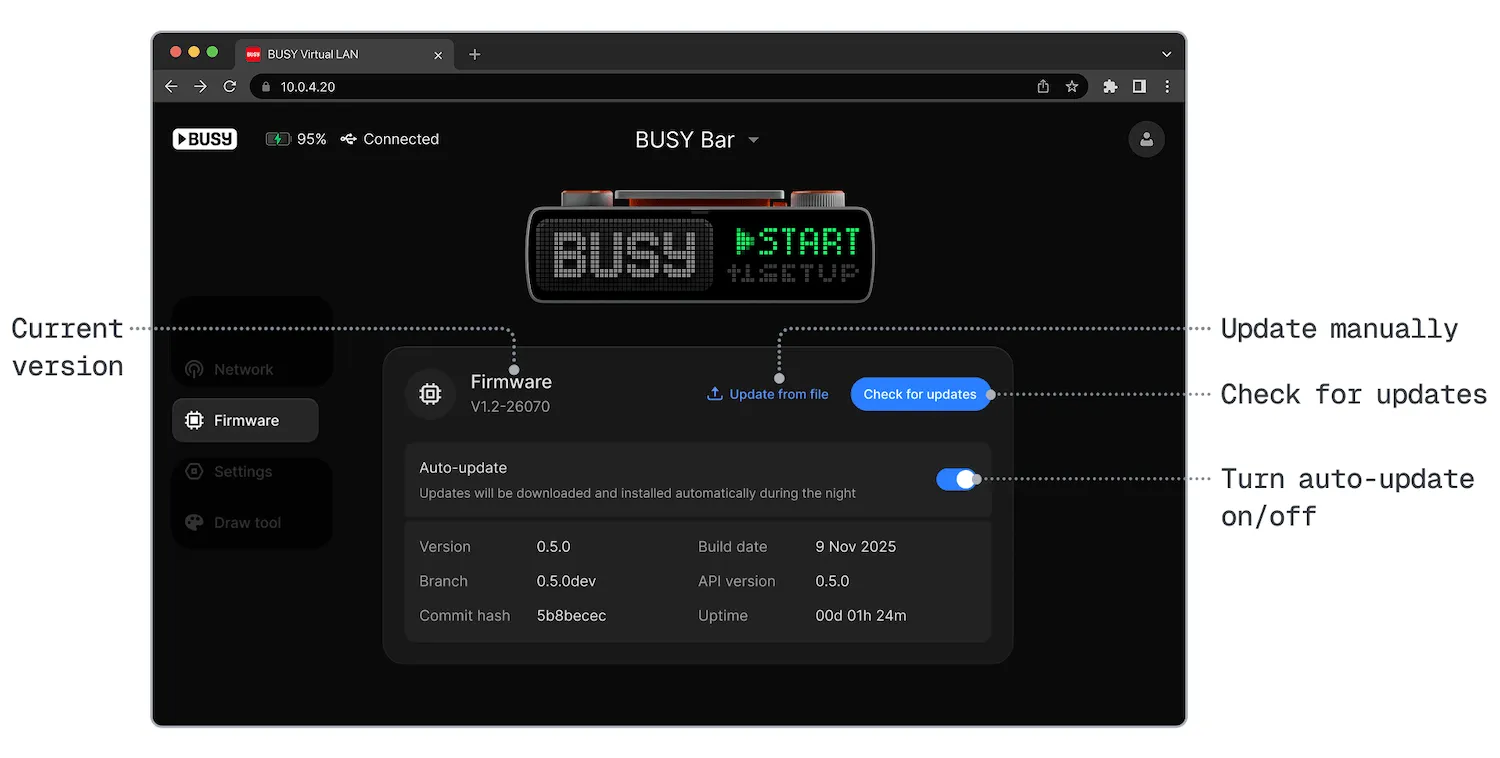
Update your BUSY Bar firmware via the web interface
Before updating the firmware, make sure:

To update the BUSY Bar firmware:
Go to the Firmware tab, click Update.
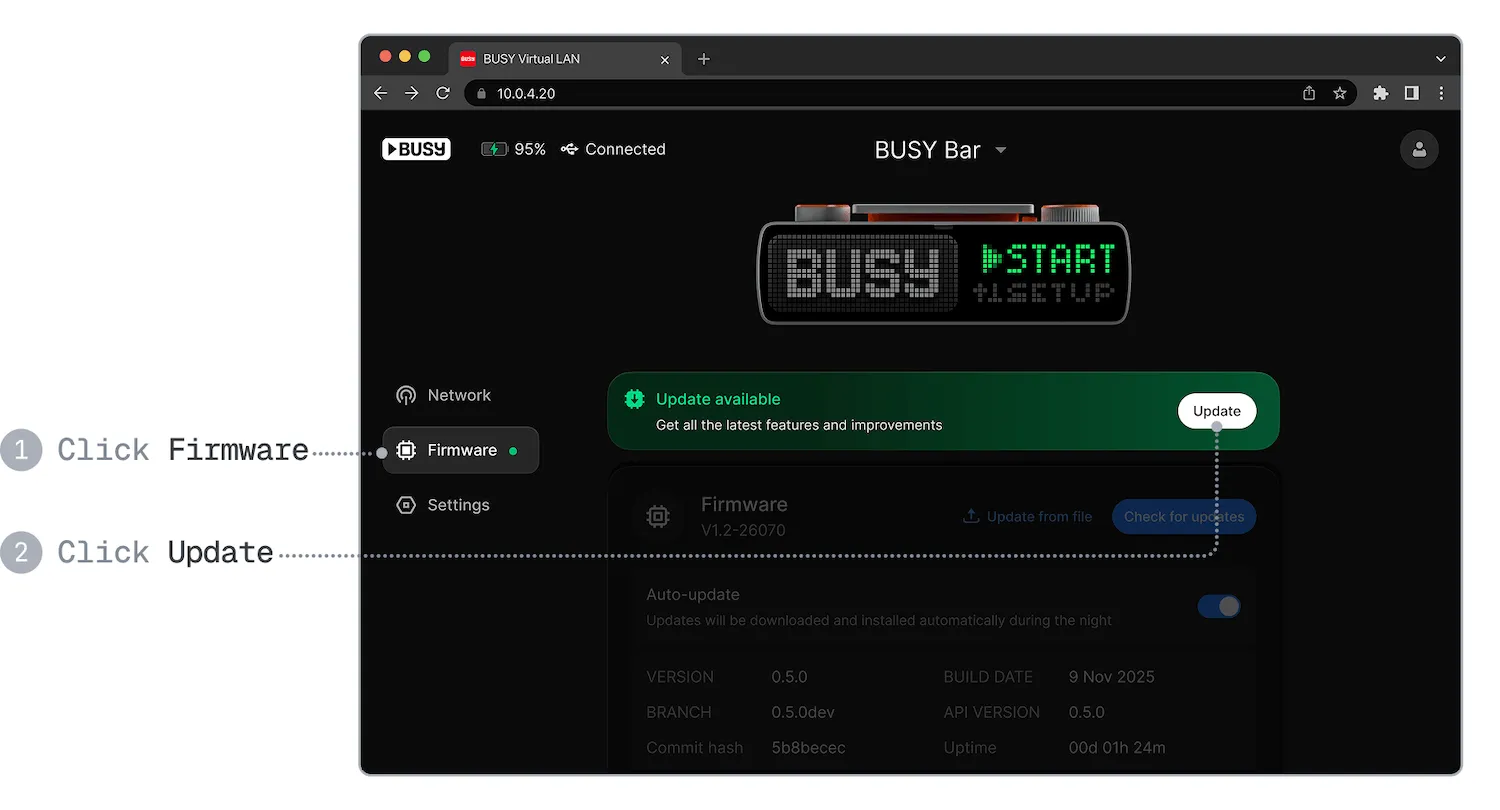
In the window that opens, click Start update — the update will take around 3 minutes.
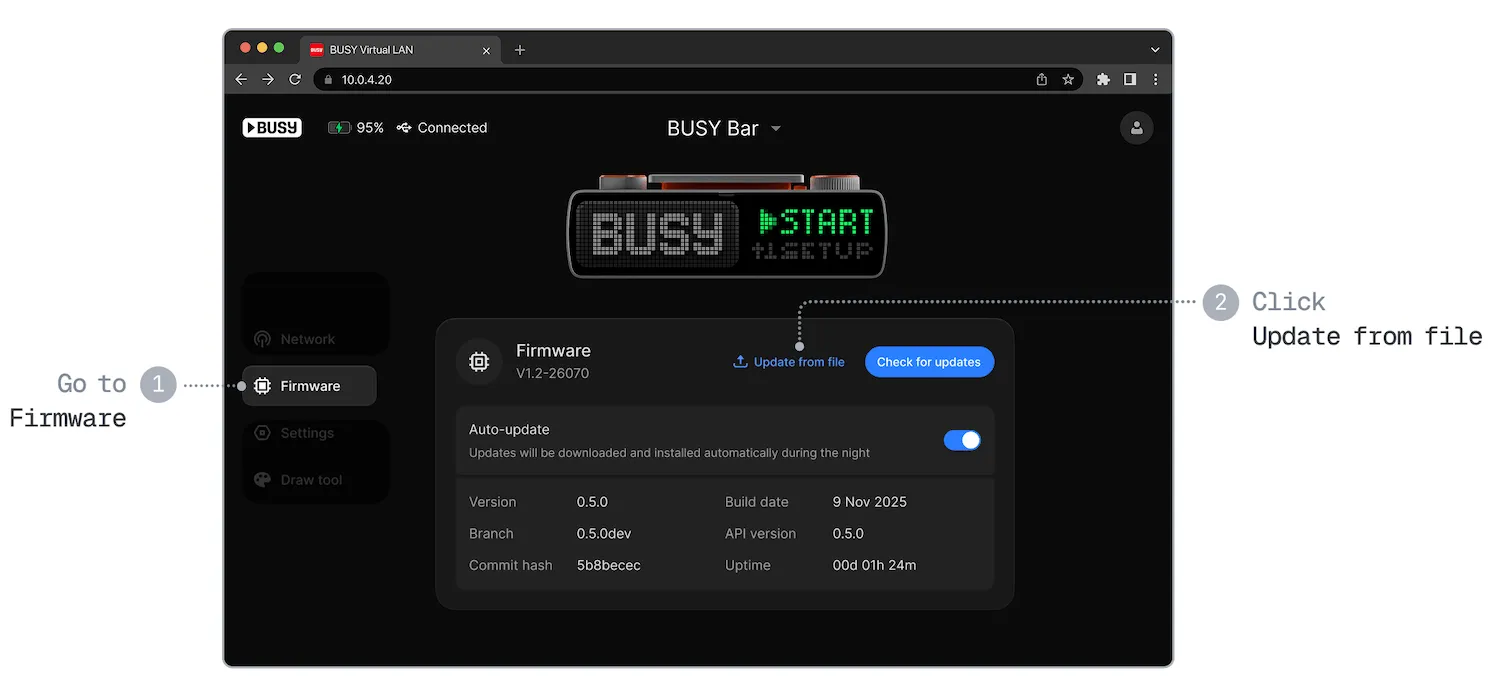
Update your BUSY Bar firmware manually from a file
Download the .tgz firmware file from the firmware releases page on GitHub.
Access the local web interface.Access the local web interface.
Go to the Firmware tab.
Click Update from file.
Select the downloaded file, then click Start update.
Settings tab
In the Settings tab, you can remotely control the sound and brightness of your BUSY Bar, change its time zone, manage smart home integration, and get information about your BUSY Bar.
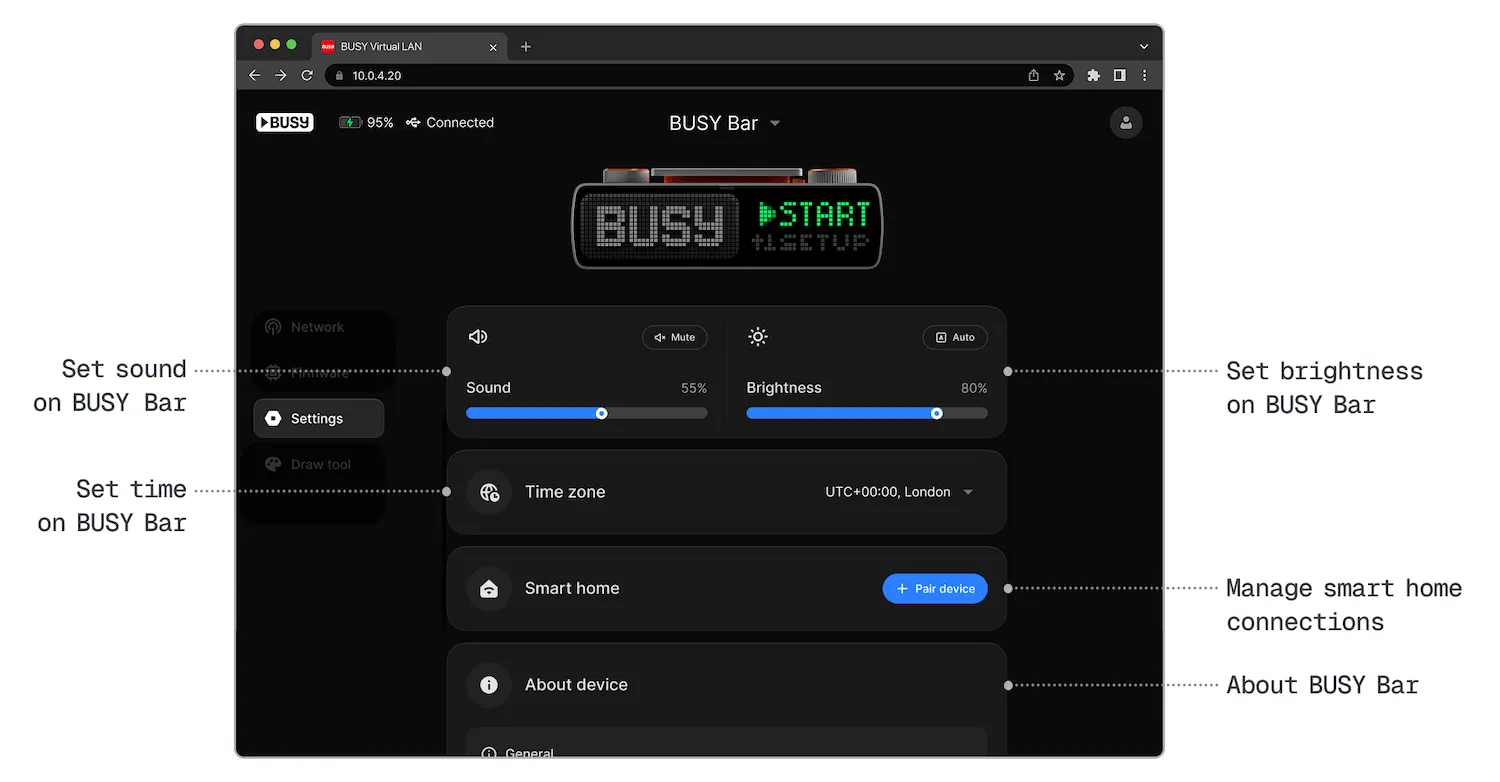
Change time zone
In the web interface, open the Settings tab.
In Time zone, select your preferred time zone.
Manage smart home integration
With BUSY Bar, you can optimize your home for deep focus by controlling your smart home devices the moment you start or stop a focus session. The web interface lets you add your BUSY Bar to smart home systems, forget pairings, and see the number of connections. Alternatively, you can do some of it using your BUSY Bar or smart home app. Learn more in Smart home.
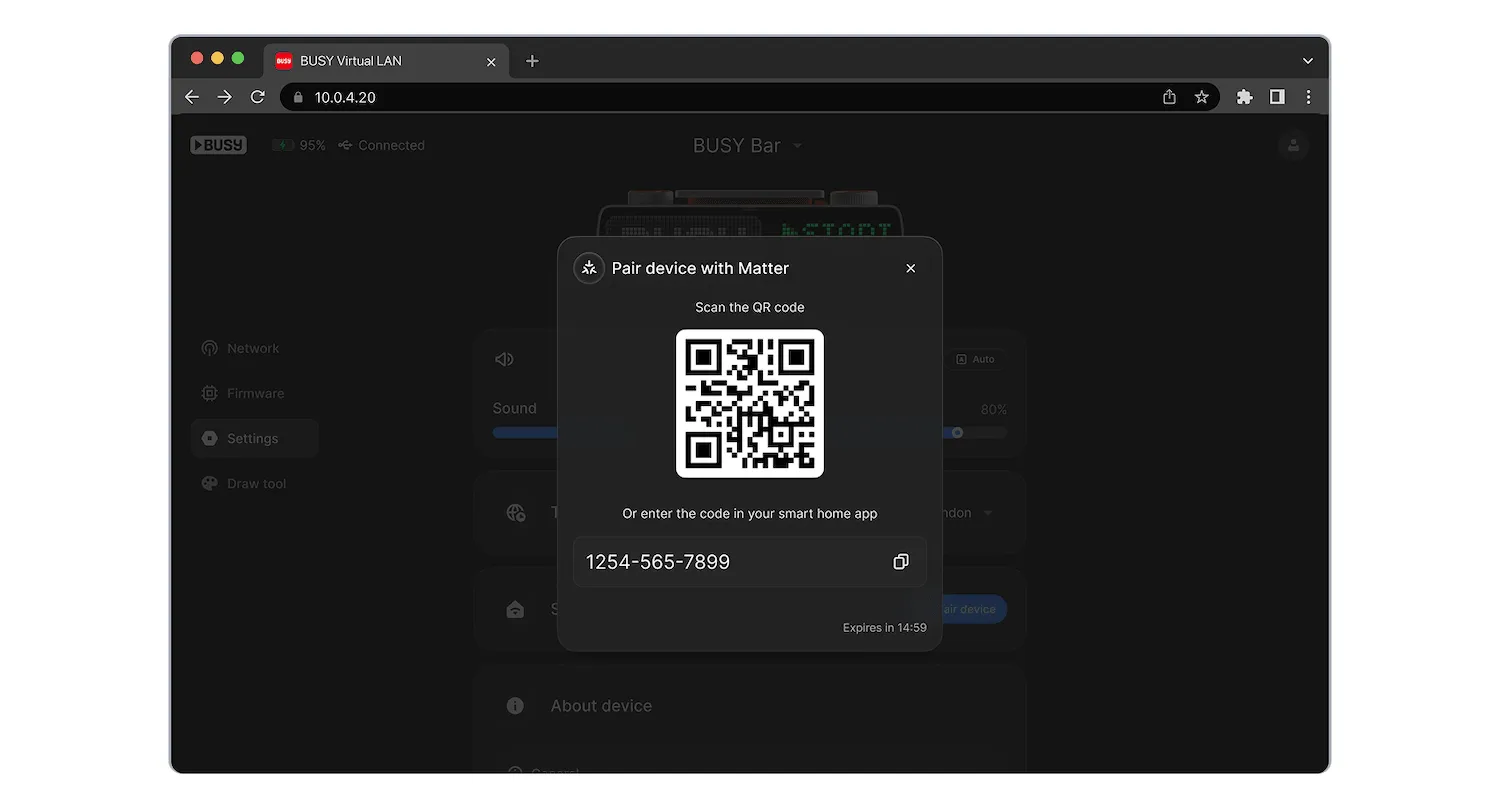
To add your BUSY Bar to your smart home via the web interface:
In the web interface, open the Settings tab.
In the Smart home option, click + Pair device. You'll see a QR code.
On your phone, open your smart home app and go to + → Add Accessory -> Scan QR code.
Scan the QR code shown in the web interface. Alternatively, you can enter the code manually.
Assign your BUSY Bar to a room and name it to help you identify and control it.
To remove all smart home connections via the web interface:
In the web interface, open the Settings tab.
In the Smart home option, click Forget all pairings.
In the pop-up, confirm by clicking Forget all pairings.
Your BUSY Bar will be removed from your smart home automations and will restart.
Draw tool
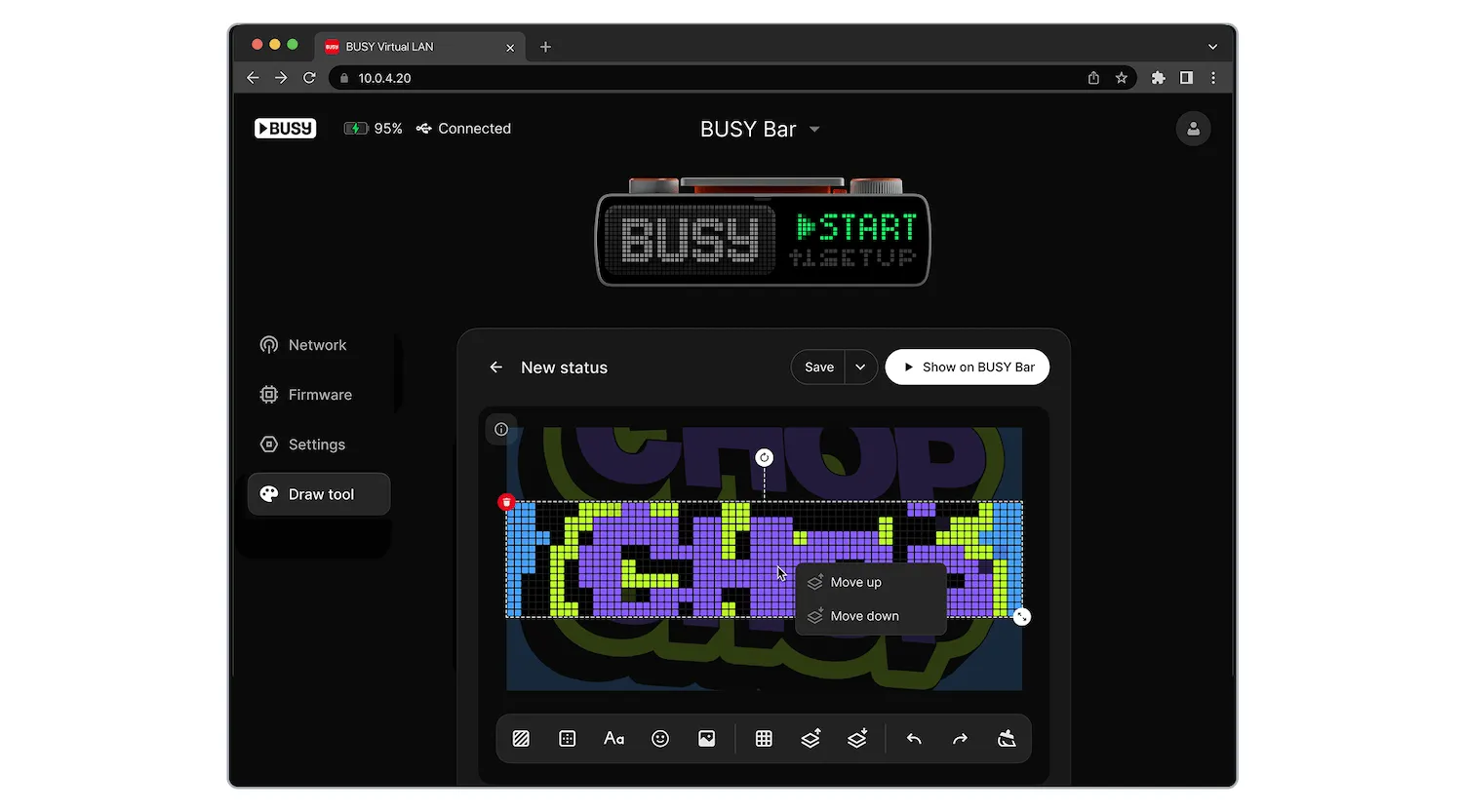
The Draw tool provides a pixel-based canvas where you can arrange elements however you like. Create and edit your own unique statuses with a simple, user-friendly visual editor right in your browser, then display them on your BUSY Bar with a single click.
Troubleshooting
Need help with the local web interface? Find solutions to common issues, including forgotten passwords and connection problems in the Local web interface issues page.