Set up automations
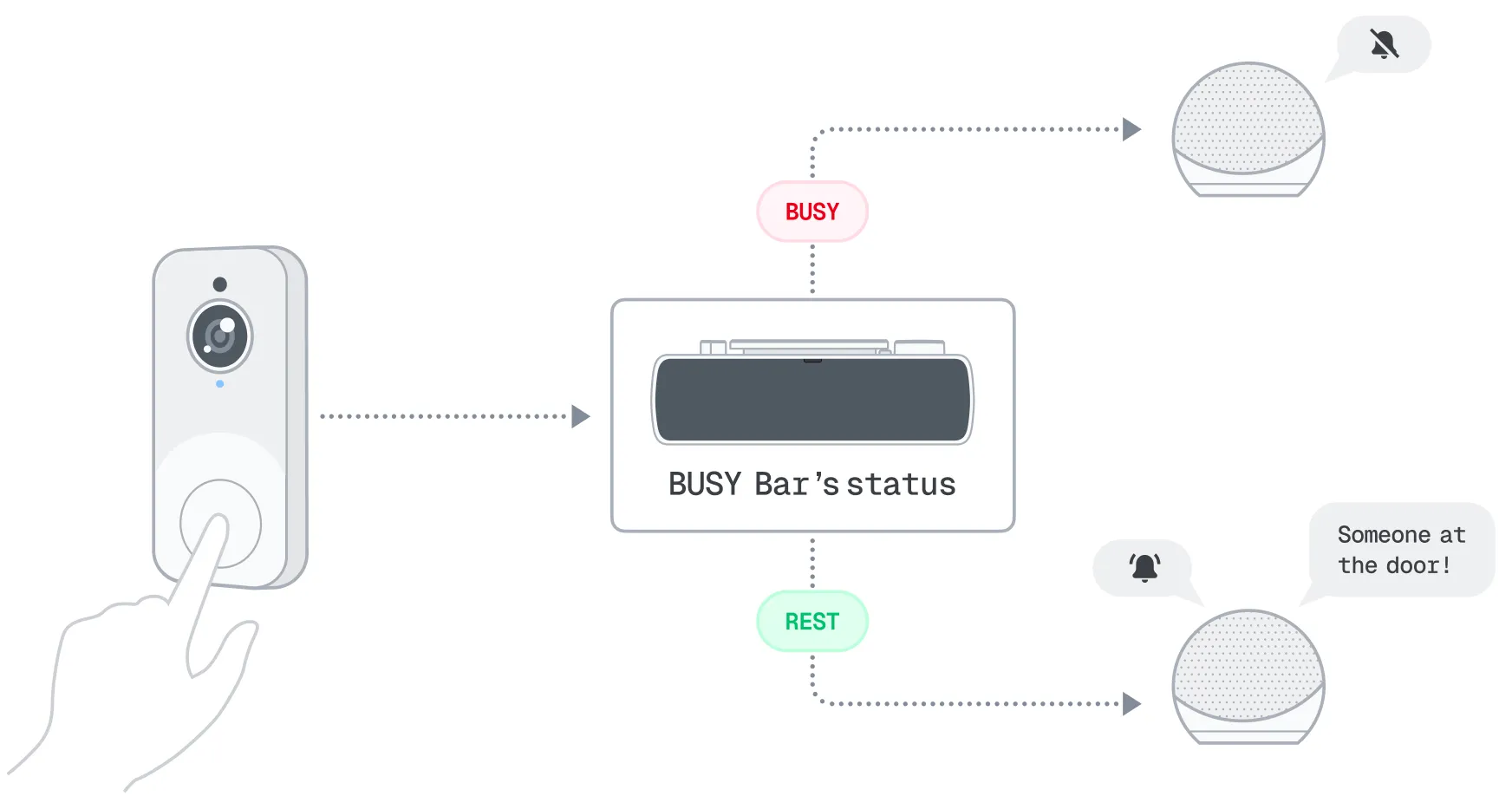
Smart home automations allow connected devices to perform actions automatically based on predefined rules, reducing the need for manual control and making everyday tasks more convenient.
Once your BUSY Bar is connected to your smart home, you can add it to automations. BUSY Bar can trigger actions in other devices when its status changes, update its displayed status in response to events in your home, or serve as a condition that determines whether an automation runs.
On this page, you'll learn more about automations with BUSY Bar:
How automations work
Every automation usually has three parts:
-
 Trigger — an event that starts an automation.
Examples: motion is detected, a door opens, BUSY Bar shows the BUSY status.
Trigger — an event that starts an automation.
Examples: motion is detected, a door opens, BUSY Bar shows the BUSY status.
-
 Condition (optional) — decides whether the automation should run.
Examples: only on weekdays, only if someone is home, only if BUSY Bar shows BUSY.
Condition (optional) — decides whether the automation should run.
Examples: only on weekdays, only if someone is home, only if BUSY Bar shows BUSY.
-
 Action — the task the smart home performs.
Examples: turn on lights, lock doors, play music, BUSY Bar changes status to BUSY.
Action — the task the smart home performs.
Examples: turn on lights, lock doors, play music, BUSY Bar changes status to BUSY.

BUSY Bar in automations
BUSY Bar is shown in a smart home as a smart light with only two possible states:
- ON — when the BUSY or custom status is running.
- OFF — when the BUSY or custom status is not running. For example, when the rest phase is active, the timer is paused, or BUSY Bar is in OFF mode.
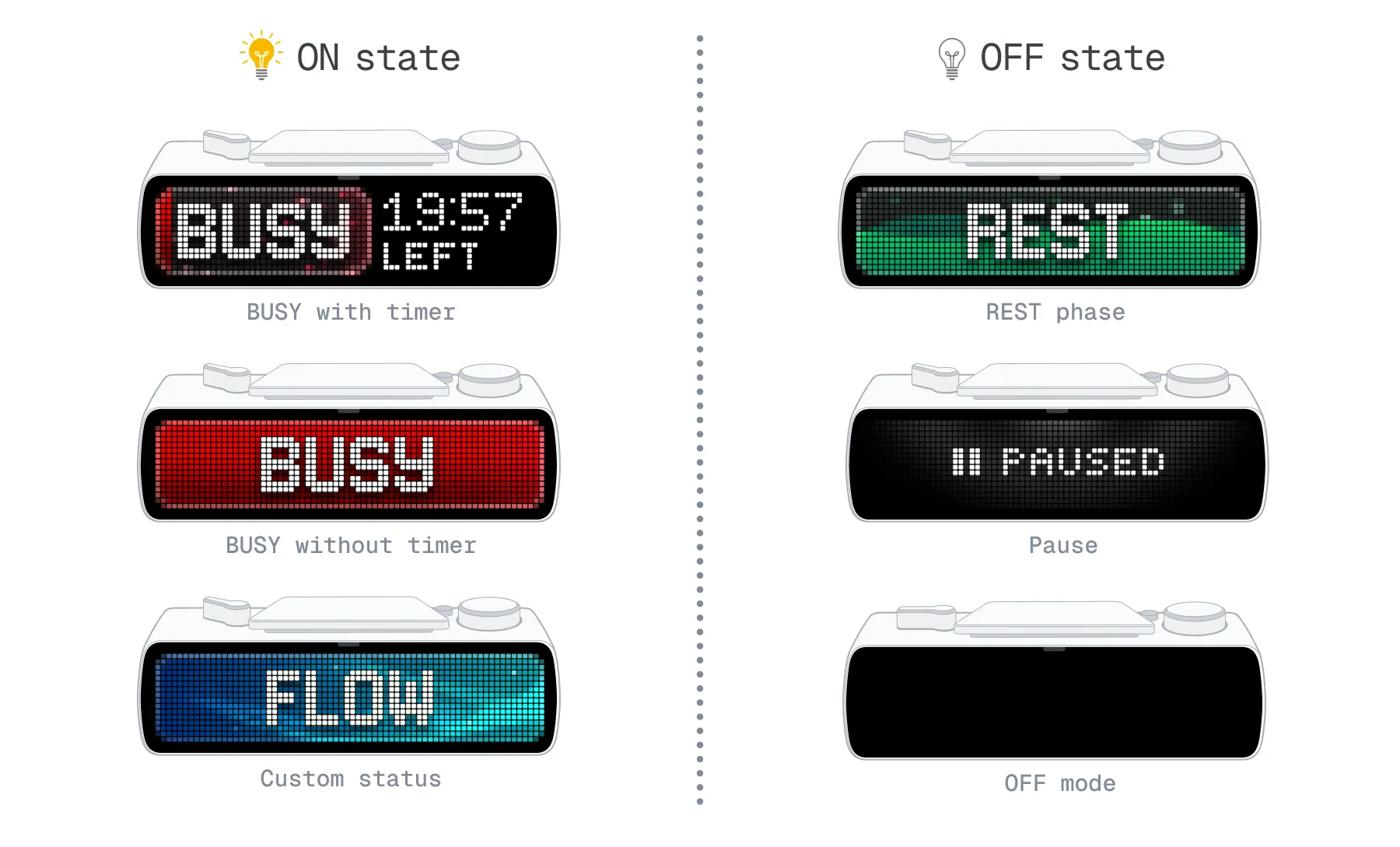
This makes BUSY Bar a simple switch-like device that can be used in automations as:
- Trigger — when the BUSY status starts, the automation starts.
- Condition — automation runs only if BUSY Bar is in a specific state (BUSY shown or not shown).
- Action — BUSY status starts or stops/pauses as a result of the automation.
 Limitations with Amazon Alexa
BUSY Bar cannot act as a trigger for Alexa routines. Alexa routines can’t be triggered by changes in the state of a smart light or switch.
BUSY Bar as a Trigger
By default, BUSY Bar triggers automations from both  and
and  modes. You can change the trigger settings to use only one mode or disable triggering from both modes.
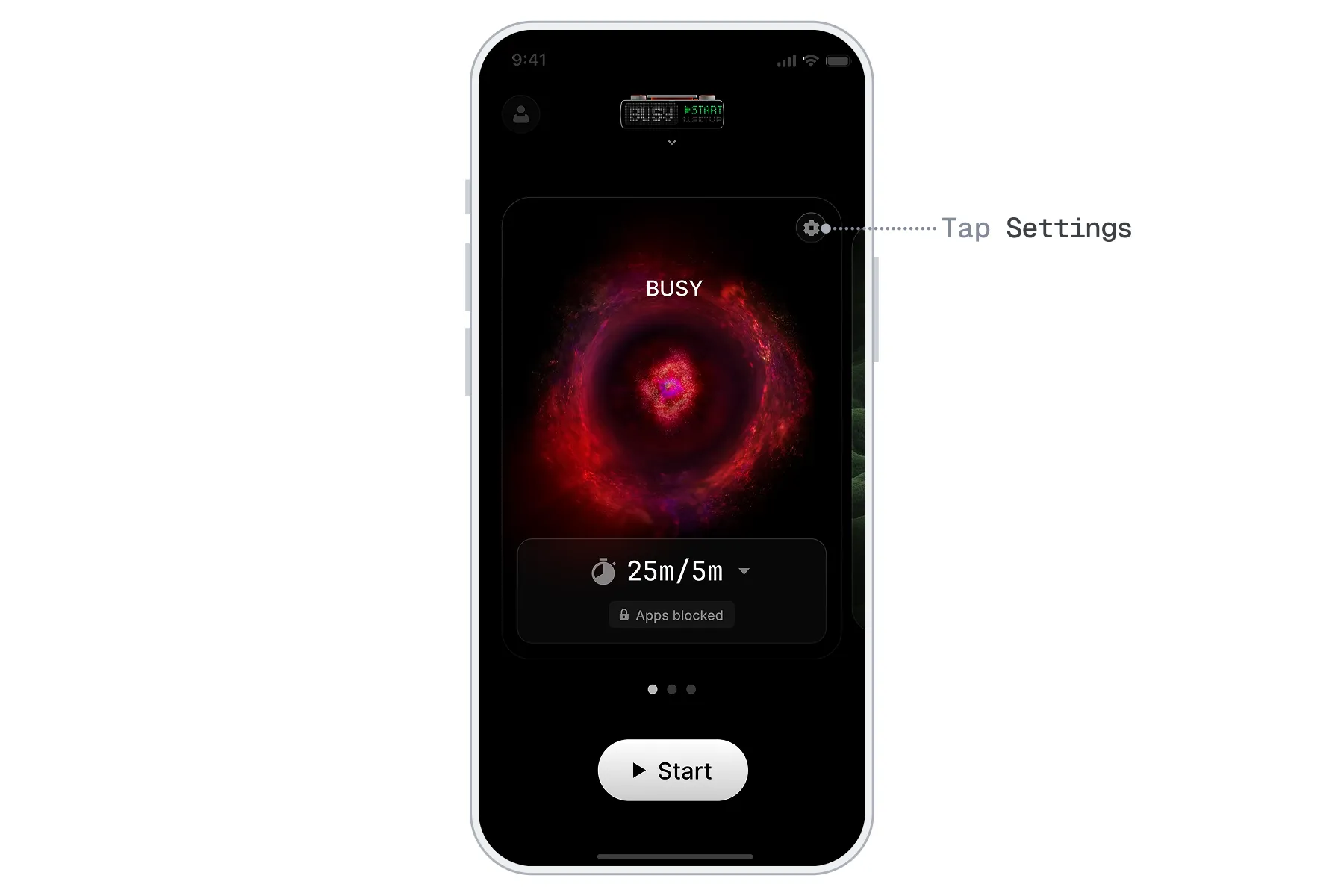
Switch your BUSY Bar to the mode you want to configure: or  .
.
Go to Setup → Smart Home.
Set Trigger smart home to ON to enable smart home automations, or OFF to disable them.

BUSY Bar as an Action
When BUSY Bar is added to an automation as an Action, it can only start mode. can’t be started by an automation.
Create an automation with BUSY Bar
Before creating automations with BUSY Bar, make sure:

- All other devices for the automation are added to your smart home
Open your smart home app.
Create a new automation. The steps may vary depending on your platform:
- Apple Home:
 → Add Automation
- Google Home: → Automation
- SmartThings: Home Name → Create Routine
- Amazon Alexa: More → Routines → → Add an event
Set up your automation by selecting:
- Triggers — events that start the automation
- Conditions (optional) — requirements that must be met for it to run
- Actions — tasks performed when triggers occur and conditions are met
Save the automation.
When using BUSY Bar as a trigger or action, create automations for both of BUSY Bar’s states: ON and OFF.
For detailed instructions on setting up automations, see the guide for your smart home system: