Draw tool
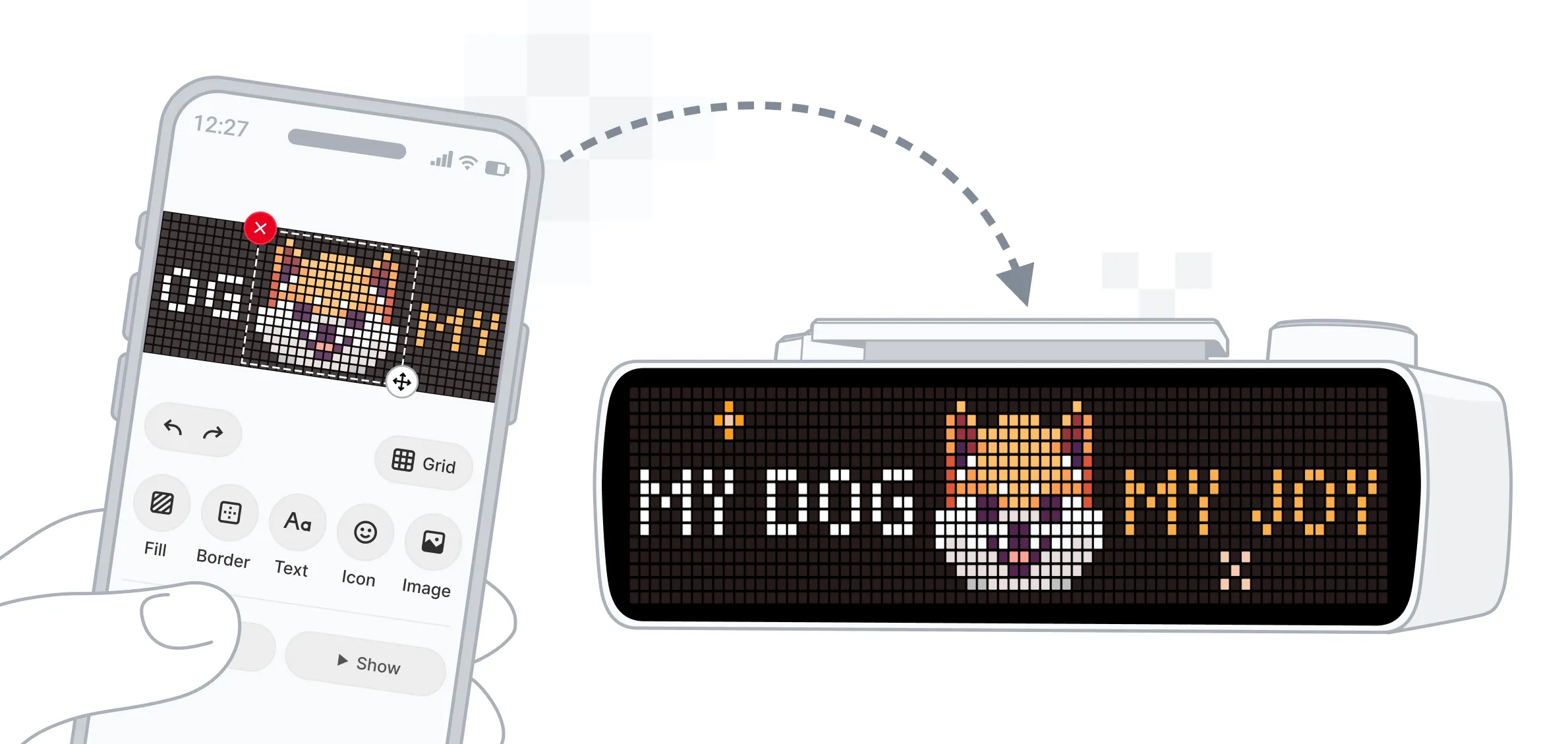
With the  Draw tool, you can create custom statuses using a visual editor right in your web browser or BUSY App on your phone. Choose icons from the built-in library or upload your own images, add text, and display your creations on your BUSY Bar with one click.
 Coming soon
You’ll soon be able to use custom statuses as BUSY Bar themes for focus modes.
On this page, you’ll learn how to:
- Open the Draw tool%section%Open the Draw tool%section%
- Use the Draw tool interface%section%Use the Draw tool interface%section%
- Create a status%section%Create a status%section%
- Display your status on BUSY Bar%section%Display your status on BUSY Bar%section%
- Export your statuses%section%Export your statuses%section%
- Import a status%section%Import a status%section%
- Delete a status%section%Delete a status%section%
Open the Draw tool
You can open the Draw tool in BUSY App on your phone or in a web browser on your computer.
Before you begin, make sure that:
-
 You’re logged into your BUSY account on your phone and BUSY Bar%page%You logged into your BUSY account on your phone and BUSY Bar%page%

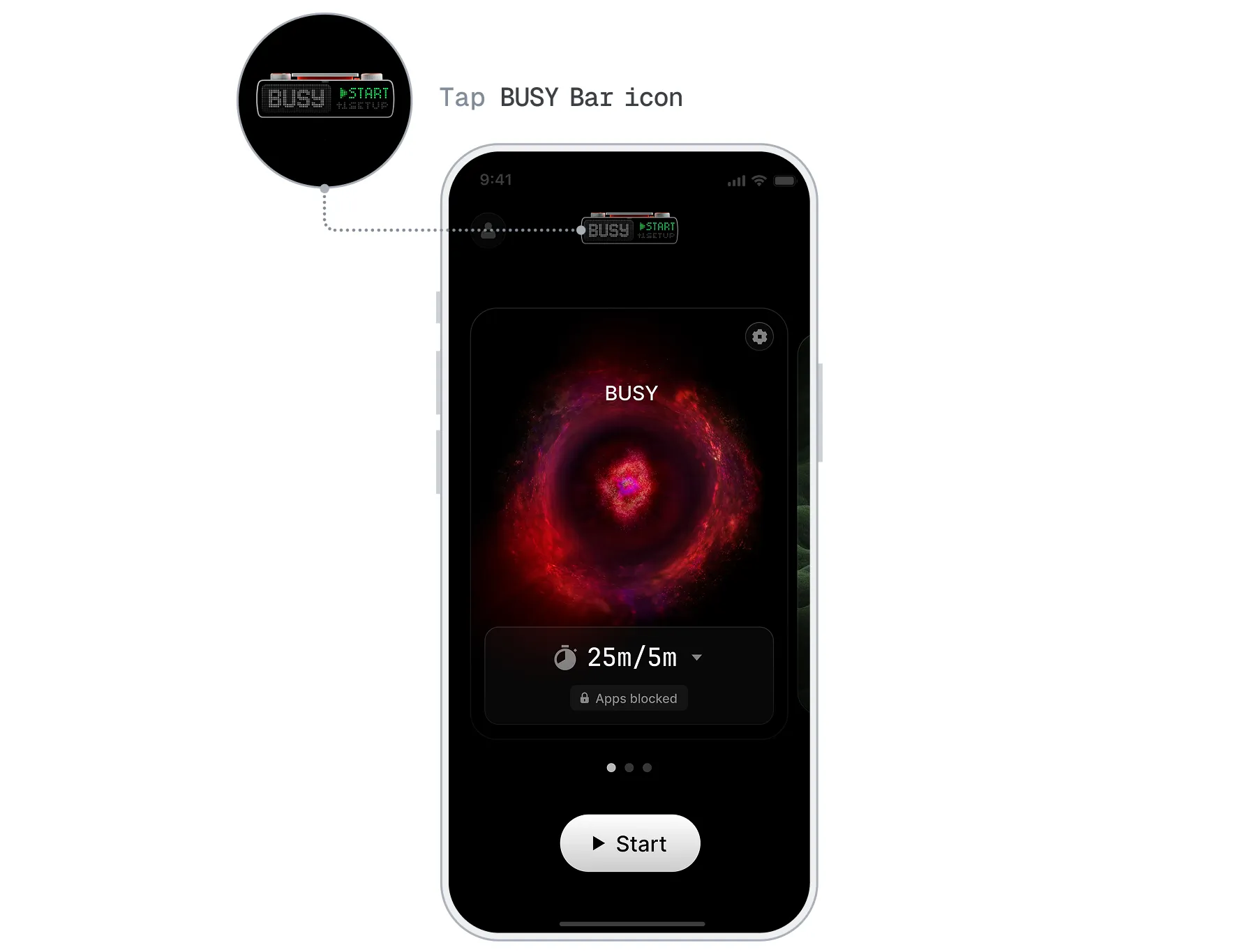
Open  BUSY App and tap the BUSY Bar icon.
Go to Draw tool.




Draw tool interface
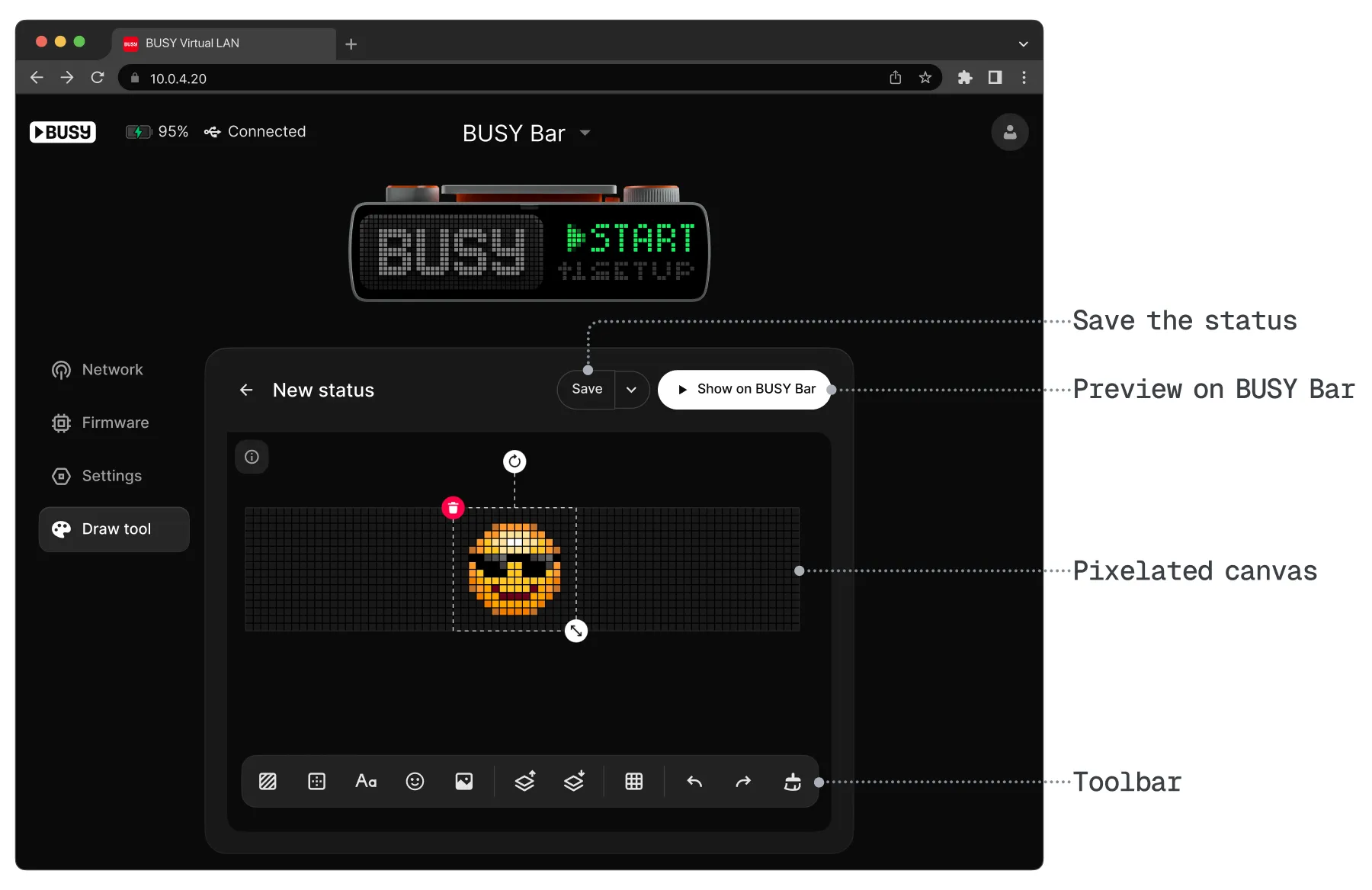
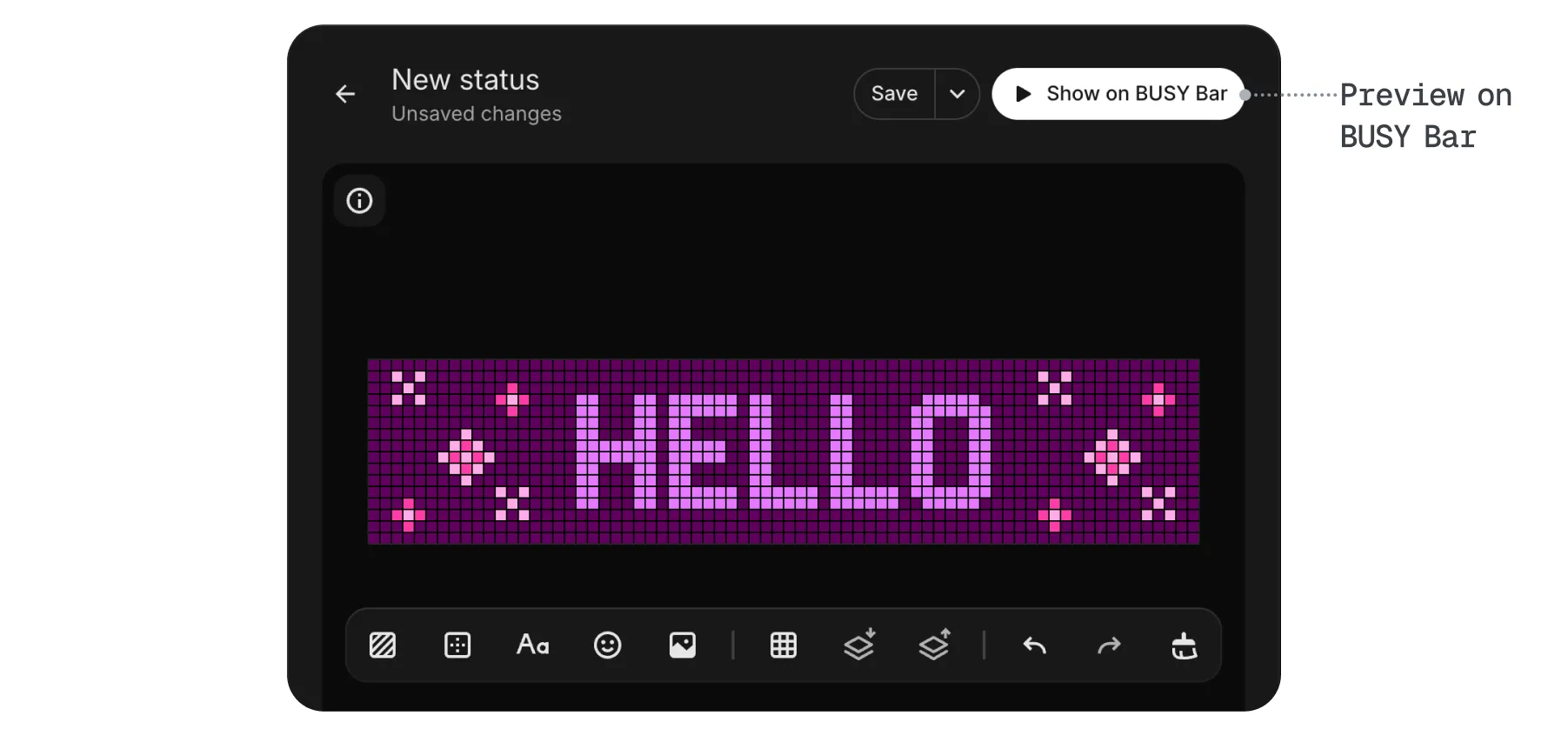
The editor works almost the same in the mobile BUSY App and the web interface. You can create a status and preview it on your BUSY Bar directly from the editor.
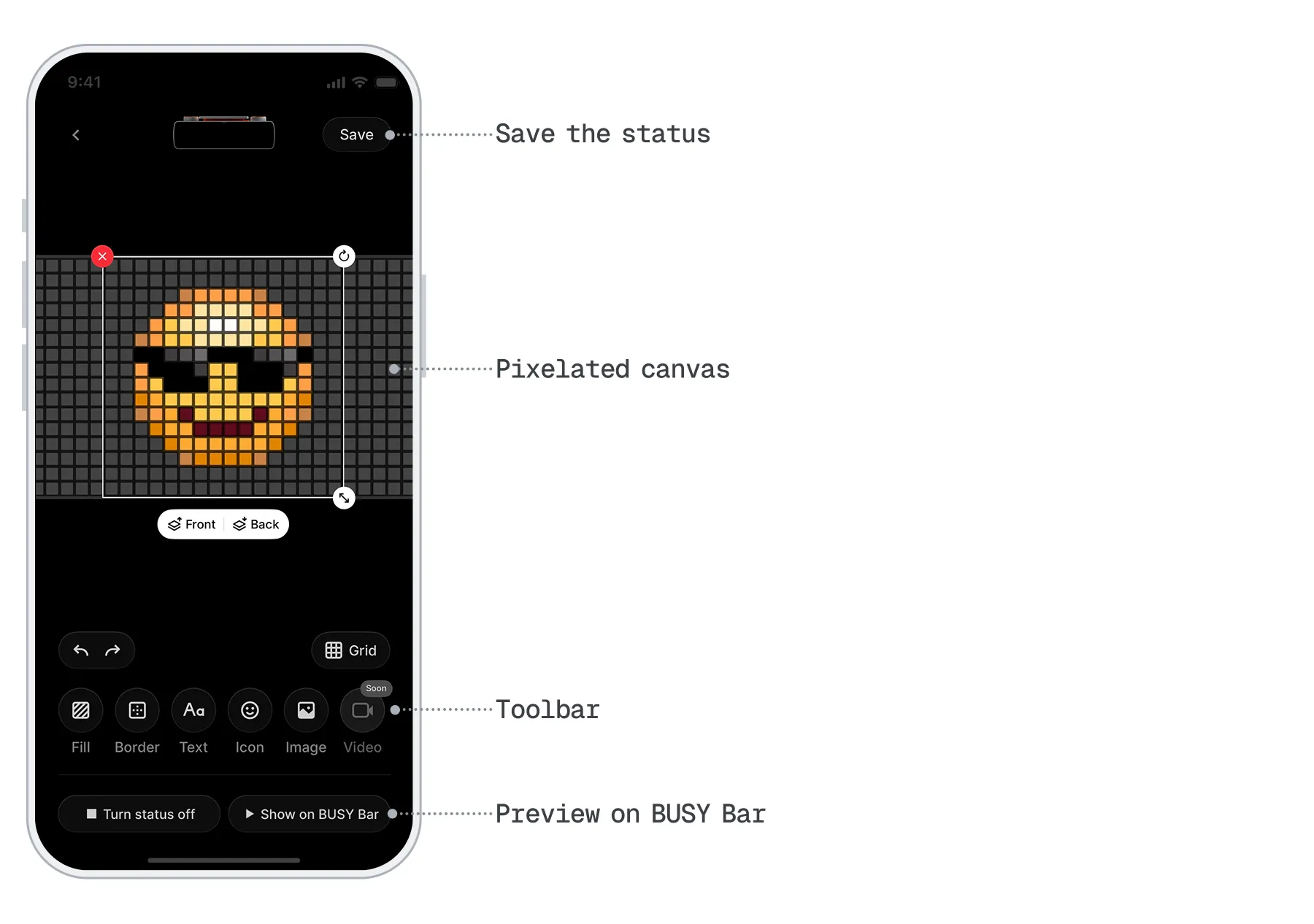
In the Draw tool editor, you can:
-
 Fill — Change the background color.
-
 Border — Add a border.
-
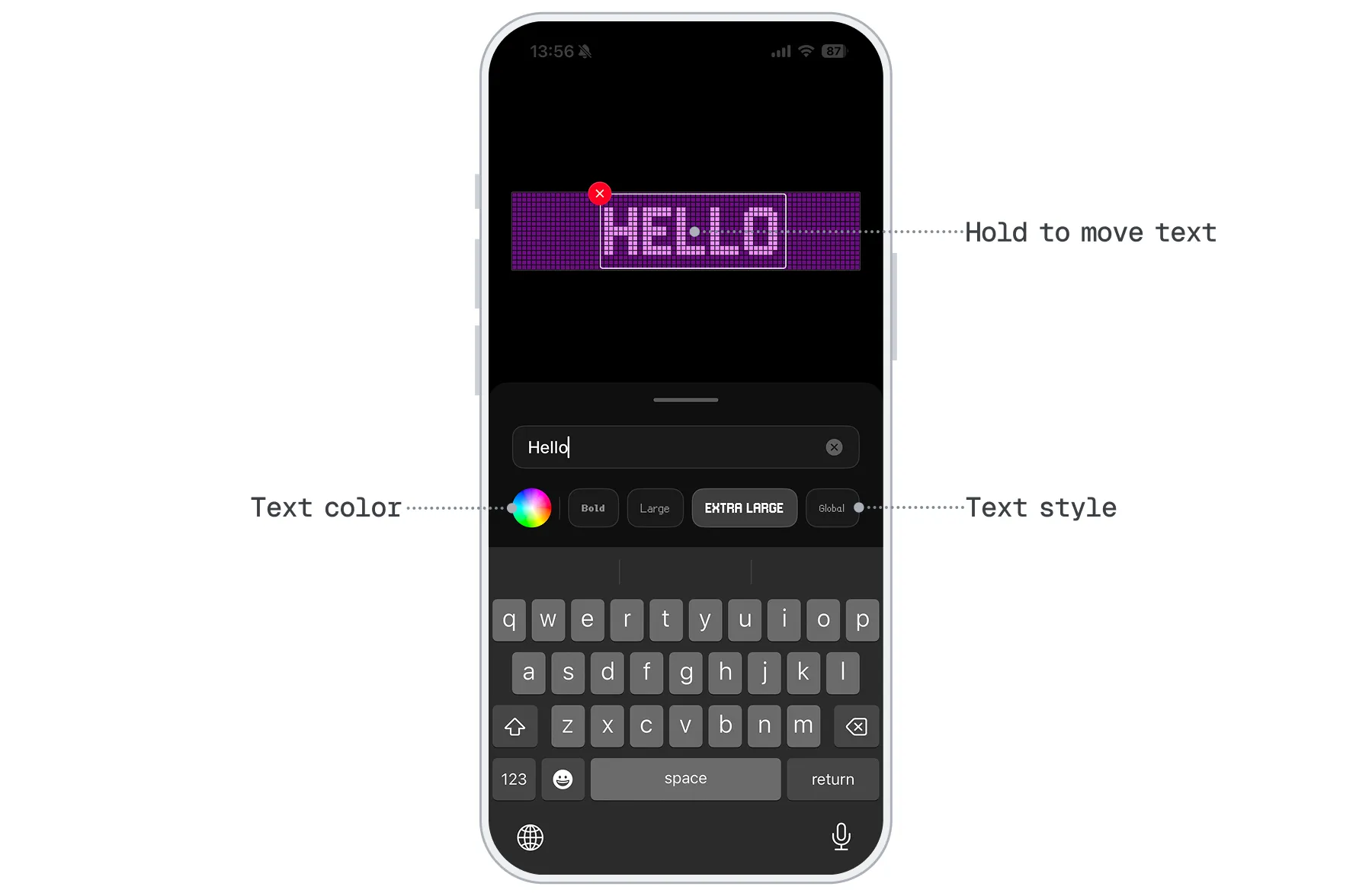
 Text — Add text in eight different styles.
-
 Icon — Add icons from the built-in library.
-
 Image — Upload images from your phone.
-
 Front / Back — Rearrange objects on top of or below others.
-
 Grid — Show/hide the grid.
-
 Show on BUSY Bar — Preview your status directly from the editor.
-
 Turn status off — Stop displaying the current custom status.

Create a status
Create a visual status for your BUSY Bar in the Draw tool. Follow the steps for BUSY App or the web interface.
Saved statuses can’t be edited yet
After you save a status, you can’t edit it. To make changes, you’ll need to recreate your status. Editing saved statuses is coming soon.
Choose your platform and follow the steps:
Open BUSY App and tap the BUSY Bar icon.
Go to Draw tool, then tap Create new.
Tap Fill to choose a background color.
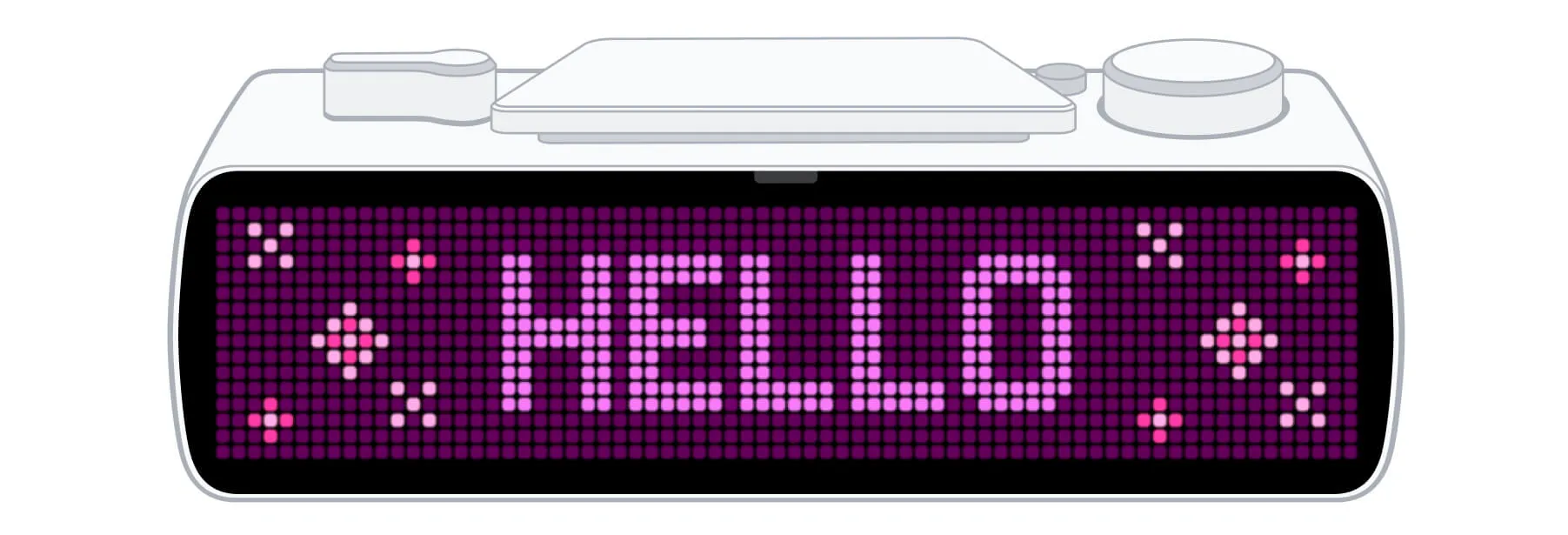
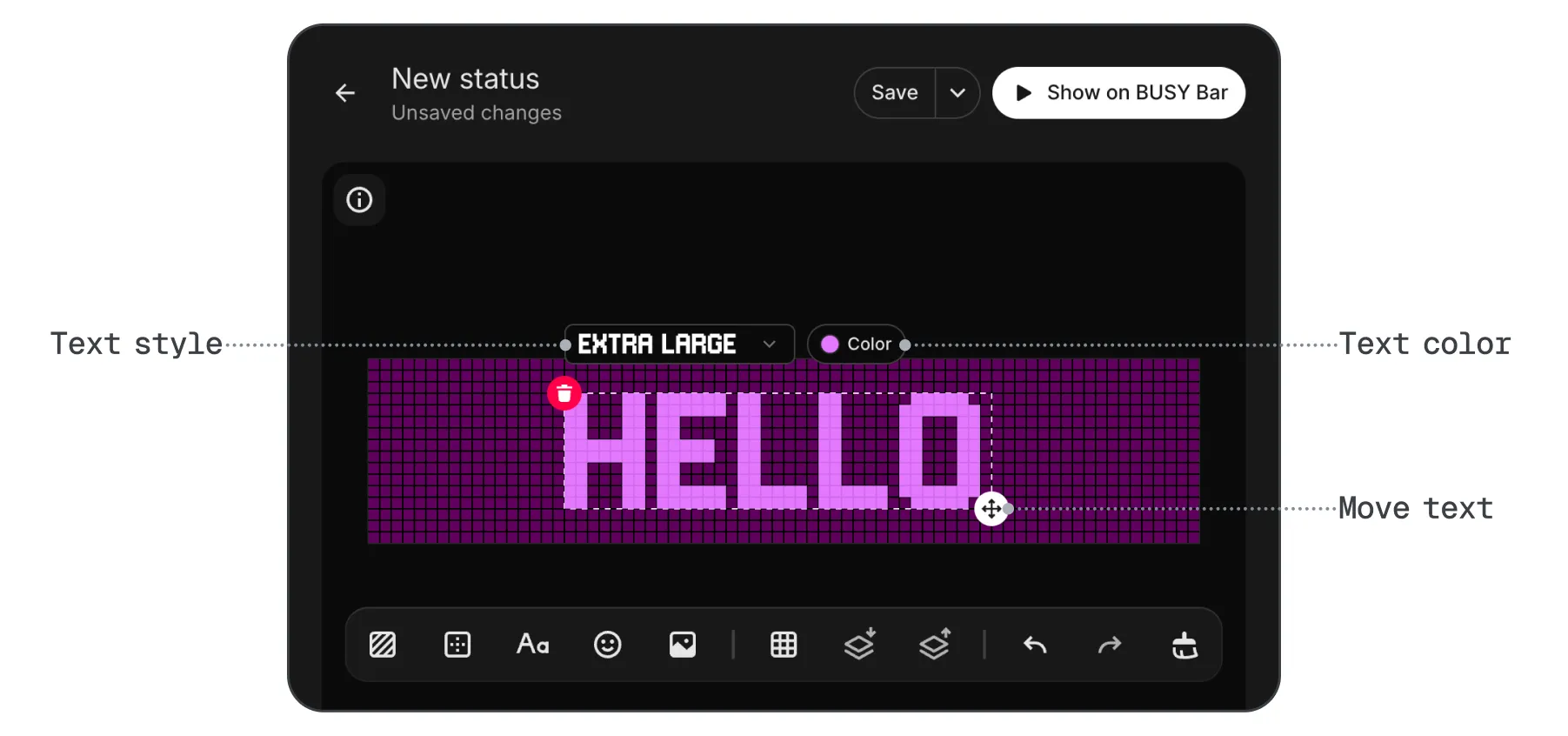
Tap Text to add and format text.
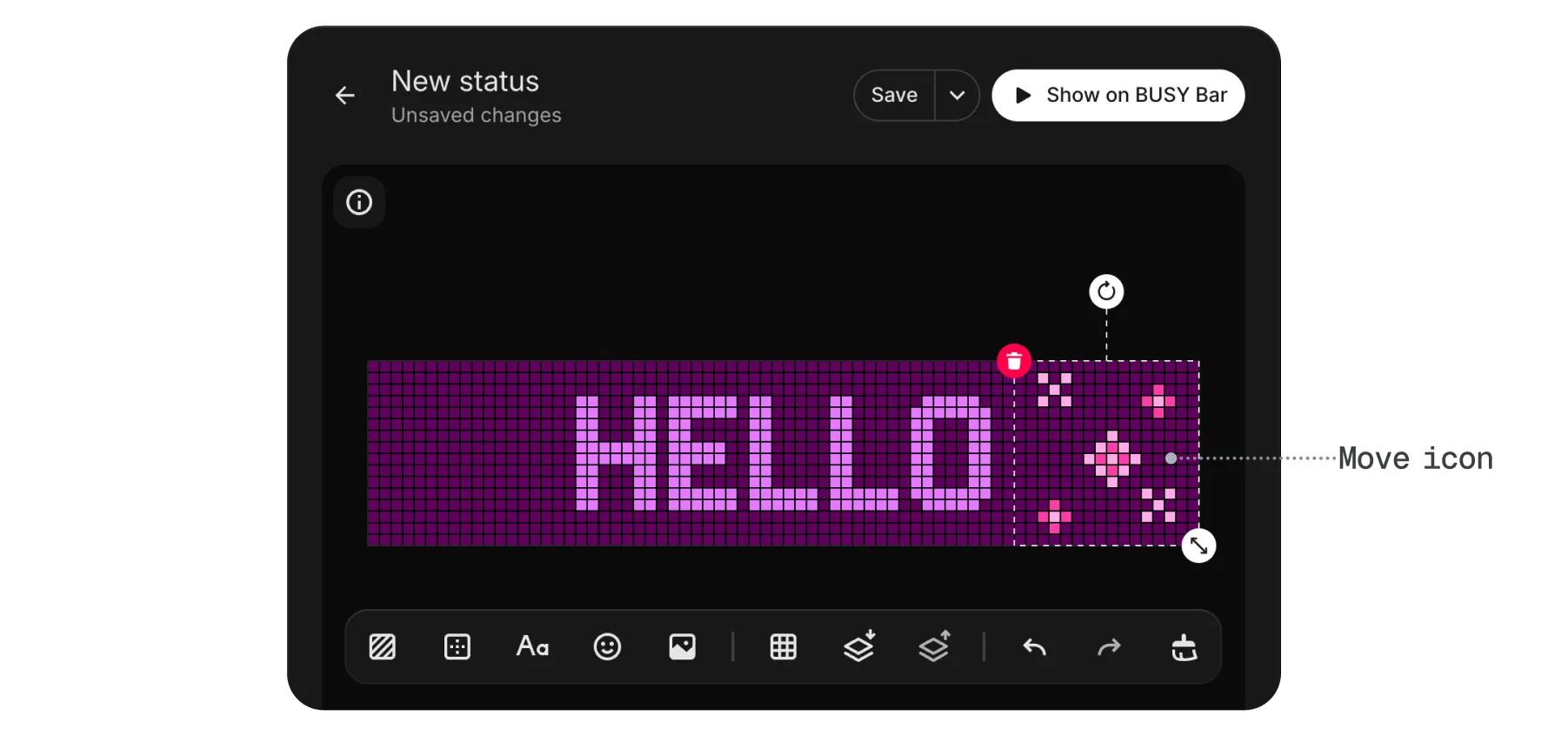
Tap Icon to add an icon from the library.
You can also tap  Image to add an image from your device.
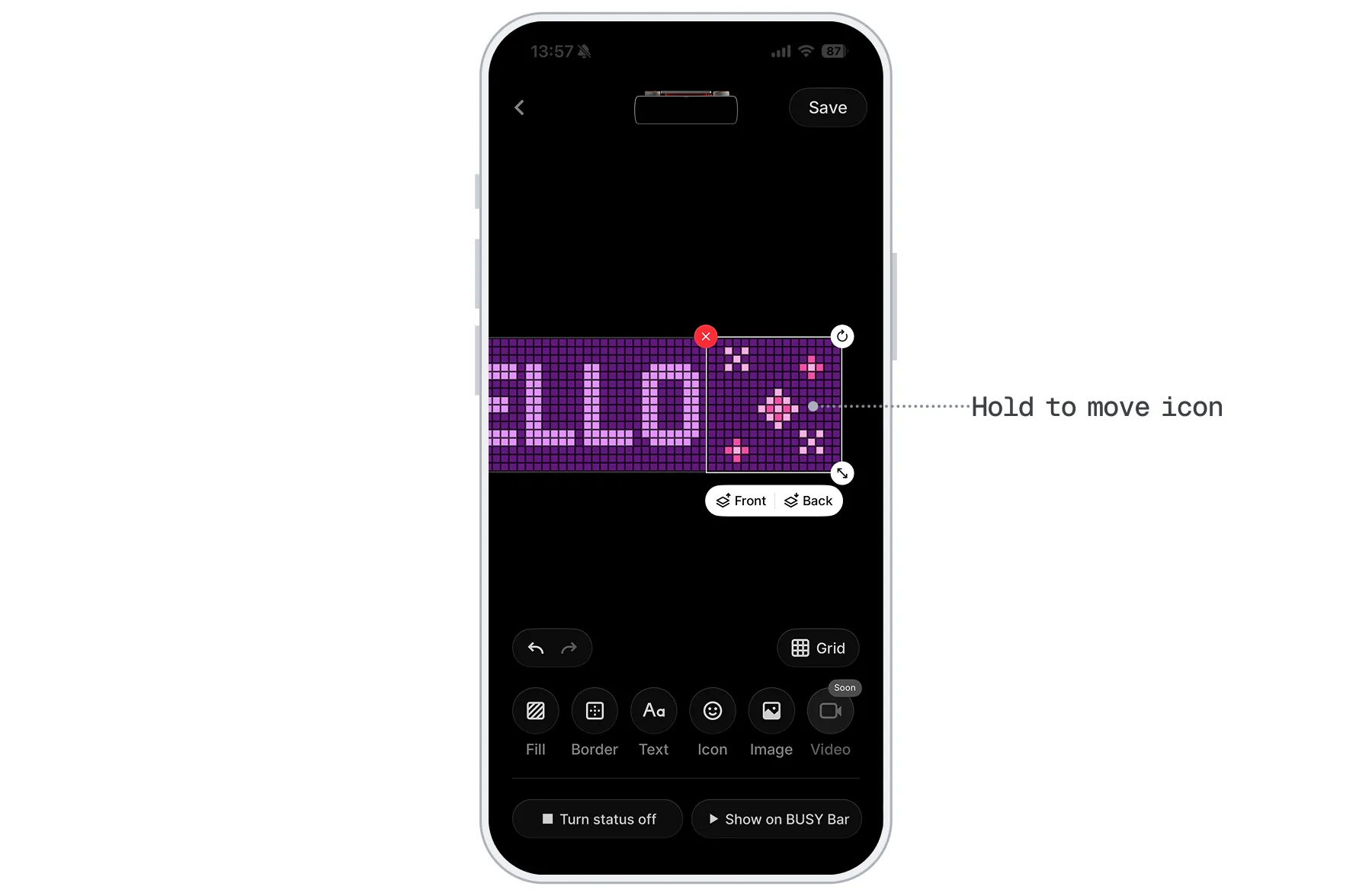
Tap  Show on BUSY to preview your status.
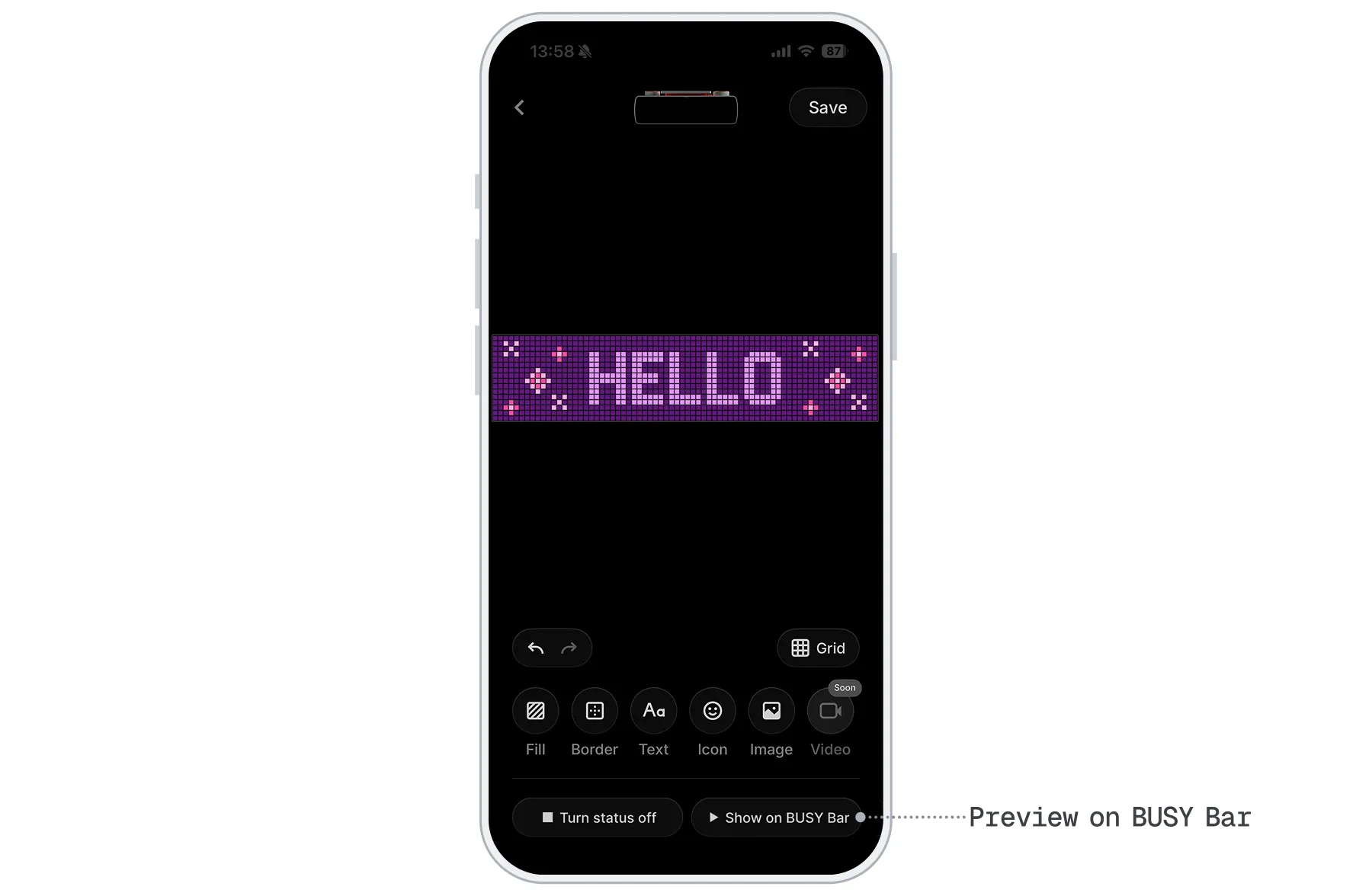
The preview doesn't update automatically as you edit your status. To see your latest changes on your BUSY Bar, tap  Show on BUSY Bar again.
When ready, tap Save.
Display your status on BUSY Bar
Open BUSY App and tap the BUSY Bar icon.
Go to Draw tool.
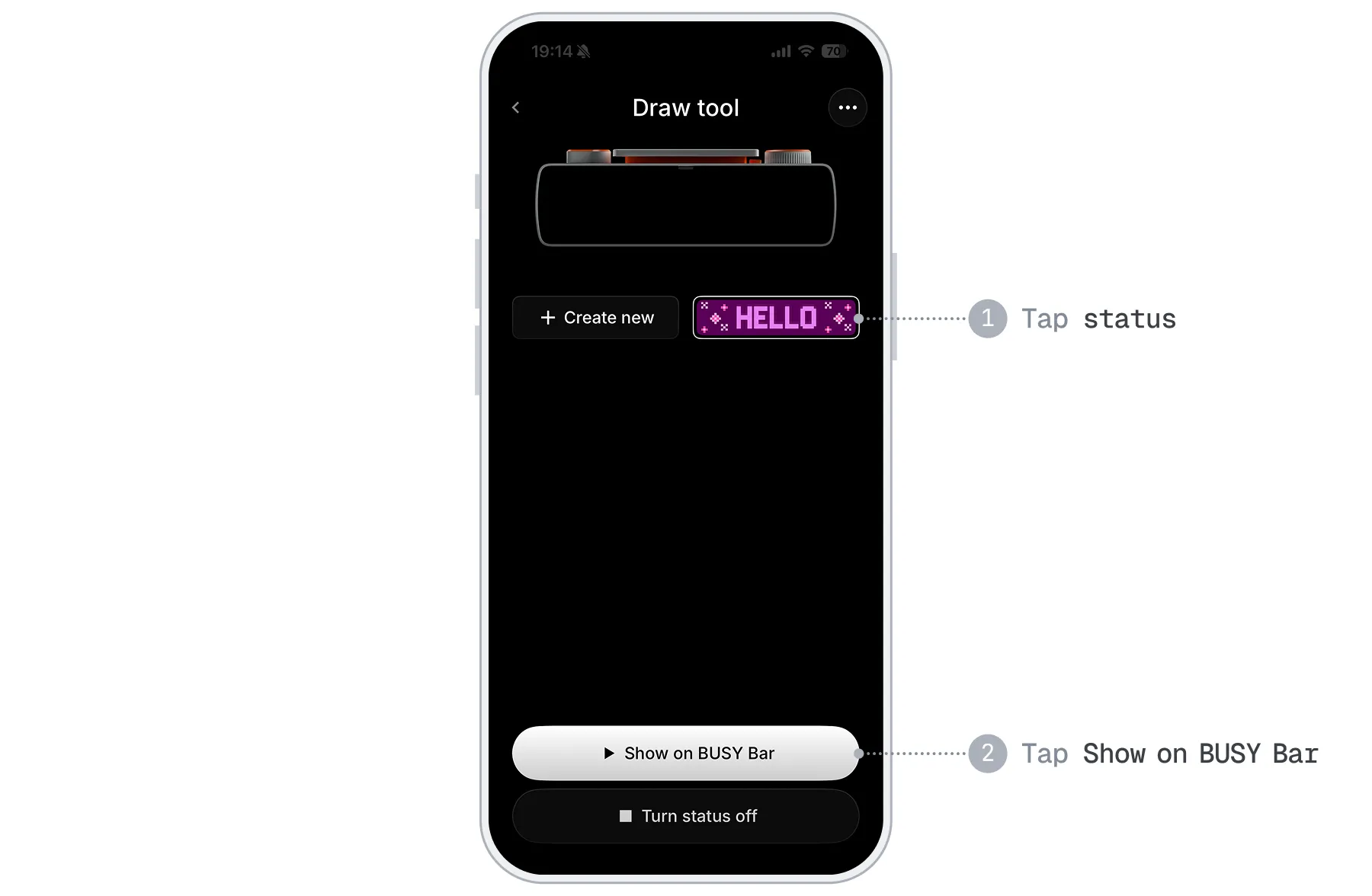
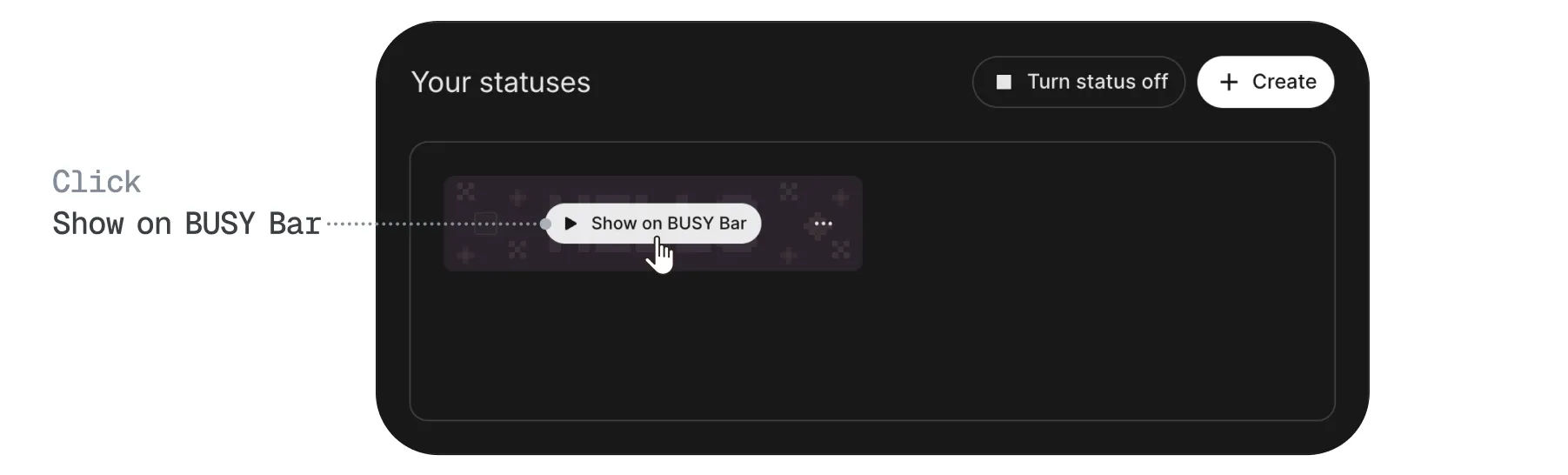
Tap the status you want to display, then tap Show on BUSY Bar.
To stop displaying a status:
- Tap
 Turn status off.
Export your statuses
You can export your statuses as PNG files to save them locally or share them with others.
Open BUSY App and tap the BUSY Bar icon.
Go to Draw tool.
To export a status, press and hold it, then tap Download .png.
To export multiple statuses, tap  → Select, choose the statuses, then tap Download .png.
Import a status
You can import a status by creating a new status and adding the existing status as an image. Use a 72×16 px image for a perfect fit.
Open BUSY App and tap the BUSY Bar icon.
Go to Draw tool, then tap Create.
Tap Image, then select the status image you want to import from your phone.
Tap Save.
Delete a status
Once deleted, a status can‘t be restored.
Open BUSY App and tap the BUSY Bar icon.
Go to Draw tool.
Select a status, press and hold it, then tap Delete.
To delete multiple statuses, tap → Select, choose the statuses, then tap Delete.
In the pop-up, tap Delete to confirm.