Google Calendar integration
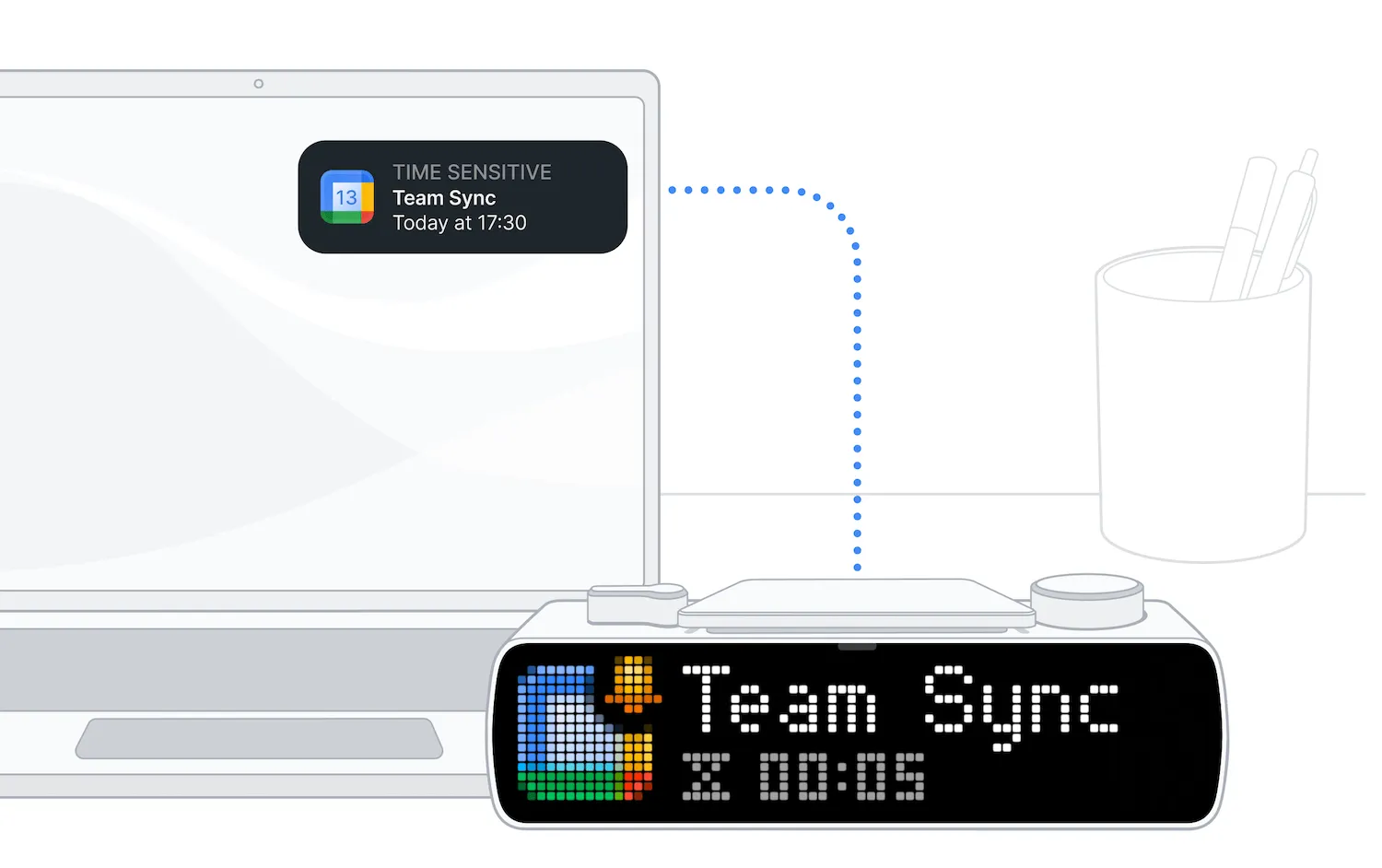
Google Calendar integration allows you to get reminders about upcoming events on your BUSY Bar and show your status during meetings. It helps you never miss important events and lets others know you’re busy.
On this page, you’ll learn about Google Calendar integration, how to connect and disconnect calendars:
How the calendar syncing works
Once synced with your Google Calendar, the BUSY Bar automatically displays real-time updates for your events:
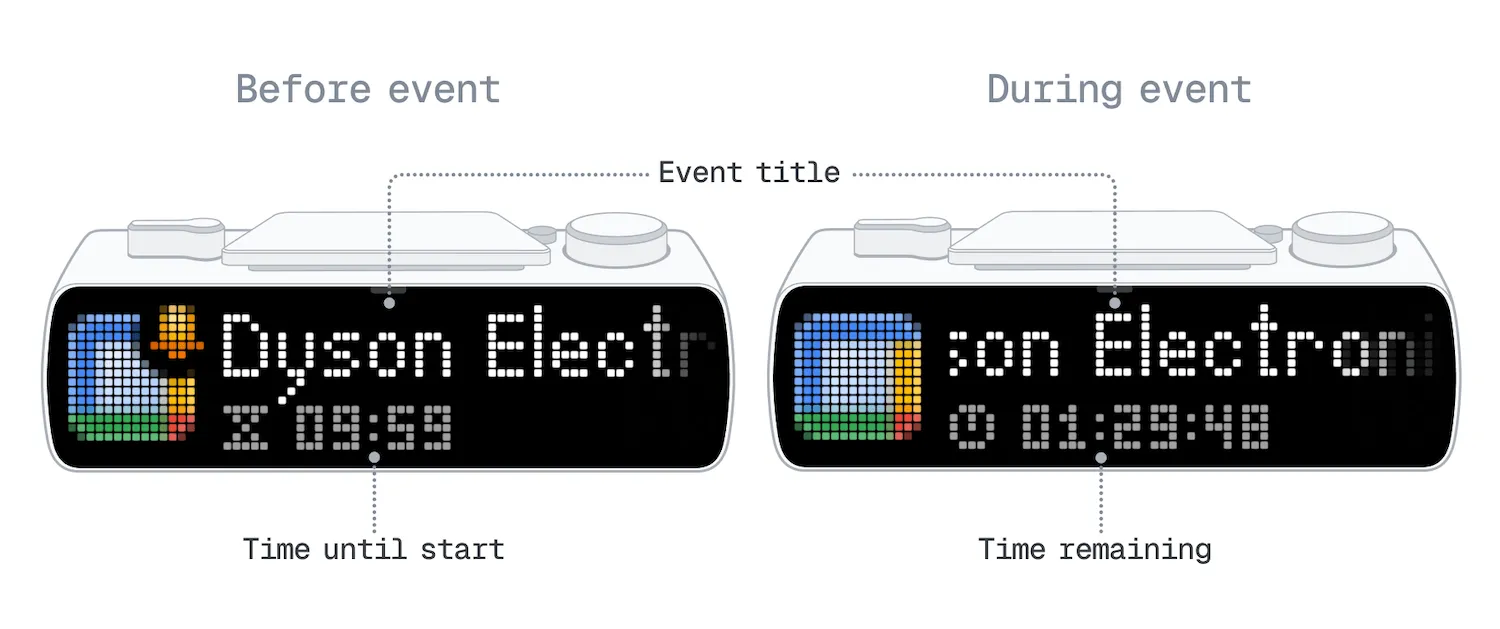
 Before the event: BUSY Bar shows a reminder with the event title and a countdown to the event start.
 During the event: The display switches to an active status, showing the event title and the time remaining. You can change the status to a custom message.
You can customize the reminder and the message shown during the event, or disable them completely. You can also sync multiple calendars from different Google accounts and set notifications for each one separately.
 How events work on BUSY Bar
- Always on top: Events overlay any status and are shown even in sleep mode
- Event overlap: Newest events and most recently added calendars take priority
- All-Day events: Events lasting 24+ hours are not shown
Connect your Google Calendar
Before connecting, make sure:

To connect your Google Calendar:
Open cloud.busy.app in your browser.

Log in to your BUSY account with your email address, or continue with Google, Apple, or Microsoft.
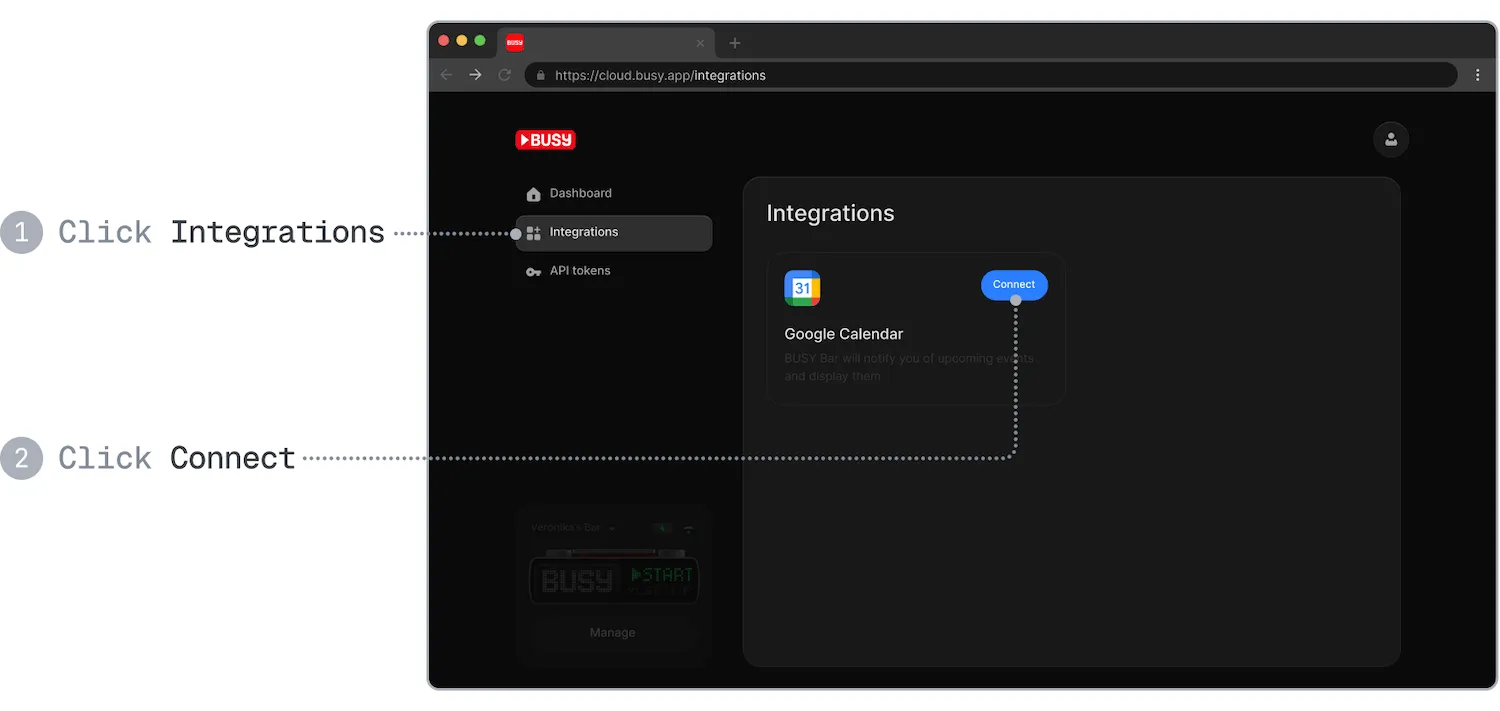
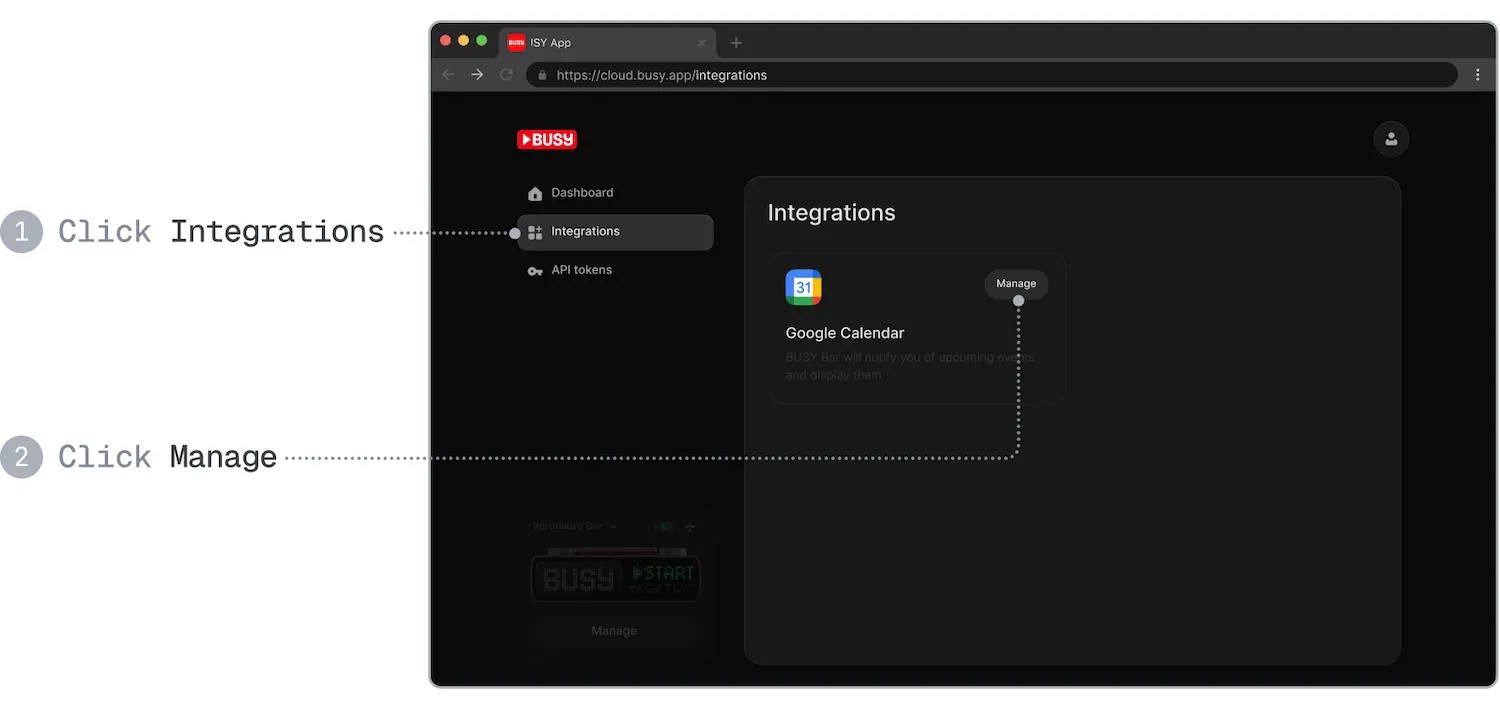
Go to  Integrations → Google Calendar → Connect.
Choose a Google account you want to connect to.
Allow BUSY account to view your Google Calendar events to display them on the BUSY Bar screen.
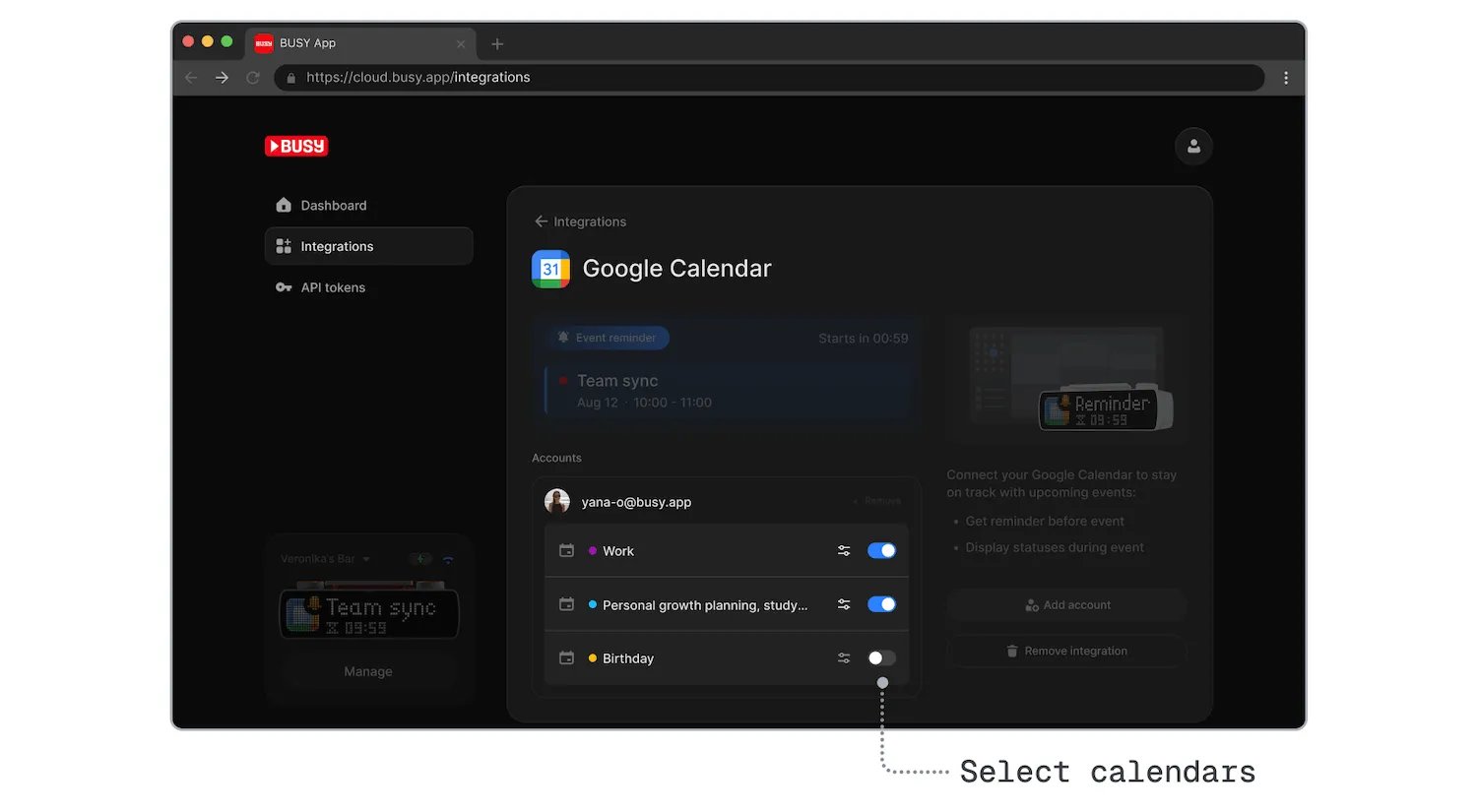
Select calendars to synchronize with.
Once you connect your Google account, all calendars are added automatically. To hide reminders from specific calendars, you can turn them on or off in the integration settings for Google Calendar.
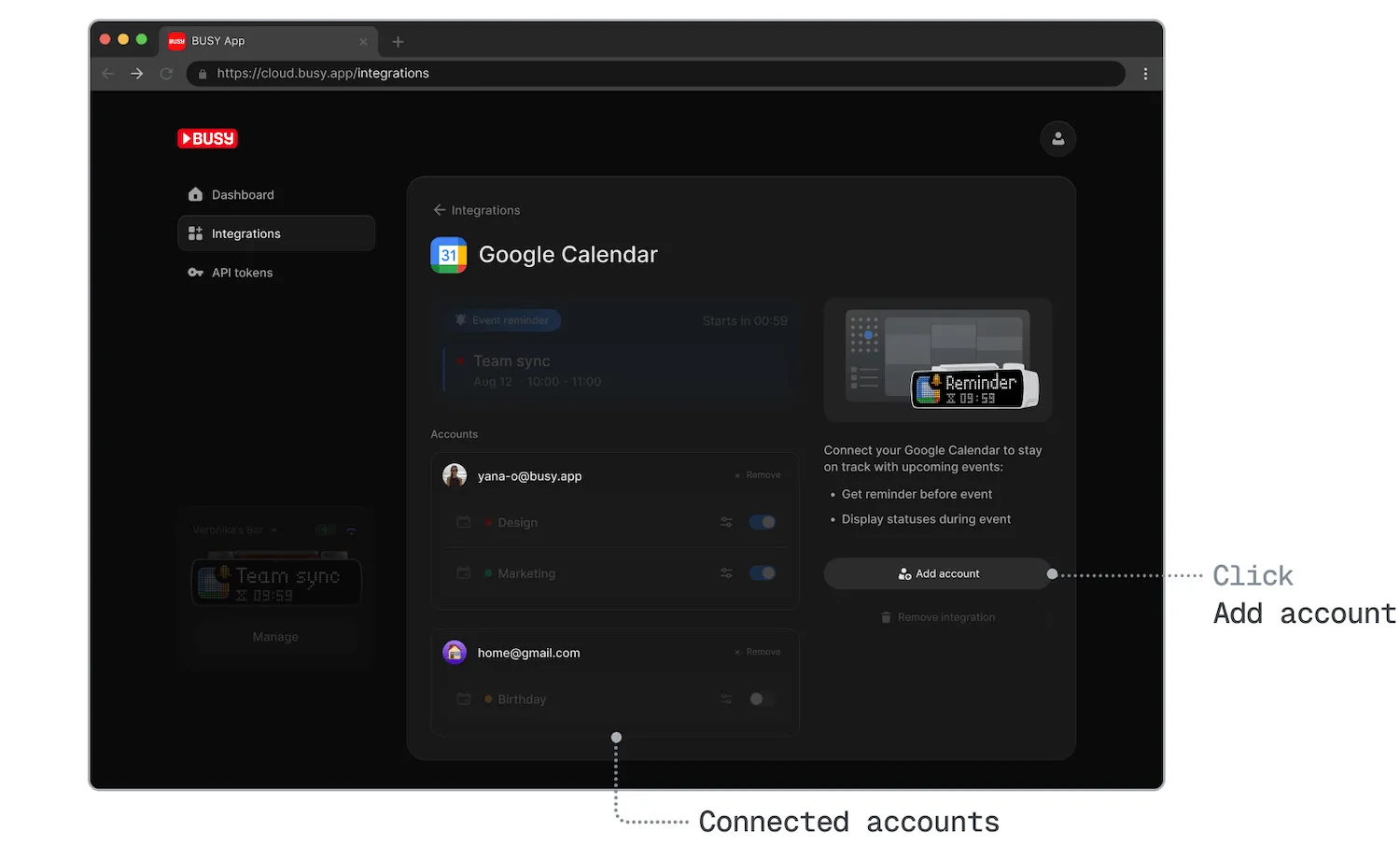
(Optional) Connect calendars from other Google accounts by clicking Add account.
Customize reminders and statuses
You can adjust how reminders appear before an event and what status is shown during the event.
Go to Integrations → Google Calendar → Manage.
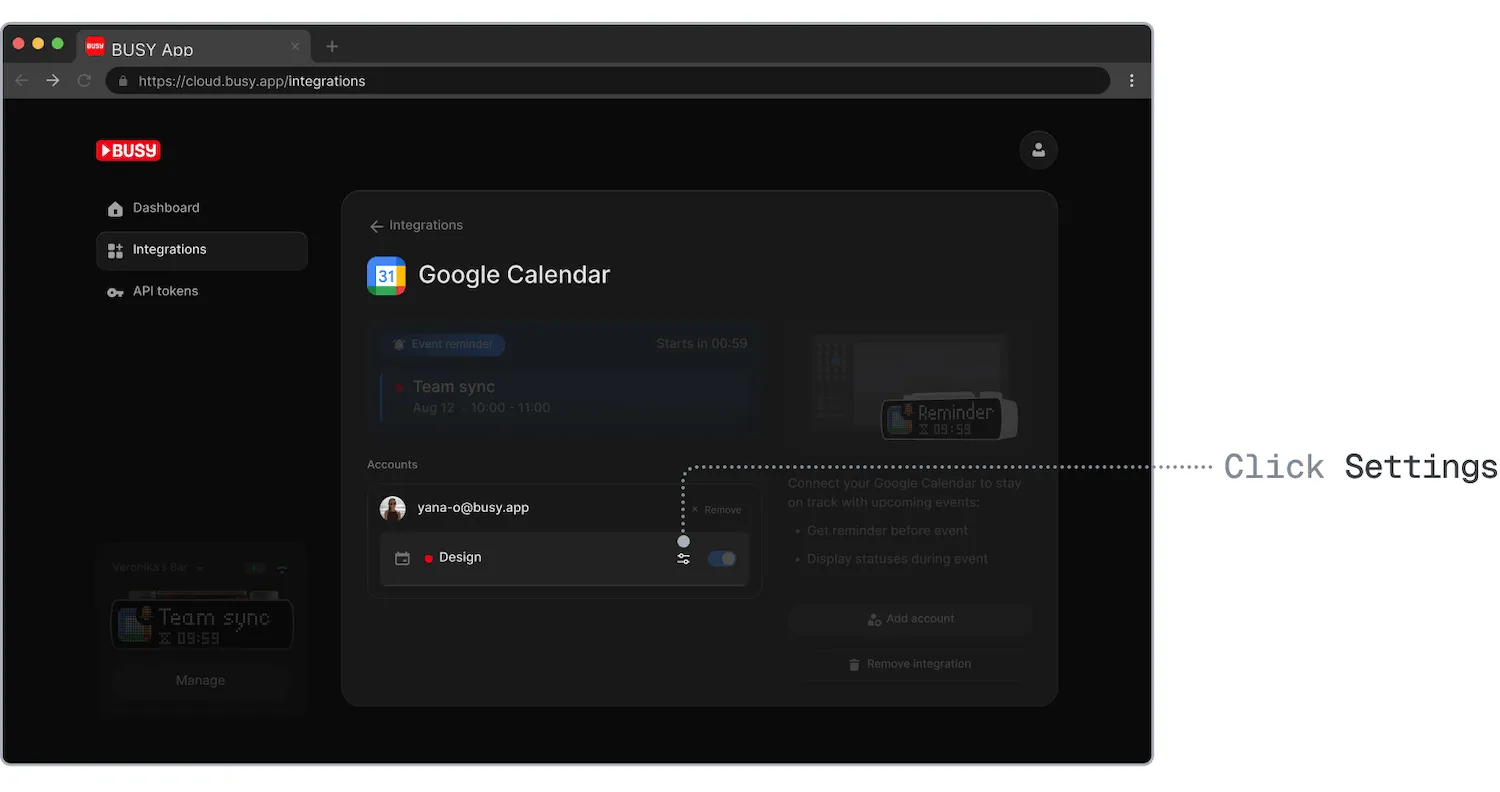
Click the  Settings icon next to the calendar you want to customize.
Customize reminders and meeting status.
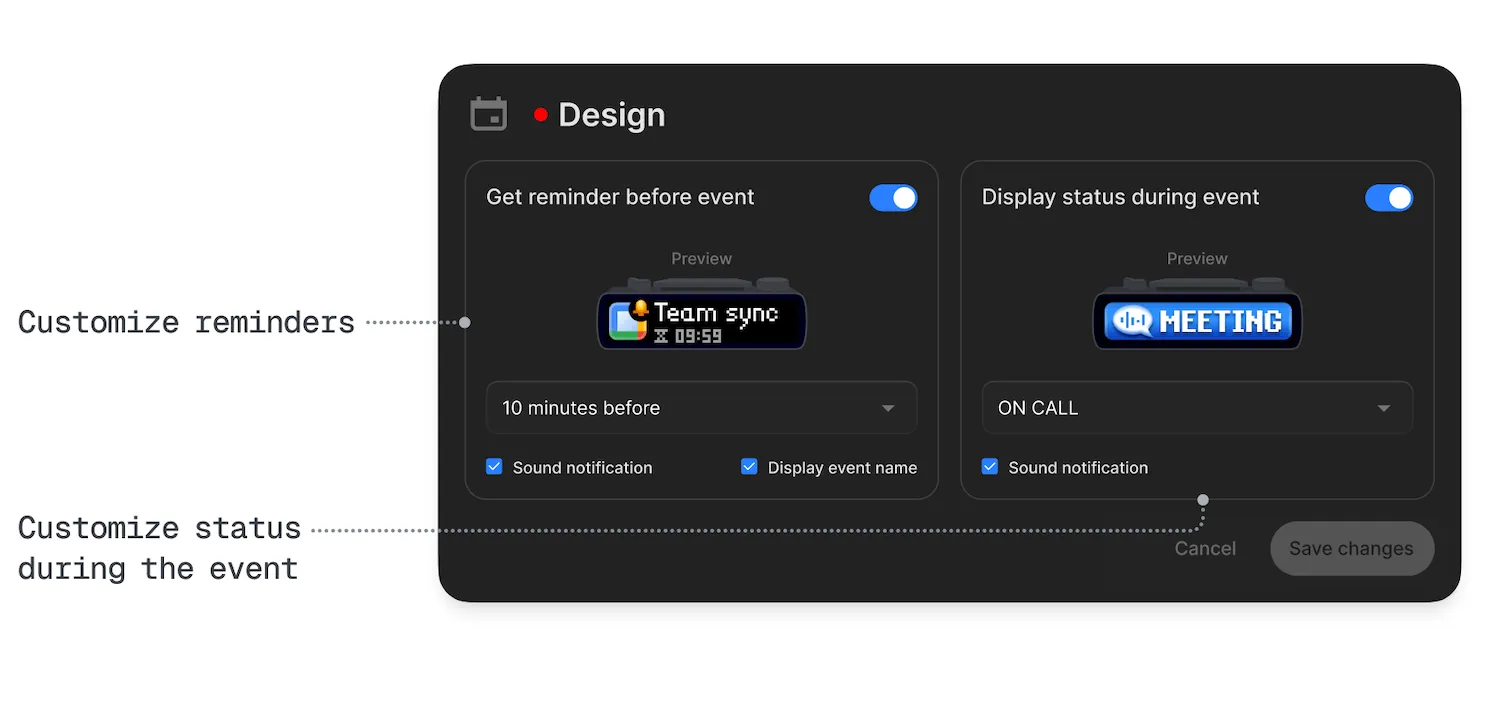
Event reminders
Configure how BUSY Bar notifies you before an event:
- Enable or disable reminders
- Set how long before the event the reminder should appear
- Enable or disable sound notifications
- Show the upcoming event name in the reminder
Status during events
Control how your status appears while a meeting is active:
- Enable or disable automatic status for events
- Display the event name or choose a status from the list
- Enable or disable sound notifications
Disconnect your Google Calendar
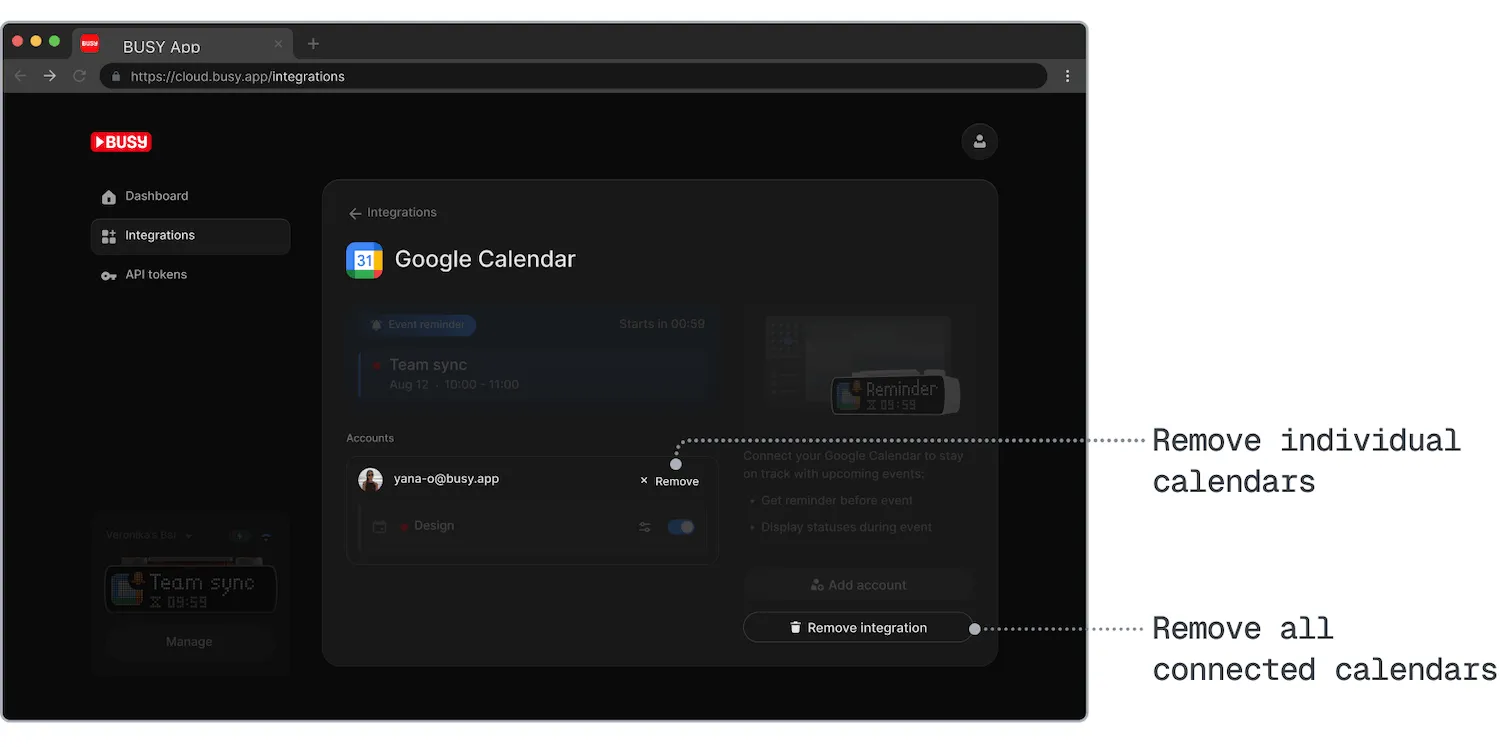
You can disconnect individual calendars or remove all calendar connections at once.
Open cloud.busy.app in your browser.
Log in to your BUSY account with your email address, or continue with Google, Apple, or Microsoft.
Go to Integrations → Google Calendar → Manage.
Click Remove to disconnect an individual Google Calendar.
If you have multiple calendars, you can remove them one at a time by clicking Remove next to each calendar, or disconnect all at once by clicking Remove integration.