BUSY Bar issues
Find troubleshooting steps for your BUSY Bar below.
A small number of BUSY Bars from the first batch may have glue residue left on the front screen after you peel off the protective film. Follow the steps below to clean the screen.
 Do not use force — this may scratch the screen
The glue residue is hard to remove with ordinary cleaning solutions. Use only the recommended cleaner. Wiping with force or using an abrasive cloth may leave permanent scratches.
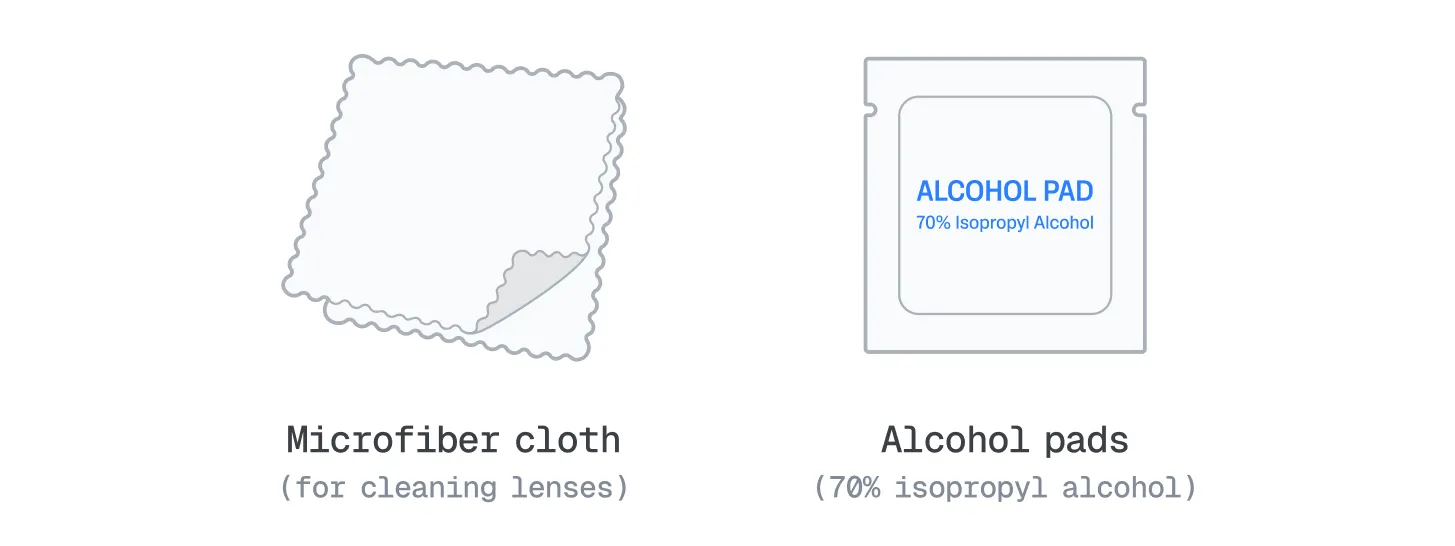
What you’ll need:
- Microfiber cloth
- 70% isopropyl alcohol pads (available at any pharmacy)
 Do not use
 Any other cleaner: may contain substances that can damage the screen, such as acetone in nail polish remover.
 Rough cloth: may scratch the screen.
 Paper towels or wet wipes: may have fibers that can scratch the screen.
How to remove the residue
Switch off your BUSY Bar and place it on a clean, debris-free surface.
Open an alcohol pad and lay it flat on the affected area of the screen.
Let the pad rest on the screen for a few seconds — this softens the glue.
Gently move the pad across the screen until all traces of the glue are removed. Do not scrub or press hard.
Take a clean microfiber cloth and gently wipe off any remaining alcohol. Avoid wiping with force as it may cause permanent damage to the screen.
Only use alcohol to remove glue residue
For regular cleaning, use an alcohol-free screen cleaner. Repeated exposure to alcohol can damage the screen.
This is expected behavior. OFF mode puts the BUSY Bar to sleep, not a full shutdown. Notifications, focus session started in the app, and the ON CALL status will still show.
To shut down your BUSY Bar completely, go to Settings → System → Power → Shut down. To power it back on, press and hold the  Back button for 3 seconds.
If your BUSY Bar won’t power on, try these steps:
- Try charging your BUSY Bar for longer — at least 1 hour.
- Restart your BUSY Bar: Press and hold the
 Start / Pause and Back buttons for 3 seconds.
- Do a hard restart: Press and hold the Back button for 20 seconds.
If the issue persists, contact support .
If your BUSY Bar freezes and doesn’t respond to button presses, try these steps:
- Restart your BUSY Bar: Press and hold the Start / Pause and Back buttons for 3 seconds.
- Do a hard restart: Press and hold the
 Back button for 20 seconds.
- Repair the firmware: If the problem persists, the BUSY Bar firmware might be corrupted. Go to the BUSY Bar Recovery page and follow the instructions.
If your BUSY Bar won’t charge, try these steps:
- Try a different cable or power source.
- Restart your BUSY Bar: If it’s turned on, press and hold the Start / Pause and Back buttons for 3 seconds.
If the issue persists, contact support .
If your BUSY Bar won’t connect to Wi-Fi, try these steps:
- Move your BUSY Bar closer to your Wi-Fi router.
- Check your Wi-Fi band: BUSY Bar only supports 2.4 GHz Wi-Fi. Check your router settings and make sure the 2.4 GHz band is enabled.
- Restart your Wi-Fi router.
- Try another connection method: See Connect to Wi-Fi.
- Connect to a hidden network manually: Enter the Wi-Fi name and password manually .
- Update your BUSY Bar firmware via PCUpdate the BUSY Bar firmware via PC.
If the issue persists, contact support .
BUSY Bar has a battery life of up to 8 hours on a full charge. The battery continues to drain even when the mode selector is set to OFF.
If you notice significantly shorter battery life, try these steps:
- Update your BUSY Bar to the latest firmware version.Update your BUSY Bar to the latest firmware version.
- Reduce the screen brightness: On your BUSY Bar, go to Settings → Brightness, set Mode to Manual, and set the brightness level.
- Shut down your BUSY Bar completely: To preserve the battery when you won’t use your BUSY Bar for an extended period, go to Settings -> System -> Power -> Shut down.
If the issue persists, contact support .
If your BUSY Bar fails to update its firmware, try these steps:
- Make sure your BUSY Bar is connected to Wi-Fi: On your BUSY Bar, go to Settings -> Wi-Fi. See Connect to Wi-Fitext for instructions.
- Restart your BUSY Bar: Hold the Start / Pause and Back buttons for 3 seconds.
- Make sure your BUSY Bar is charged to at least 40%charged to at least 40%.
- Try a different update method: Update using BUSY App or the local web interface. See Firmware update.
- Try again later: The update server may be temporarily unavailable.
- Check the firmware file format: If you are updating from a firmware file, make sure it’s in the .tgz format.
If the issue persists, contact support .
You can set time manually on your BUSY Bar: Settings → Time → Time Zone.
BUSY Bar sets its time zone automatically based on the device you use to connect to it. This happens when you:
- Pair your BUSY Bar with BUSY App on your phone or desktop.
- Connect to the local web interface in a web browser.
If your BUSY Bar didn’t update its firmware overnight, check the following:
- Check the Wi-Fi connection: On your BUSY Bar, go to Settings → Wi-Fi.
- Make sure Auto-update is enabled: On your BUSY Bar, go to Settings → Firmware → Settings → Auto-update and set it to On.
If Google Calendar events aren’t showing on your BUSY Bar, try these steps:
- Check the Wi-Fi connection: On your BUSY Bar, go to Settings → Wi-Fi.
- Make sure your BUSY Bar is connected to your BUSY account.Make sure your BUSY Bar is connected to your BUSY account.
- Check the Google Calendar integration: In your BUSY account, open the Integration tab and make sure the Google Calendar integration is active. See Google Calendar integrationtext for setup instructions.
Note that the calendar integration doesn’t show 24-hour events, and events are not shown during an active focus session on your BUSY Bar.
If your computer doesn’t detect your BUSY Bar over USB, try these steps:
- Try a different USB port on your computer.
- Try a different USB cable: Make sure the cable supports data transfer, not just charging.
- Restart your BUSY Bar: Press and hold the Start / Pause and Back buttons for 3 seconds.
- Update your BUSY Bar to the latest firmware version.Update your BUSY Bar to the latest firmware version.
- Make sure you grant system permissions when connecting your BUSY Bar.
- Allow your browser to find devices on local networks: See how to enable this on macOS and Windows 11 .
If the issue persists, contact support .
You can recover your BUSY Bar by reinstalling its firmware. This restores the system files needed for BUSY Bar to work.
To recover your BUSY Bar:
- Go to the BUSY Bar Recovery page and follow the instructions.
You can reattach the Start / Pause button by following these steps:
Place the BUSY Bar with the front facing away from you.
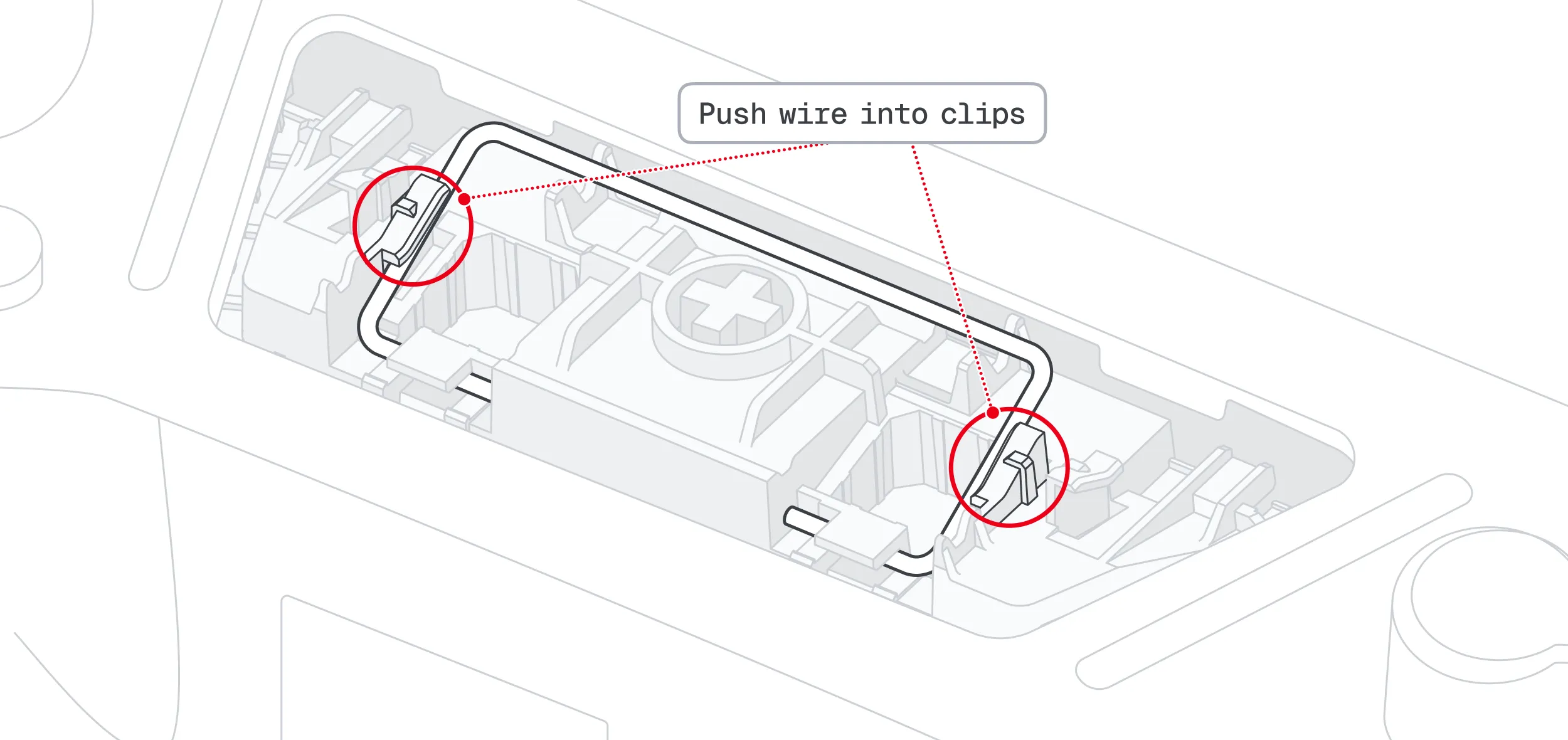
Insert the smaller (C-shaped) stabilizer wire into the guides, as shown below.
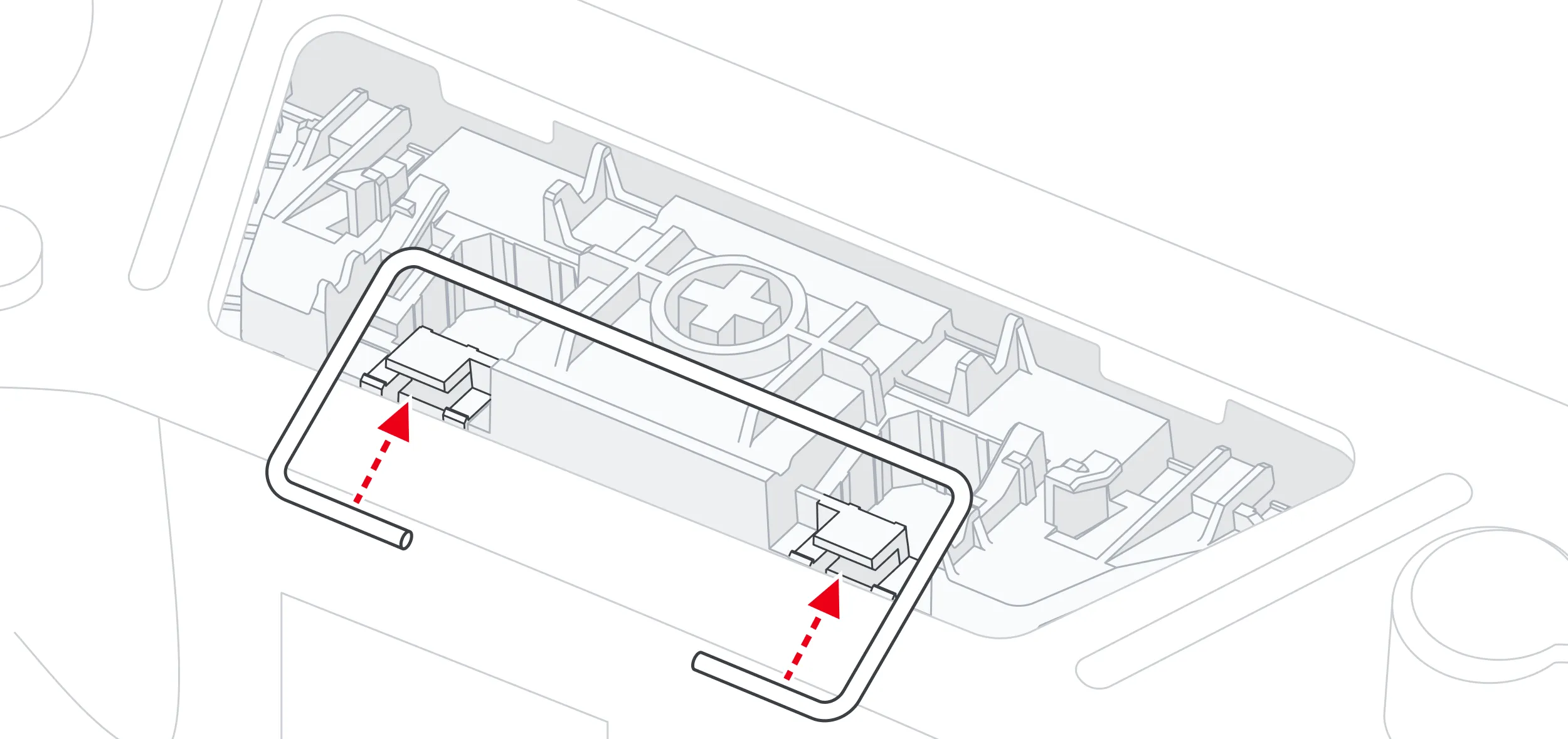
Push the upper part of the stabilizer wire into the clips until you hear two clicks.
Turn the BUSY Bar around so the front faces you.
Insert the larger (U-shaped) stabilizer wire into the guides, as shown below.
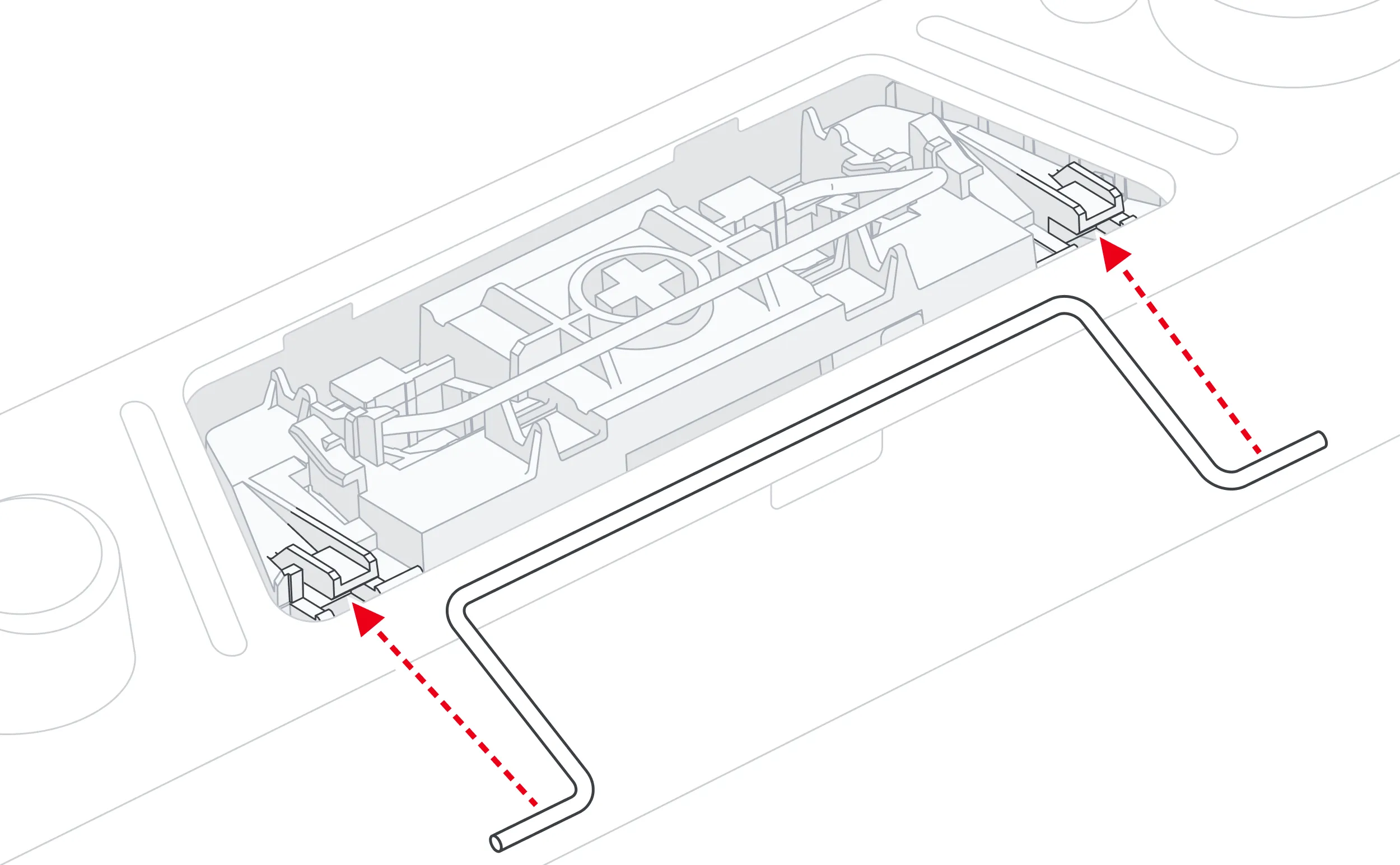
Push the upper part of the stabilizer wire into the clips until you hear two clicks.
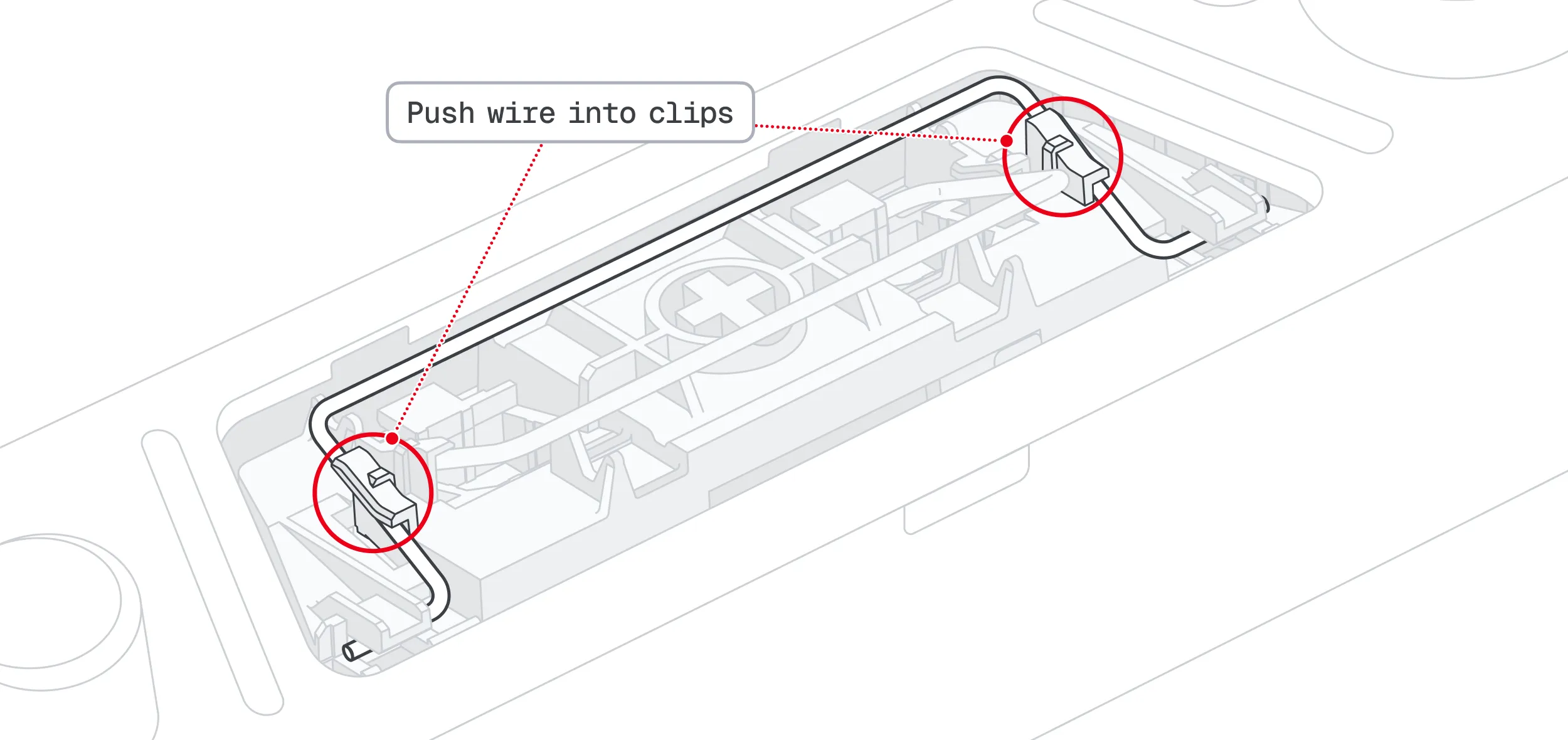
Align the Start / Pause button with the key switch and the guides.
 Tip
Tip
Match the shape of the button to the cutout in the BUSY Bar’s housing to make sure it’s oriented correctly.
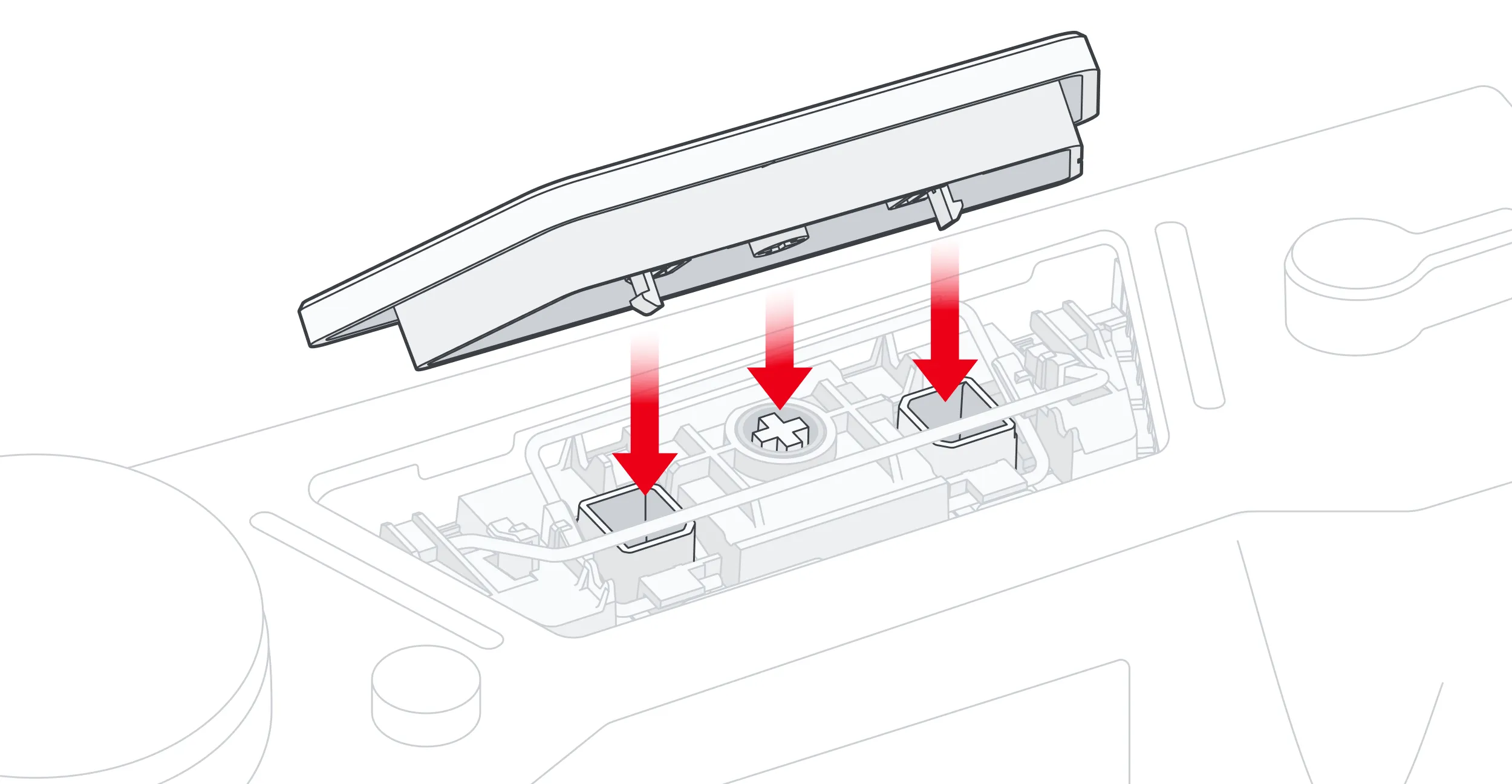
Press the button firmly into the guides until you hear several clicks.
Press the button several times with the palm of your hand to make sure all clips are securely in place.
That’s it. Your Start / Pause button is back in place.