Pair with your phone
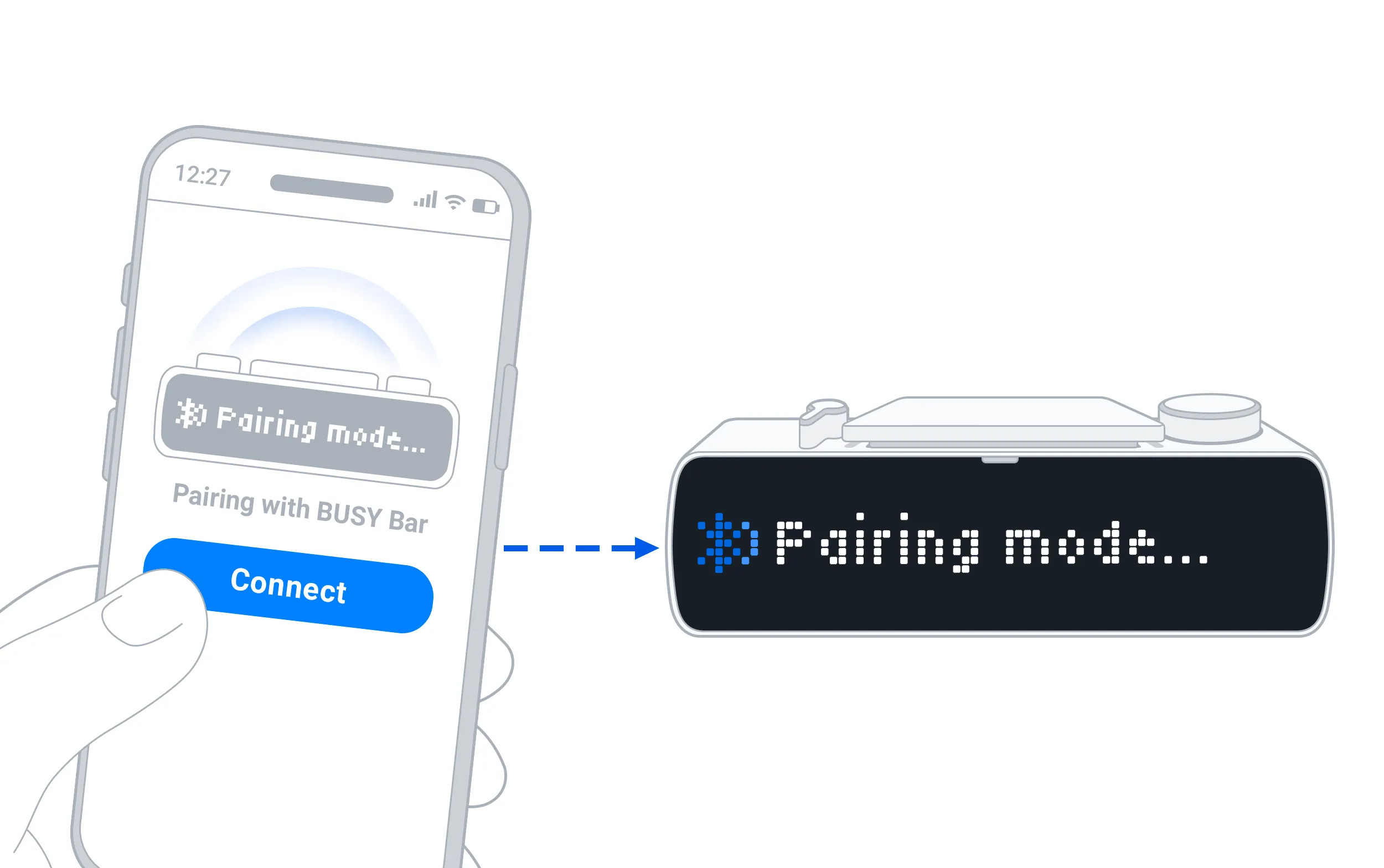
Pair your BUSY Bar with your phone for initial setup and to sync focus sessions between your BUSY Bar and phone via Bluetooth when Wi-Fi is unavailable. Pairing is done using  BUSY App, available on iOS and Android.
On this page, you’ll learn how to pair and unpair BUSY Bar with a phone:
Pair BUSY Bar with your phone
Install BUSY App on your phone:
On your phone, make sure Bluetooth is ON.
Switch your BUSY Bar to pairing mode by going to Settings → Bluetooth.
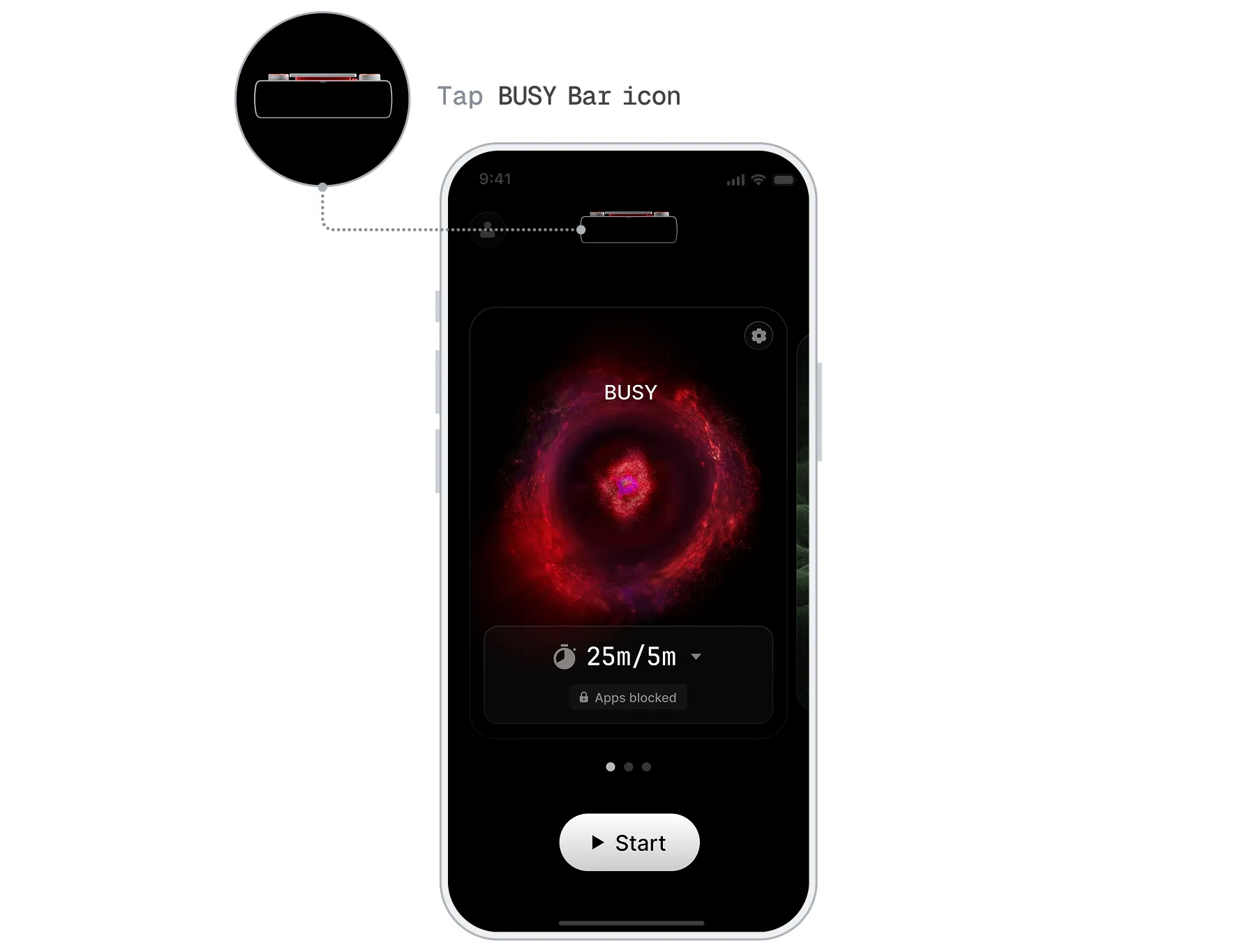
Open BUSY App and tap the BUSY Bar icon.
Tap Connect BUSY Bar.
Your BUSY Bar should appear in the list of devices — tap Connect.


Follow the onscreen instructions.
Pair multiple BUSY Bars with your phone
You can pair multiple BUSY Bars with BUSY App on your phone, but you can control only one at a time. To pair, follow these steps:
Install BUSY App on your phone:
On your phone, make sure Bluetooth is ON.
Switch the first BUSY Bar to pairing mode by going to Settings → Bluetooth.
Open BUSY App and tap the BUSY Bar icon.
Tap Connect device.
Your BUSY Bar should appear in the list of devices — tap Connect.
Follow the onscreen instructions.
Switch the second BUSY Bar to pairing mode by going to Settings → Bluetooth.
In BUSY App, tap the BUSY Bar icon.
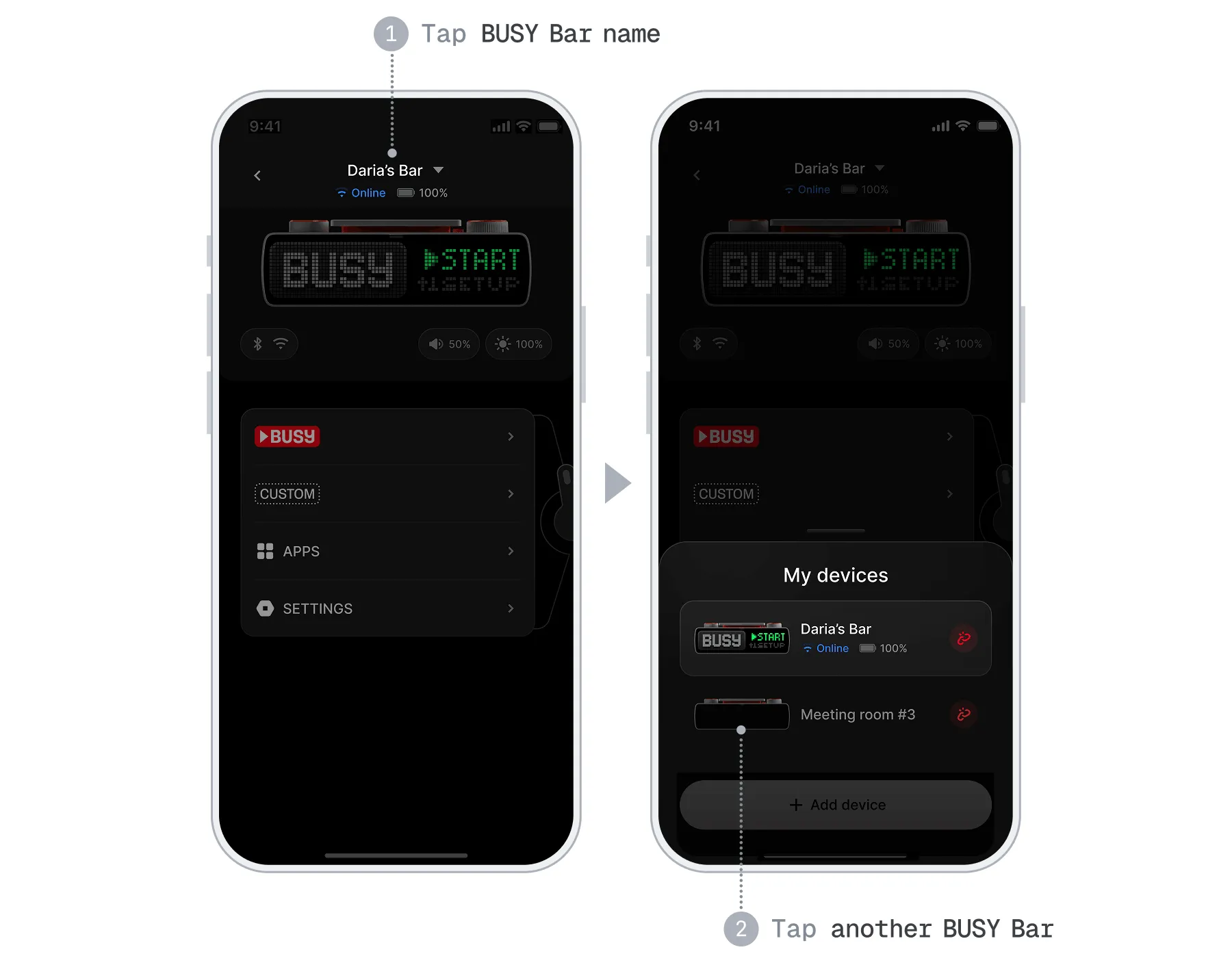
Tap your BUSY Bar name, then tap + Add device.
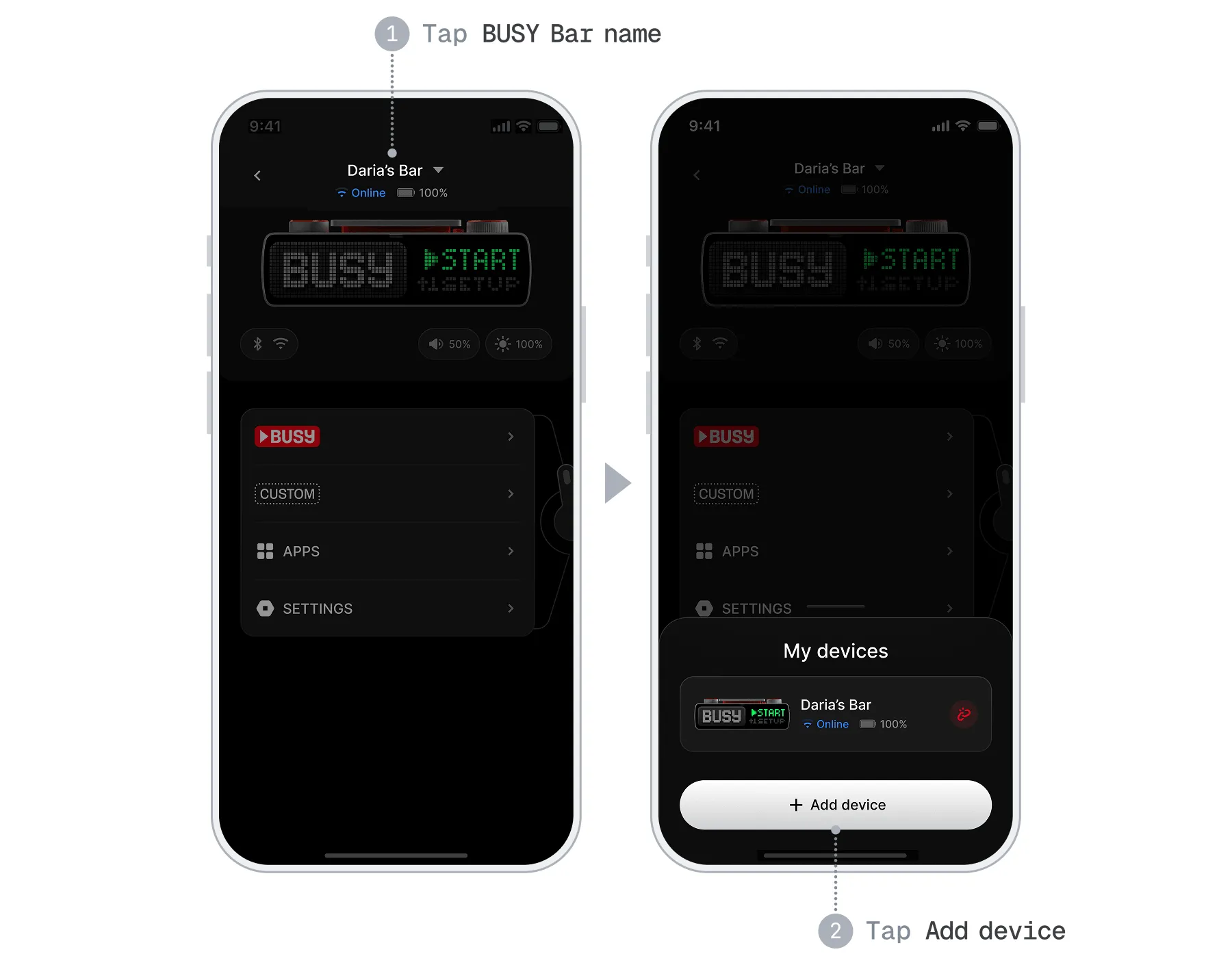
Your BUSY Bar should appear in the list of devices — tap Connect.
Follow the onscreen instructions to pair with your BUSY Bar.
If you want to add more BUSY Bars, repeat steps 8–12 for each one.
Switch between paired BUSY Bars
You can connect multiple BUSY Bars to BUSY App, and each BUSY Bar will have its own page in the app to manage it. To switch to a different BUSY Bar in BUSY App:
Open BUSY App and tap the BUSY Bar icon.
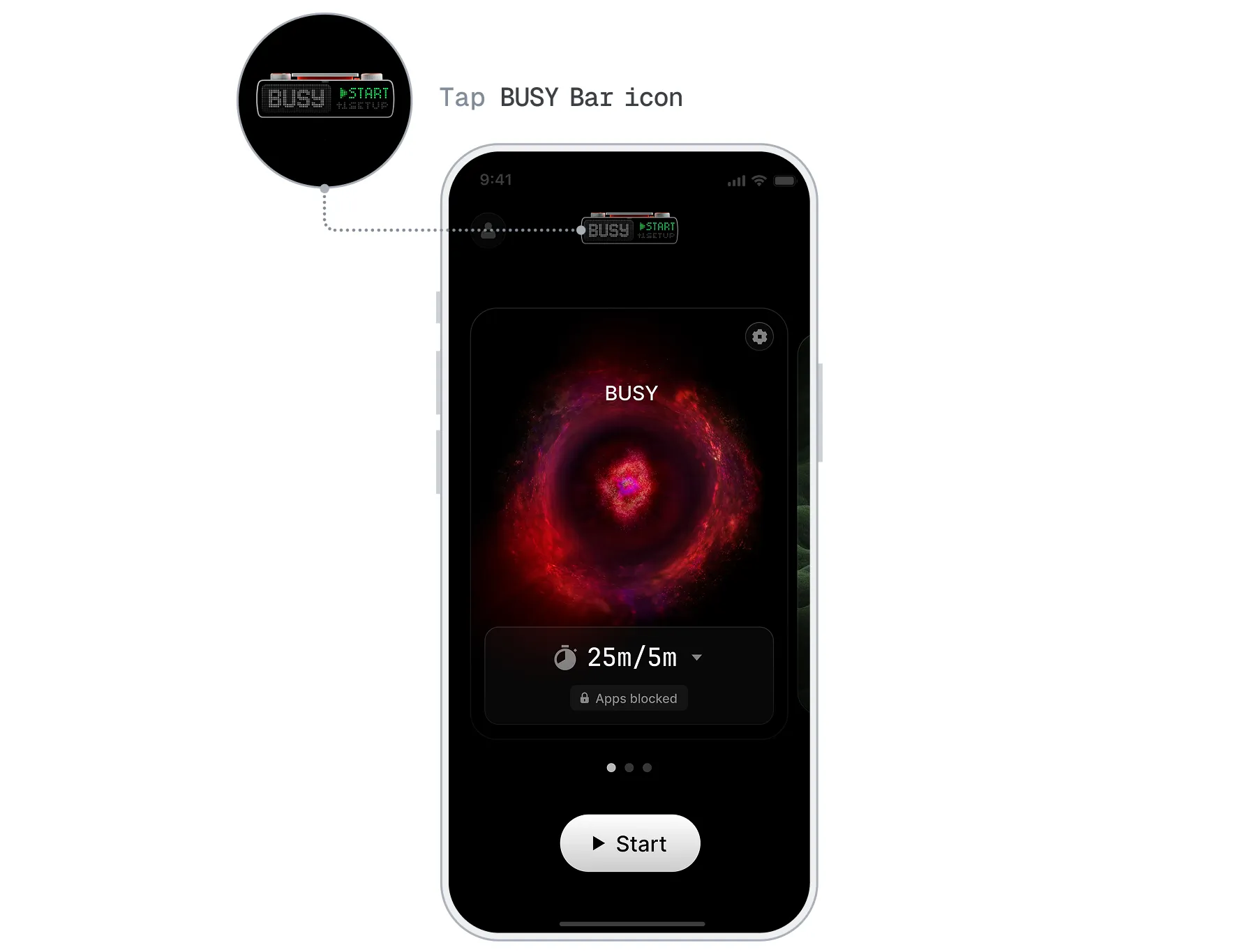
Tap your BUSY Bar name, then tap the BUSY Bar you want to switch to.
Unpair your BUSY Bar
You can unpair your BUSY Bar from BUSY App using the BUSY Bar itself or BUSY App on your phone.
Using BUSY Bar
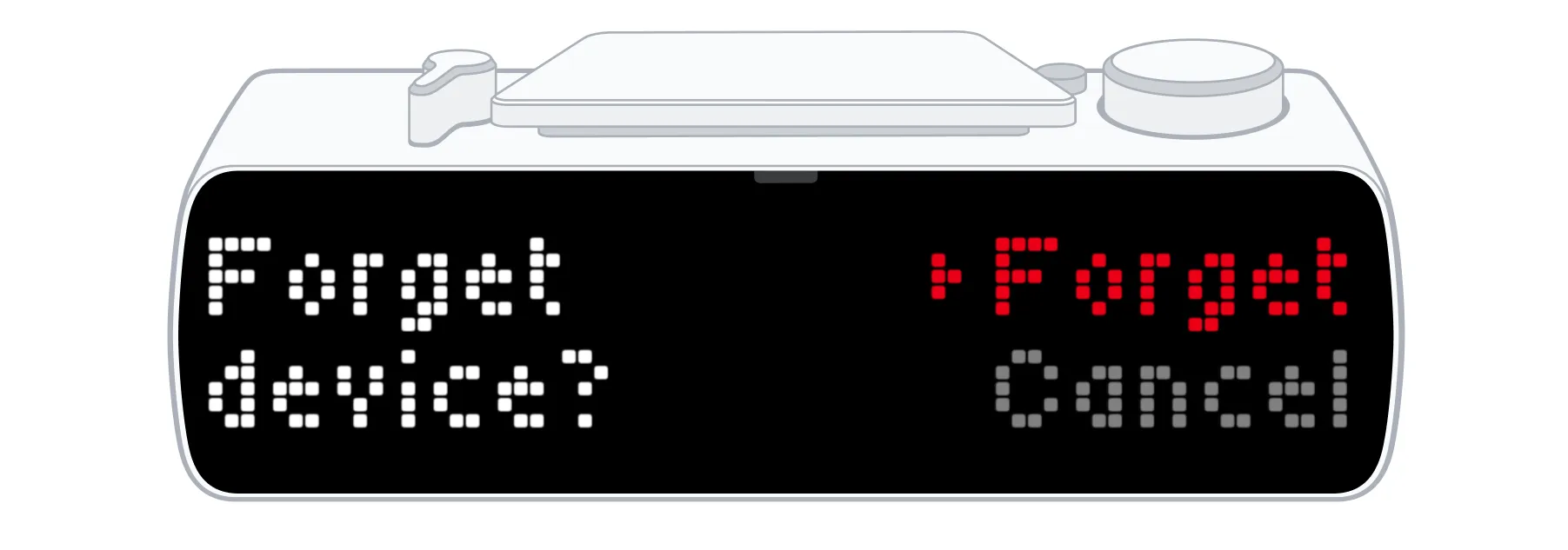
On your BUSY Bar, go to Settings → Bluetooth.
Select Forget device, then confirm your action.
Using BUSY App on your phone
Open BUSY App on your phone.
Tap the BUSY Bar icon.
Go to Connection status → Bluetooth.
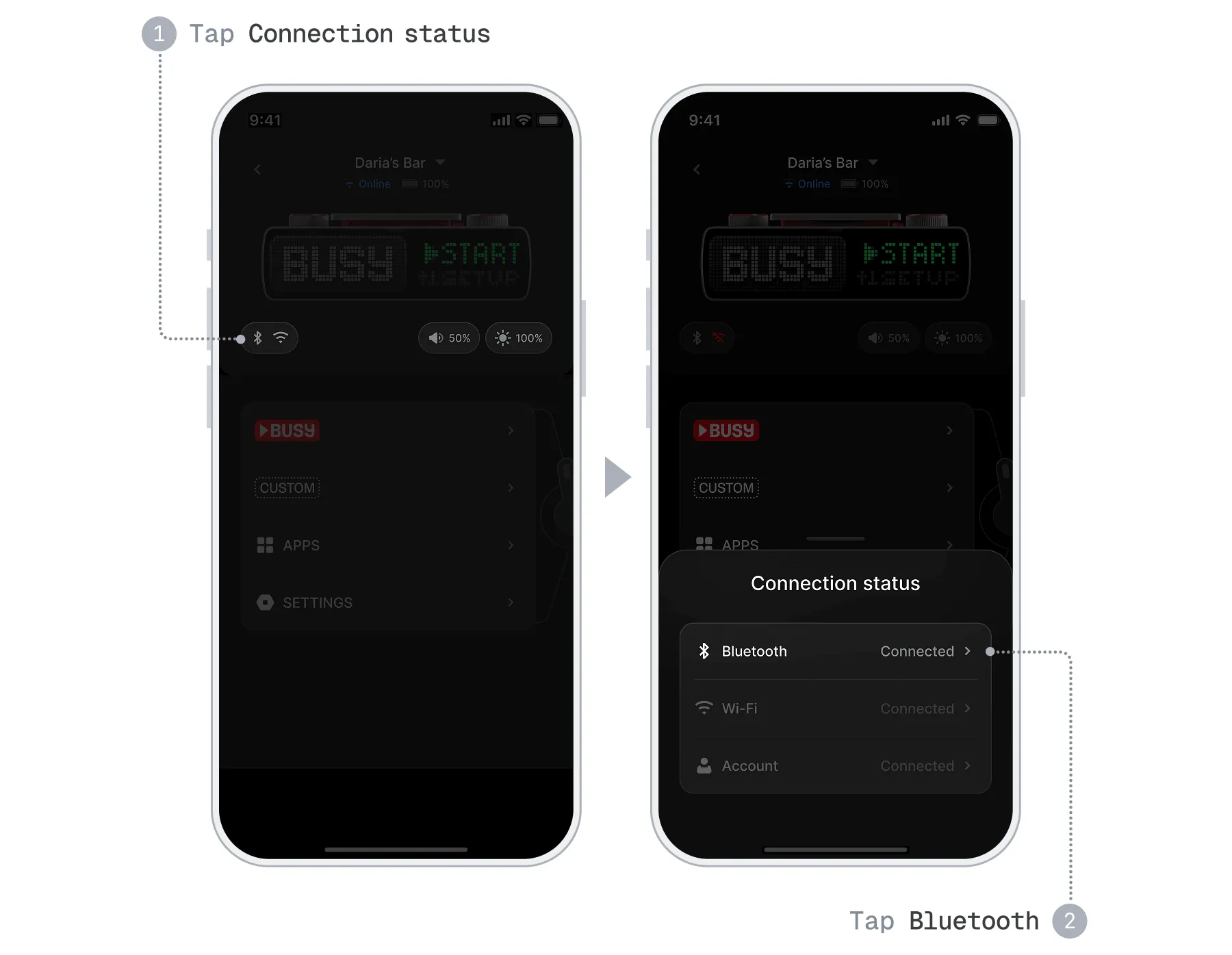
Tap Forget BUSY Bar.
Unpair multiple BUSY Bars
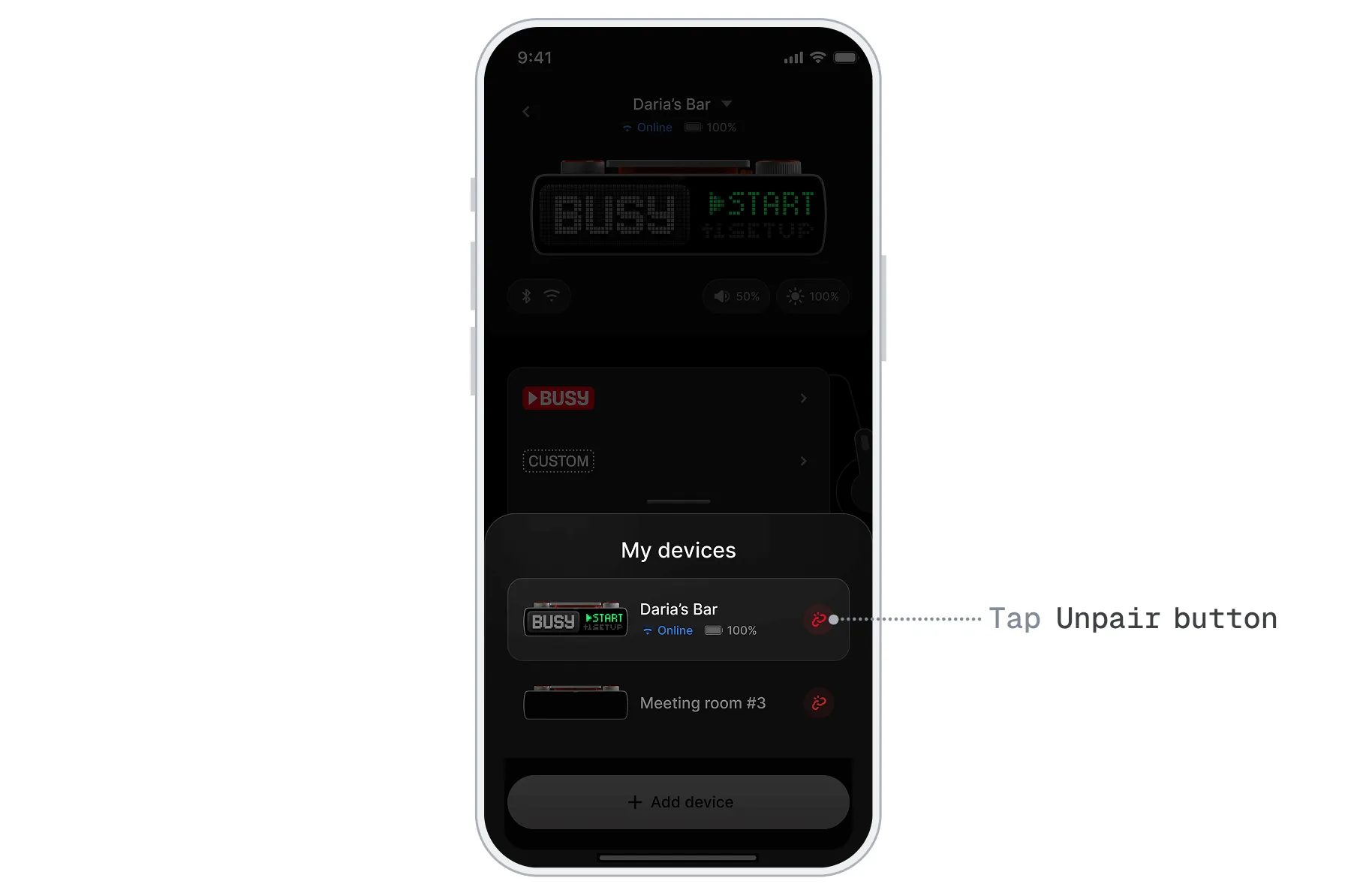
If you want to unpair multiple BUSY Bars, you can do it from each device separately, or from BUSY App on your phone.
Open BUSY App and tap the BUSY Bar icon.
Tap your BUSY Bar name.
In the list of your devices, tap the  Unpair button next to the devices you want to unpair.