Troubleshooting
Local web interface issues
Find troubleshooting steps for the BUSY Bar local web interface below.
If you can’t access the local web interface via Wi-Fi, try these steps:
- Make sure your BUSY Bar is connected to Wi-Fi: On your BUSY Bar, go to Settings → Wi-Fi.
- If your BUSY Bar is not connected to Wi-Fi, connect it using BUSY App or the local web interface via USB. See Connect to Wi-Fi.
- Make sure you are using the correct IP address: On your BUSY Bar, go to Settings → Wi-Fi → Your_network_name → View IP address. Enter this IP address in your browser.
- Make sure the Wi-Fi access is enabled in the local web interface.enabled in the local web interface.
If the issue persists, contact support .
If you can’t access the local web interface via USB, try these steps:
- Restart your BUSY Bar: Press and hold the
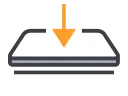 Start / Pause and
  Back buttons for 3 seconds.
- Make sure your BUSY Bar is connected to your computer and all required system permissions are granted.
- Try using a different cable or USB port.
If the issue persists, contact support .
If your Wi-Fi network doesn’t appear in the list, try these steps:
- Move your BUSY Bar closer to your Wi-Fi router.
- BUSY Bar only supports 2.4 GHz Wi-Fi networks. Check your router settings to make sure the 2.4 GHz band is enabled.
- Restart your Wi-Fi router.
- Try connecting to Wi-Fi via another method, as listed in Connect to Wi-Fi.
- Your Wi-Fi network might be hidden. Enter the Wi-Fi name and password manually .
- Update your BUSY Bar firmware via PCUpdate the BUSY Bar firmware via PC.
If the issue persists, contact support .
To change your local web interface password:
1
Connect your BUSY Bar to your computer using a USB cable.
2
Open http://10.0.4.20 in your browser.
3
Open the user menu in the top-right corner and select Change Password.
4
Set a new password.
Now you can access the web interface over Wi-Fi using your new password.