JS apps
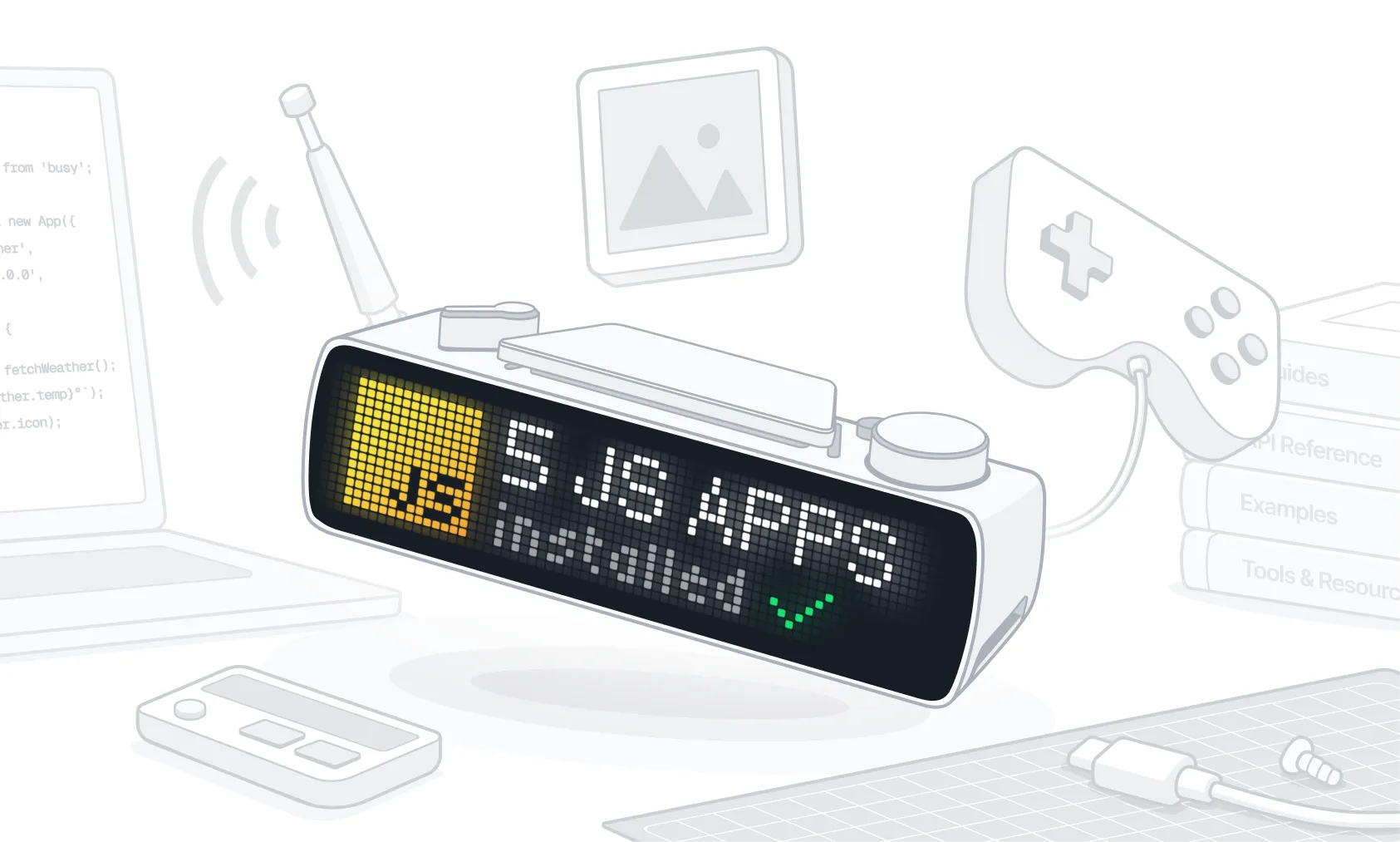
JS apps are small JavaScript programs that run on BUSY Bar itself. They draw on the screens, react to the buttons and scroll wheel, and fetch data from the internet — no computer needed once they’re installed.
On this page:
- Create an app and run it on BUSY Bar%section%Create an app and run it on BUSY Bar%section%
- Tools for building JS apps%section%Tools%section%
Try built-in JS apps
Starting with firmware 1.3.1, the built-in Clock and Weather apps are JS apps. Try them to see what a JS app can do. You can start the apps right on BUSY Bar or from its web interface:
Switch the  mode selector to
 Apps.
Go to Weather or Clock.
Select Start. The app will start on your BUSY Bar.
To quit the app:
- Press
 Back twice or switch the mode selector.
The built-in apps are open source:

Shows time and date on both screens of your BUSY Bar

Shows the current weather and a forecast
Types of apps you can build
JS apps can show live data from the web, keep time, respond to buttons, and send alerts. Here’s what each type relies on and what you can build with it.
Live data
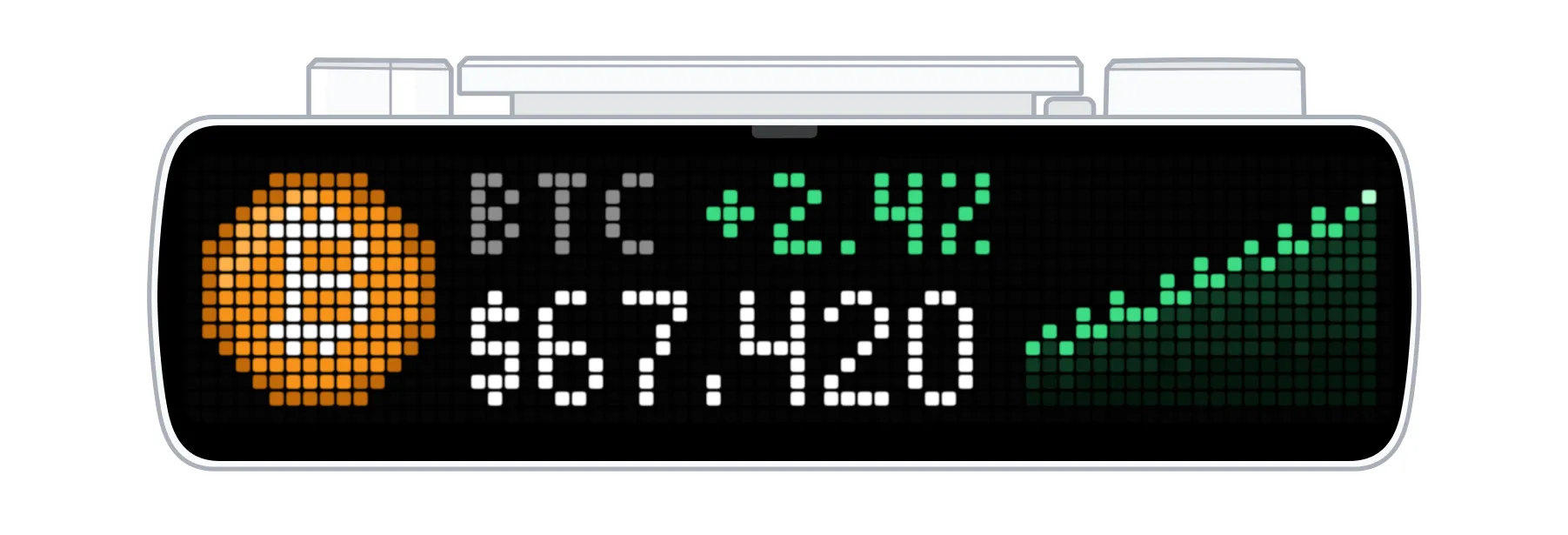
If a web service has an API, BUSY Bar can show its data. Apps call services over HTTP or HTTPS when connected to Wi-Fi and refresh the data at regular intervals. For example: exchange rates, build status, or the next bus.
Clocks and timers
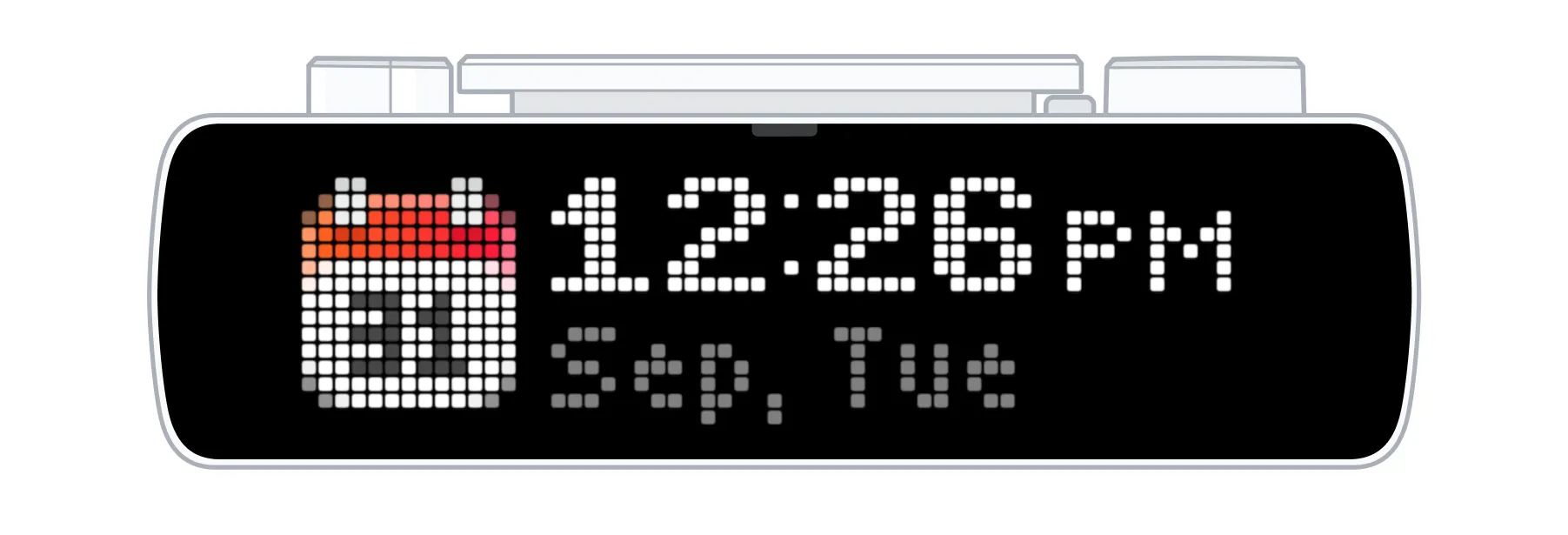
Apps get the current time from BUSY Bar. A countdown element updates on screen by itself, so the app doesn’t need to redraw it every second. For example: a world clock, days until a launch, or a meeting timer.
Interactive tools and games
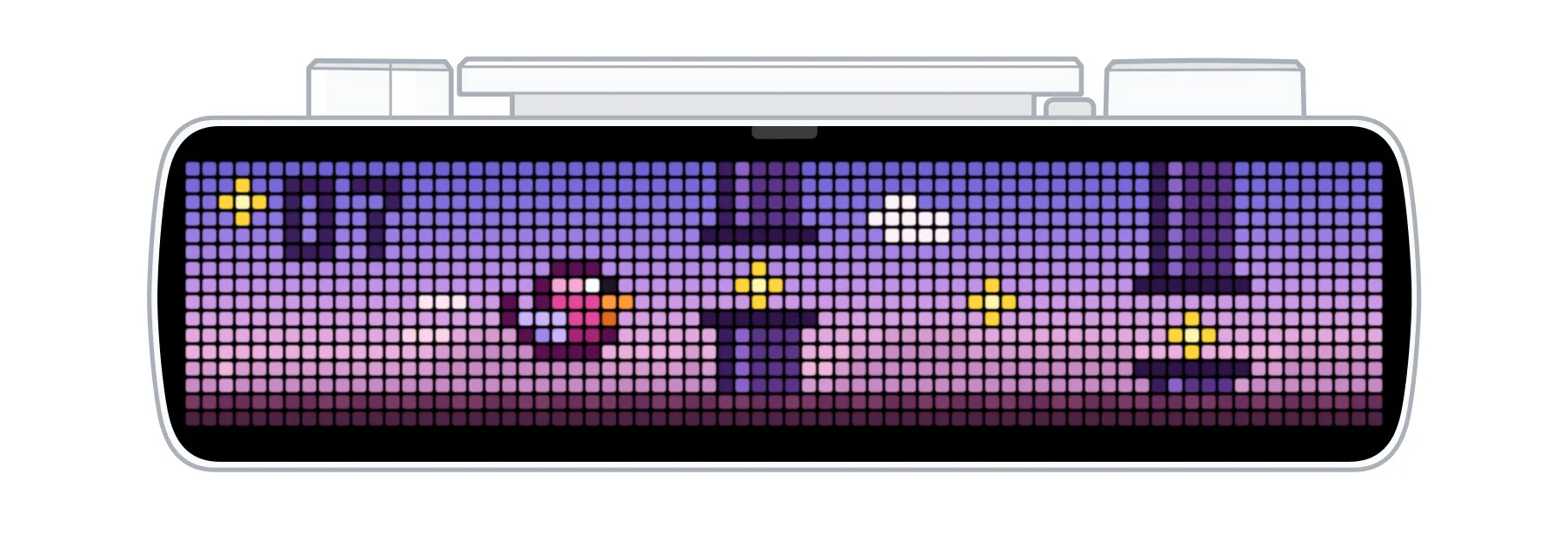
Apps respond to the  scroll wheel and the
 OK,
 Start / Pause, and Back buttons directly on the device, with no need to use a computer.
For example: a counter, a menu of shortcuts, a quiz, a reaction game.
Status and alerts
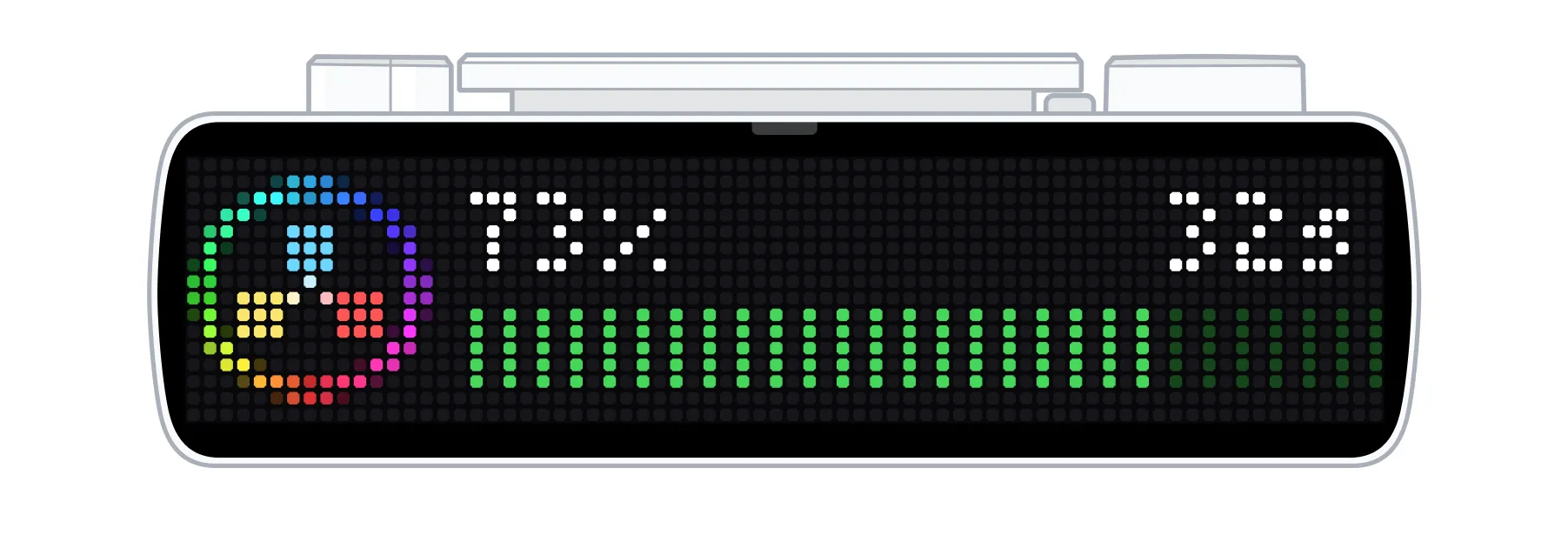
Beyond the front screen, apps can show messages on the back screen, play sounds, and read or control the BUSY timer. For example: a sign on the back screen for people around you, a sound when a delivery arrives.
Create an app and run it on BUSY Bar
Follow these steps:
Install Node.js v24.XX.X for your operating system, using nvm with npm.
Connect the BUSY Bar to your computer via USB.
Create an app template with one command in the terminal:
npm create @busy-app/app my-appBuild, install, and run the app on BUSY Bar with:
cd my-app
npm run build && npm run app:install && npm run app:run
BUSY Bar shows “Hello” and a number that grows every second:
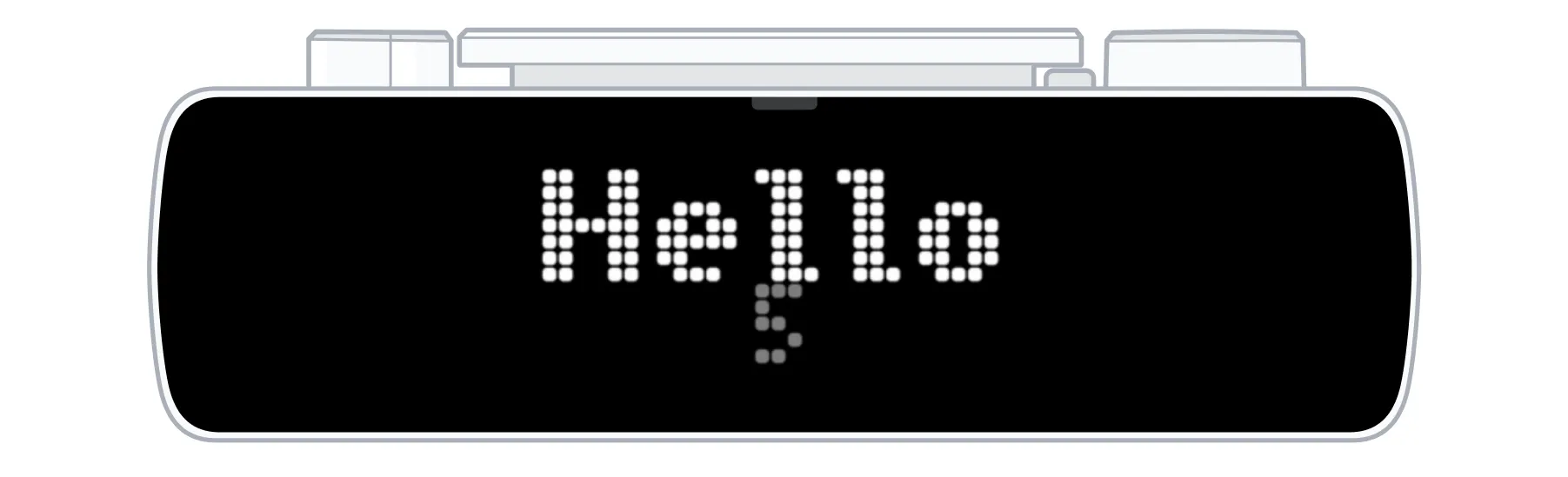
Point your AI coding agent to the my-app folder and explain how you want to modify the JS app. The folder already has the AGENTS.md file with instructions for AI.
Learn how to create JS apps for BUSY Bar without coding in Create apps with AICreate apps with AI.
If you don't want to use AI, you can manually modify the app's code, add settings and icons. To learn more about how to create apps, visit Build a JS appBuild a JS app.
How JS apps work
BUSY Bar runs JS apps with the JerryScript engine. To show text or images, or to play sounds, JS apps send HTTP API requests to the HTTP server on BUSY Bar. This is the same server that handles external HTTP API requests as described on the HTTP APIAbout HTTP API page.
Built-in functions
Also, the JS apps can use these built-in functions to interact with BUSY Bar:
Function | What is does |
|---|---|
fetch | Sends requests to the HTTP API at http://localhost to draw on the screens, play sounds, and read the app’s settings. These requests stay on the device, so no API token is needed. With Wi-Fi, fetch can also get data from web services. |
listen | Reacts to the buttons and the scroll wheel. |
setTimeout, setInterval | Run code later or on repeat. |
localStorage | Keeps data between app launches. |
console.log and similar | Write messages to the log. |
App settings
Apps can have settings that are defined in settings.json, and BUSY Bar creates the settings screen automatically. Apps can read their settings but can’t change them. Some settings, such as colors and locations, can only be changed in the web interface.
Limitations
Keep these in mind when creating an app:
- Only one app can run at a time.
- An app file (.tgz) can be up to 104 MB.
- Apps draw with display elements: text, images, animations, countdowns, rectangles, and bitmaps.
- An app can’t change its settings — only the user can change them, on BUSY Bar or in the web interface.
- Apps can’t use WebSockets.
- An app gets 128 KB of memory by default, configurable up to 512 KB in the manifest.
Find exact limits in the JS apps reference.
Tools for building JS apps
All tools are open source in the busy-tools repository on GitHub.
Apps vs. HTTP API integrations
Your code can run on BUSY Bar itself as a JS app, or on another device as an HTTP API integrationon another device as an HTTP API integration. Here’s how they compare:
| JS app | HTTP API integration |
|---|---|---|
Where the code runs | On BUSY Bar. You need a computer only to install the app | On a computer, server, or smart home hub that stays on |
Language | JavaScript or TypeScript | Any language that allows sending HTTP requests |
Supported HTTP API requests | Drawing, sound, brightness, volume, BUSY timer, and device status (see full list) | All |
Best for | Apps that work on their own and can get data from the web | Connecting BUSY Bar to apps and services you already run |
Choose a JS app when BUSY Bar should work on its own, such as a clock, a counter, or data from an online service. Choose an HTTP API integration when the data is on your computer or home network, such as call status or smart home sensors.
Where to get apps and how to share them
There’s no app catalog yet, but one is on the way. Until then, you can:
- Build your own app from scratch.
Install apps
To install an app, upload its .tgz file to BUSY Bar via the web interface.
Connect BUSY Bar to your computer via USB.
Open http://10.0.4.20 in a web browser.
Go to the  Apps tab and click +Add app.
Click Select file, choose the .tgz file, and click Upload.
Click Install app. If the app is already installed, the button says Update app.
To learn how to start, update, set up, and delete apps, visit Manage apps on BUSY Bar.
 Install only apps you trust
Apps can access the internet through your Wi-Fi and control your BUSY Bar’s screens, sounds, and timer.
Learn more
A step-by-step guide to building a real app that covers every feature
Give your AI agent a link to AGENTS.md, describe your idea, and get an app
An in-depth reference to every feature of the runtime and firmware
Install, start, configure, update, and delete apps
Get help
- Report a bug with the app tools on GitHub.
- Contact support.