Set up automations in Home Assistant
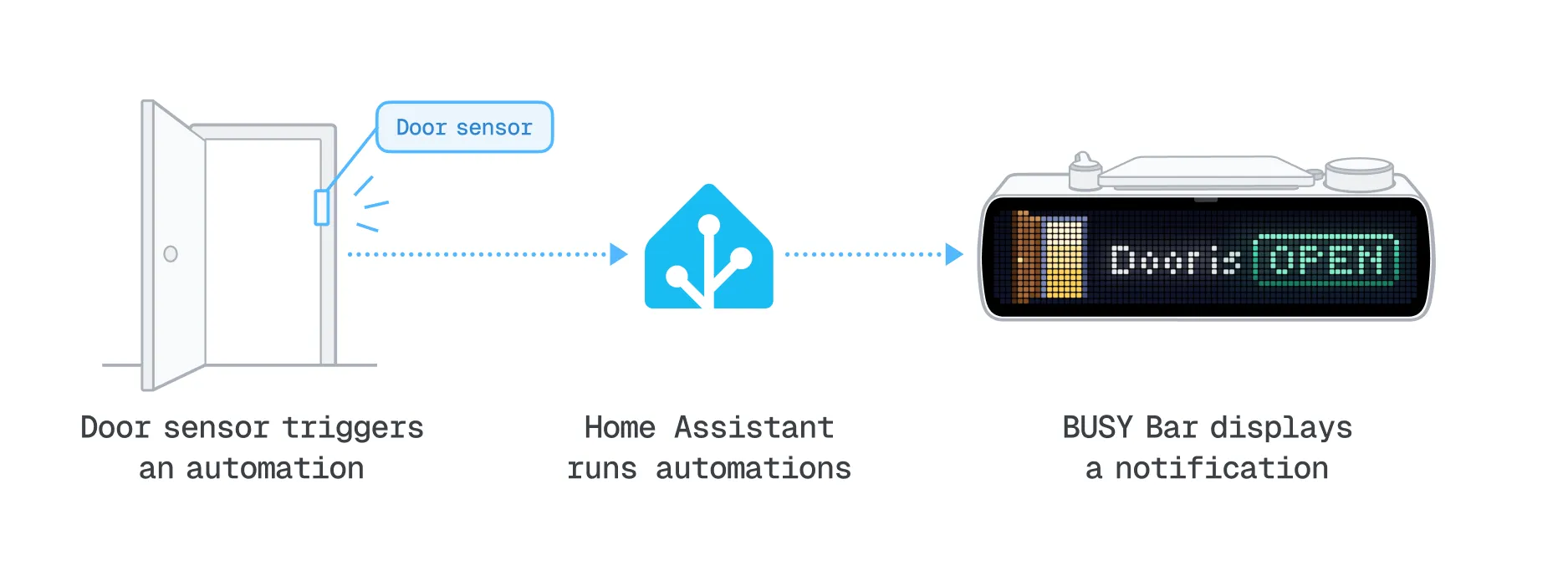
Once you connect your BUSY Bar to your Home Assistantconnect your BUSY Bar to your Home Assistant, you can create automations that involve your device. For example, BUSY Bar can trigger an automation to turn off the lights when a BUSY session starts. It can also respond to events in your home by displaying a message when the washing machine finishes its cycle, or a door opens.
On this page:
How automations work
Every automation usually has three parts:
-
 Trigger — an event that starts an automation. Learn more%page%
Examples: motion is detected, a door opens, a button is pressed on BUSY Bar.
-
 Condition (optional) — decides whether the automation should run. Learn more%page%
Examples: only on weekdays, only if someone is home, only if BUSY Bar shows BUSY.
-
 Action — the task the smart home performs. Learn more%page%
Examples: turn on lights, lock doors, play music, BUSY Bar shows a notification.

Create an automation
Before creating automations with BUSY Bar, make sure:
-
 BUSY Bar is connected to Home Assistant%page%BUSY Bar is connected to your Home Assistant%page%
- All other devices used in the automation are added to Home Assistant
In Home Assistant, go to Settings -> Automations & scenes.
Click Create automation, then Create new automation.
Set up your automation:
- Add trigger — choose what starts the automation
- Add condition (optional) — choose when the automation can run
- Add action — choose what the automation does
 To use BUSY Bar in an automation
- As a trigger or condition, choose Entity → State, then select the relevant BUSY Bar entity.
- As an action, search for BUSY Bar and select the action you want to perform.
For examples of how you can
Click Save, then enter a name for the automation.
To view or edit your automations, go to Settings -> Automations & scenes.
For more information about creating automations, see the Home Assistant guide.
Examples of automations
Here are a few examples to help you get started. They show how BUSY Bar can interact with other devices in your smart home.
Start a meeting session at a set time
BUSY Bar starts a 30-minute session with the meeting theme every weekday at 10:00.
Trigger: Click Add trigger -> Time, then set the time to 10:00.
Condition: Click Add condition -> Time, then select Monday to Friday.
Action: Click Add action, search for BUSY Bar, then click Start a quick countdown.
Select your BUSY Bar and configure the action:
- Duration: 30 minutes
- Theme: meeting
Turn off the lights when a BUSY session starts
Automatically turn off your office lights when BUSY Bar starts a BUSY session.
Trigger: Click Add trigger -> Entity -> State.
- Select Session Busy for your BUSY Bar.
- Set To to On.
Action: Click Add action -> Light -> Turn off, then select your lights.
How to turn the lights back on when the session ends
- Create another automation using the same trigger, but set To to Off.
- Set the action to Light → Turn on.
Show a message when the washing machine is done
Trigger: Click Add trigger -> Entity -> State. Select your washing machine, and set To to the state that indicates the washing machine is done.
Action: Click Add action, search for BUSY Bar, then click Show a notification.
Select your BUSY Bar, then enter the text in Line 1 and Line 2. Optionally, choose an Icon and a Sound.