Build a JS app
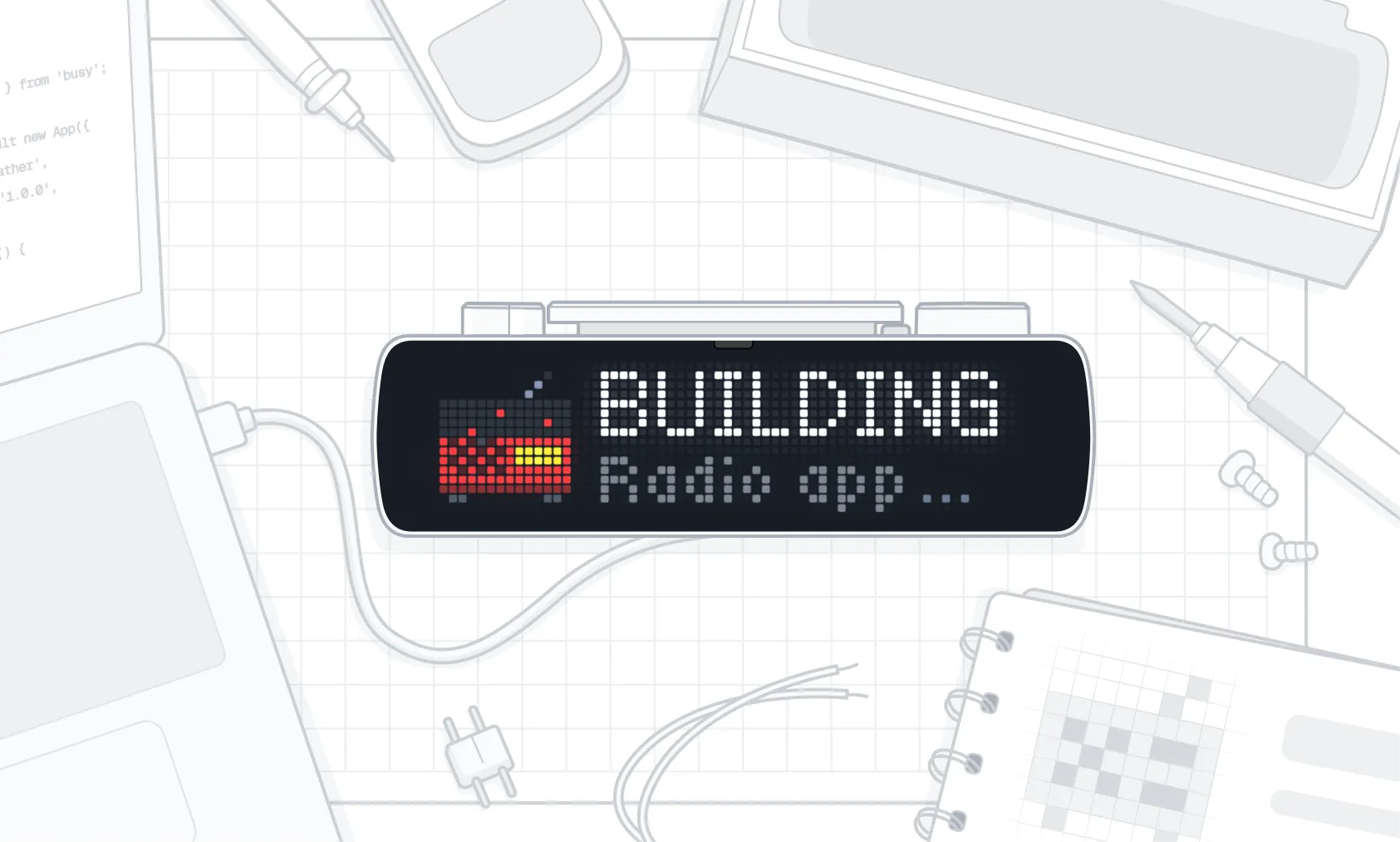
In this guide, you’ll build Rates, a simple currency exchange app for BUSY Bar. It shows live exchange rates, lets you switch currencies with the scroll wheel, and has its own settings.
In this guide:
- Get your app running%section% — Set up your computer, create a project, and install Rates on BUSY Bar, step by step.
- Inside the Rates app%section% — A walkthrough of the code you installed: from drawing and input handling to live data, settings, storage, and performance.
- How to share your app%section%Share your app%section%
- Troubleshooting%section%Troubleshooting%section%
 What you’ll need
- BUSY Bar with firmware 1.3.1 or later, connected to Wi-Fi
- A computer and a USB cable
- Basic knowledge of JavaScript or TypeScript and the Terminal
Get your app running
In this part, you’ll set up your computer, create a project from the app template, and install the Rates app on your BUSY Bar. By the end, BUSY Bar shows live exchange rates, and you can switch currencies with the scroll wheel.
Step 1. Connect BUSY Bar
Connect your BUSY Bar to your computer via USB.
Open http://10.0.4.20 in a web browser. The local web interface opens.
On the Firmware tab, check that the firmware version is 1.3.1 or later. If it’s older, update the firmware.
If the web interface doesn’t open, see Local web interface issues.
Step 2. Check Node.js version
In Terminal, run:
node -vIt should print a version that starts with v24, for example v24.11.0. If it doesn’t, download Node.js 24 from nodejs.org.
Node.js 26 isn’t supported yet.
Step 3. Create the project
In Terminal, run the command for your package manager. The project will use the same package manager for all later commands. If you’re not sure, use npm:
npm create @busy-app/app ratesIf npm asks to install @busy-app/create-app, type y and press Enter.
The generator asks a few questions:
- Press Enter to accept a suggested answer. or
- Enter your options, then press Enter.
Question | What to enter |
|---|---|
Author | Your name or nickname |
App id | A unique id, for example app.jane_doe.rates. The generator suggests one |
Display name | Rates, the name in the Apps menu |
Description | One line about the app |
API version | Keep the default |
Choose the app id once
The id identifies your app on every BUSY Bar: up to 32 characters, Latin letters, digits, _, -, and dots. If you change it later, BUSY Bar treats your app as a different one.
Step 4. Run the template app
Go to the project folder:
cd ratesIn Terminal, run the commands for the package manager you used in Step 3:
npm run build && npm run app:install && npm run app:runThis line runs three commands, one after another:
- build packs the app into dist/<your-app-id>.tgz.
- app:install installs it on BUSY Bar over USB.
- app:run starts it.
Terminal should end with:
◆  Installed Rates (app.jane_doe.rates) in 0.9s
...
◆  Launched app.jane_doe.rates
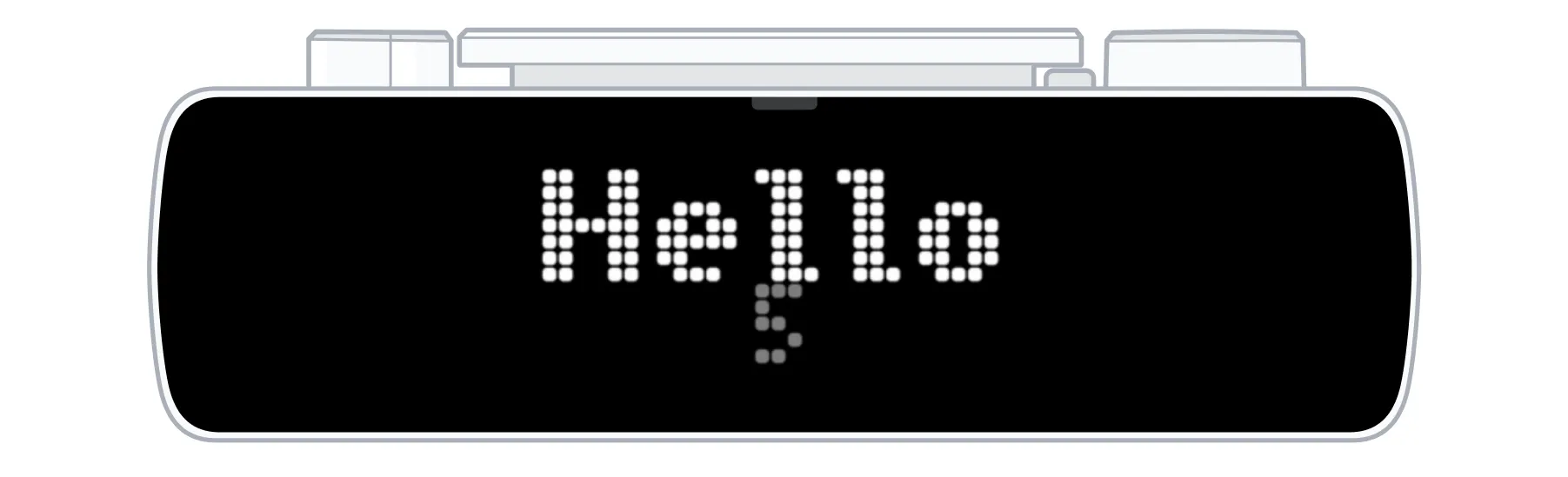
BUSY Bar shows “Hello” and a number that grows every second:
To quit, press  Back.
You can also start the app right on BUSY Bar:
Switch the  mode selector to
 Apps.
Select the Rates app, and select Start.
Here’s what’s in the project folder:
rates/
├── src/
│   ├── main.ts              the app code: you'll work here
│   └── appmeta/
│       └── manifest.json    app id, name, version
├── shared/                  helpers, including the device client
├── AGENTS.md                instructions for AI coding agents
└── package.json             build and install commands
Step 5. Replace the app code
Replace everything in src/main.ts with the code below.
Create src/appmeta/settings.json with the settings below.
Build, install, and start the app again:
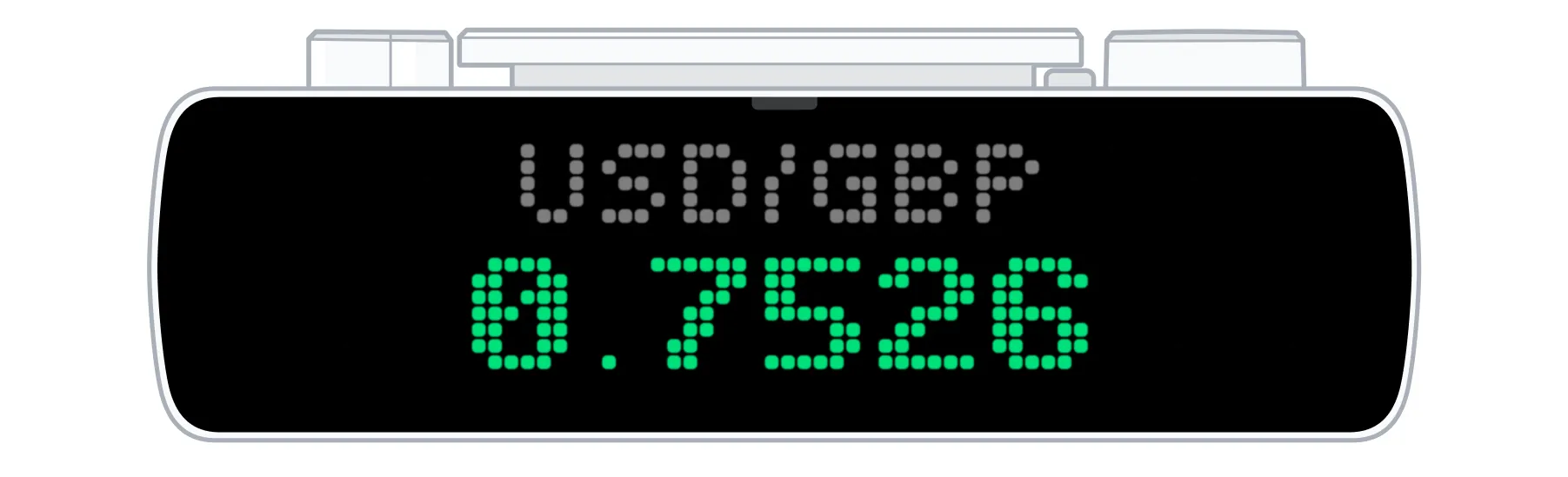
npm run build && npm run app:install && npm run app:runBUSY Bar shows “Loading”, then a live exchange rate:
Step 6. Add app icons
Without icons, the Rates app shows a default icon in the Apps menu. To give it its own:
Download the example icons:
Unzip the archive into src/appmeta/.
Build, install, and run the app.
File | Size | Format | Shown on |
|---|---|---|---|
icon_front_8x8.png | 8×8 px | PNG with a transparent background | Front screen |
icon_back_11x11.png | 11×11 px | PNG with a transparent background, in a single grey (#888888) | Back screen |
Both icons are optional. If a file is missing, BUSY Bar uses the default icon. The file names must match exactly.
Your src/appmeta folder now looks like this:
src/appmeta/
├── manifest.json
├── settings.json
├── icon_front_8x8.png
└── icon_back_11x11.png
Step 7. Try the app
Let’s see how Rate works and how to change its settings:
- Turn the
 scroll wheel to switch currencies.
- Press
 OK to refresh the rates.
- Press Back to quit.
- On BUSY Bar, go to Apps → Rates → Setup and change Base currency. Start the app again to see the new currency pairs.
 All done!
Your Rates app is ready. To learn how it works, keep reading.
Inside the Rates app
This section walks through the code you added in Step 5. The snippets below are excerpts from src/main.ts for reference, not code to copy.
How an app runs
A JavaScript app has no main loop and no exit function. It keeps running while it has something to wait for: a timer, a pending request, or an input listener. When nothing is left, it closes.
The Rates app keeps running because it has an input listener and a refresh timer. To quit, the stop() function in Rates clears the timer and removes the listener:
const stop = () => {
  stopped = true;
  if (refreshTimer !== undefined) clearInterval(refreshTimer);
  // ...
  // Removing the last listener closes the app. Do it after this handler returns.
  setTimeout(unbind, 0);
};
Drawing on the screen
An app draws with display elements: text, images, animations, countdowns, rectangles, and bitmaps. Each element has an id. When you send an element with an id that’s already on screen, BUSY Bar replaces it. You don’t need to clear the screen and draw everything again.
The front screen is 72×16 pixels and fits two lines of text. Instead of counting pixels, describe the layout with the row(), column(), and stack() functions from @busy-app/busy-lib. The render() function, also from @busy-app/busy-lib, turns the layout into elements, and the device.DisplayDraw() method sends them to BUSY Bar.
In the Rates app, frame() describes the screen:
function frame(): Node {
  const quote = quotes[index];
  const rate = rates[quote];
  const text = rate === undefined ? status : rate.toFixed(rate >= 100 ? 2 : 4);
  // gap: 2 keeps the two lines from touching.
  return column({ justify: "center", align: "center", gap: 2 }, [
    { type: "text", id: "pair", text: `${settings.base}/${quote}`, font: "small", color: GREY },
    { type: "text", id: "rate", text, font: "bold", color: rate === undefined ? WHITE : GREEN },
  ]);
}- Colors are written as #RRGGBBAA: four pairs of hex values from 00 to FF. RR is red, GG is green, BB is blue, and AA is opacity. For example, #FFFFFFFF is white, and #FFFFFF80 is half-transparent white. All 8 digits are required.
- gap sets the space between lines in pixels. Without it, lines in a column touch.
Try this
Change GREEN to "#FFB000FF" and the rate turns amber.
The device.DisplayDraw() method in the draw() function sends the elements to BUSY Bar:
device.DisplayDraw({ application_name: APP, priority: 50, elements: render(frame()) })- application_name is your app ID. When the app closes, BUSY Bar removes all the elements the app drew.
- priority decides whose drawing is shown when several apps or integrations draw at the same time. It goes from 1 to 100, and the higher number wins. 50 is the default. During an active BUSY or CUSTOM session, the session takes over the screen, and your app’s drawing isn’t shown until the session ends. Details are in the display/draw request of the HTTP API reference.
Buttons and the scroll wheel
The built-in listen() function subscribes to the buttons and the scroll wheel. It returns a function that removes the listener:
const unbind = listen("input", (event) => {
  if (event.key === "encoder") {
    // One click of the wheel: delta is 1 clockwise, -1 counterclockwise.
    index = (index + event.delta + quotes.length) % quotes.length;
    draw();
    return;
  }

  if (event.key === "ok" && event.action === "short") {
    void fetchRates();
    return;
  }
  // ...
});
Control | event.key | event.action |
|---|---|---|
| encoder | clockwise or counterclockwise, plus delta. |
| ok | short for a normal press, long for a long one. press, release, and repeat are useful for games. |
| start | Same as ok. |
| back | short, press, and release. Holding Back closes the app, so the app doesn’t get long. |
Holding Back always closes the app, so even an app with a bug can’t get stuck on screen.
Try this
Change the OK check to (event.key === "ok" || event.key === "start") so  Start / Pause also refreshes the rates.
Showing live data
When BUSY Bar is connected to Wi-Fi, the built-in fetch() function sends HTTP requests from BUSY Bar to web services. The fetchRates() function in the Rates app uses it to get the numbers from Frankfurter, a free exchange rate API that needs no key:
async function fetchRates(): Promise<void> {
  try {
    const res = await fetch(`${API}?base=${settings.base}&symbols=${quotes.join(",")}`);
    if (!res.ok) throw new Error(`HTTP ${res.status}`);
    const data = (await res.json()) as { rates: Record<string, number> };
    rates = data.rates;
  } catch (err) {
    // Keep the last good rates on screen and try again on the next refresh.
    report(err);
    if (Object.keys(rates).length === 0) status = "No data";
  }
  if (!stopped) draw();
}
The setInterval() function calls fetchRates() on a timer. The timer also keeps the app running:
refreshTimer = setInterval(() => void fetchRates(), settings.refreshMinutes * 60 * 1000); Get data wisely
Refresh every few minutes, not every few seconds. Every request takes time and memory on a small device.
Your app can also read the BUSY Bar device status, such as Wi-Fi, time, and battery. See the list of endpoints apps can use.
Try this
Add "SEK" to CURRENCIES to show the Swedish krona.
Settings
Settings let users change how your app works, on BUSY Bar (Apps → your app → Setup) or on the Apps tab of the local web interface. You list the settings in src/appmeta/settings.json, and BUSY Bar creates the settings screens for you.
The loadSettings() function in the Rates app reads the settings with the device.AppsSettingsGet() method when the app starts. If you change settings in the web interface while Rates is running, the changes apply the next time it starts. If reading the settings fails, Rates uses the defaults, so it still works:
async function loadSettings(): Promise<Settings> {
  try {
    const { version, values } = await device.AppsSettingsGet({ app_id: APP });
    if (version !== SETTINGS_VERSION) return DEFAULTS;
    return {
      base: typeof values.base === "string" ? values.base : DEFAULTS.base,
      refreshMinutes: typeof values.refresh_minutes === "number" ? values.refresh_minutes : DEFAULTS.refreshMinutes,
    };
  } catch (err) {
    report(err);
    return DEFAULTS;
  }
}- Apps can read their settings but can’t change them. Users change them, and the new values apply the next time the app starts.
- Change version when you change fields in an incompatible way: BUSY Bar then drops the old stored values and uses the new defaults.
- Field types: boolean, integer, string, enum, color, time, geolocation, plus groups. Some types can be viewed but not edited on the device itself; all of them can be edited in the local web interface. All options are in the settings file schema.
Try this
Add { "value": "CHF", "label": "Swiss franc" } to the base options in settings.json.
Saving app data
When you quit an app, its in-memory data is lost. To keep data between launches, use the built-in localStorage object. It stores text, separately for each app.
For example, the Rates app remembers the last currency you picked. The restoreChoice() function reads it with the localStorage.getItem() method, and the saveChoiceSoon() function saves it a few seconds after the wheel stops:
function restoreChoice(): void {
  const i = quotes.indexOf(localStorage.getItem(SAVED_KEY) ?? "");
  index = i >= 0 ? i : 0;
}

// Writing goes to flash memory, so save a few seconds after the wheel stops.
function saveChoiceSoon(): void {
  if (saveTimer !== undefined) clearTimeout(saveTimer);
  saveTimer = setTimeout(saveChoice, 3000);
}
Every call to the localStorage.setItem() method rewrites everything the app has saved, so write rarely and keep values small. For anything the user should configure, use settings instead.
Keeping it fast
Every redraw is an HTTP request, and BUSY Bar handles them one at a time. If the app sends a frame on every click of a fast-spinning wheel, the requests pile up and the screen lags behind. The Rates app sends one frame at a time and skips the ones in between:
let drawing = false; // a frame is on its way
let dirty = false;   // something changed while it was

function draw(): void {
  if (drawing) {
    dirty = true;
    return;
  }
  drawing = true;
  dirty = false;

  const done = () => {
    drawing = false;
    if (dirty) draw(); // send only the latest state
  };

  device
    .DisplayDraw({ application_name: APP, priority: 50, elements: render(frame()) })
    .then(done, (err) => {
      report(err);
      done();
    });
}- Redraw only when something visible changes.
- When the app quits, clear its timers. A forgotten timer keeps the app running.
- If your app plays sounds, stop them before quitting with DELETE /api/audio/play.
- The default 128 KiB of memory is plenty for most apps. If you get out-of-memory errors, raise heap_size_kib in manifest.json, up to 512.
How to share your app
Set the version in src/appmeta/manifest.json, for example 1.0.0.
Build, install, and run the app to confirm that it works as expected:
npm run build && npm run app:install && npm run app:runThe build command saves your app as a .tgz file in the project’s dist/ folder.
Others can install the app from a file using the Apps tab in the web interface. To learn more, visit Manage apps on BUSY BarManage apps on BUSY Bar.
Apps Catalog is coming
The official BUSY Barr apps catalog is coming by the end of 2026. You’ll be able to publish your app there.
Troubleshooting
Problem | What to do |
|---|---|
npm run app:install can’t reach BUSY Bar | Check the USB cable and open http://10.0.4.20. If the page doesn’t load, see Local web interface issues. |
The project setup or the build fails right away | Run node -v. The template needs Node.js 24. |
The rate shows No data | Check that BUSY Bar is connected to Wi-Fi, then press |
BUSY Bar shows App incompatible, update firmware. | |
BUSY Bar shows Syntax error, check script. | Run npm run typecheck, fix the errors, then build and install again. |
BUSY Bar shows Settings file is invalid. | Check settings.json against the settings file schema. |
BUSY Bar shows App crashed, see device logs. | Build with npm run build -- --no-minify to get readable code in the logs, then install and run the app again. |
Next steps
- Work over Wi-Fi — Once Wi-Fi access is enabled, add the BUSY Bar IP address and HTTP API access password to any app: command, for example npm run app:install -- --addr <BUSY Bar IP address> --password <http api access password>.
- Create apps with AI agents — Let an AI agent write the next app for you.
- JS apps reference — The manifest, settings, available endpoints, and input events.