Weather
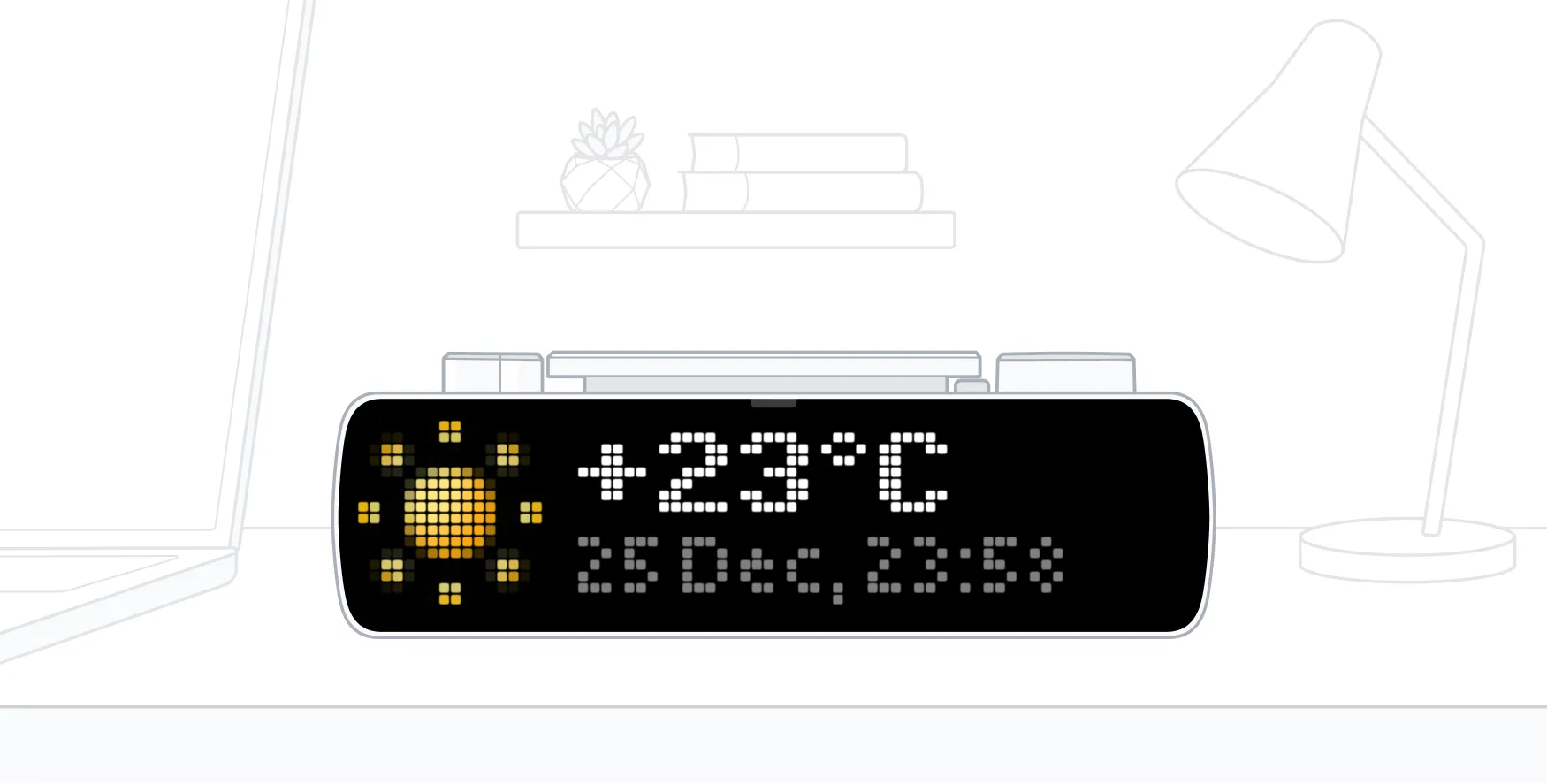
The Weather app shows the current weather, an hourly forecast for the next 24 hours, and a forecast for the days ahead on your BUSY Bar. Choose your location and temperature units, and what else is shown.
The app needs an internet connection, so make sure your BUSY Bar is connected to Wi-Fi.
On this page, you’ll learn how to run the Weather app on your BUSY Bar, switch between forecast screens, and configure your preferences.
How to start Weather on BUSY Bar
You can start the app right on BUSY Bar or from its web interface.
Switch the  mode selector to
 Apps.
Go to Weather.
Select Start.
BUSY Bar now displays the current weather. The forecast updates every 15 minutes while the app is running.
By default, your location is detected automatically from BUSY Bar’s internet connection. To choose a specific city, see Set your location.
To quit the app:
- Press
 Back or switch the mode selector.
You can switch to another mode, including OFF, while the app is running. Switching back to Apps resumes the app.
Switch between forecast screens
The Weather app has three screens:
Screen | What it shows |
|---|---|
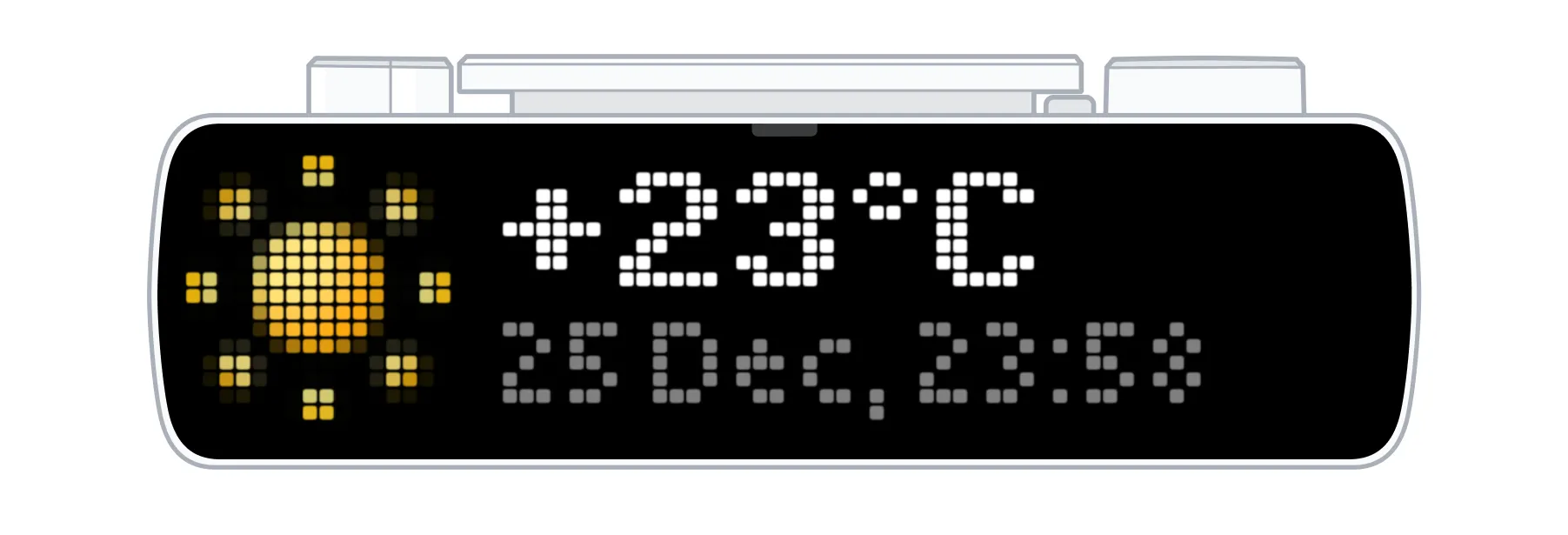 | Current conditions and temperature, with the date and time |
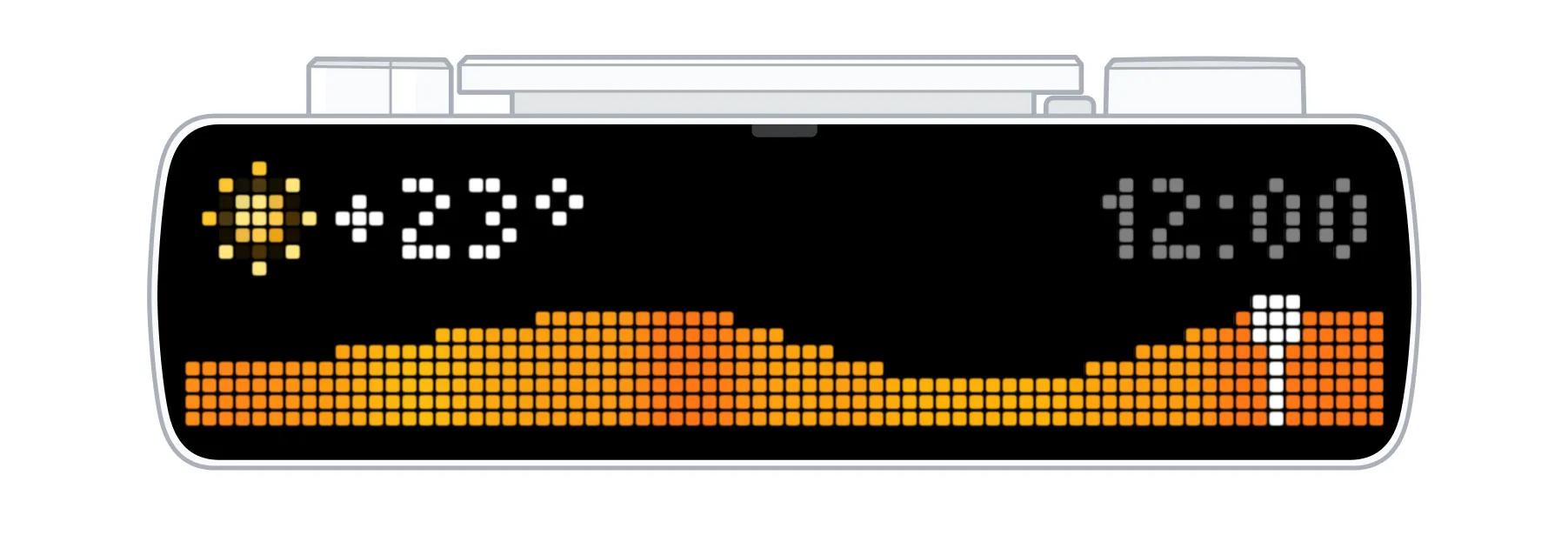 | A temperature graph for the next 24 hours, with conditions for the selected hour |
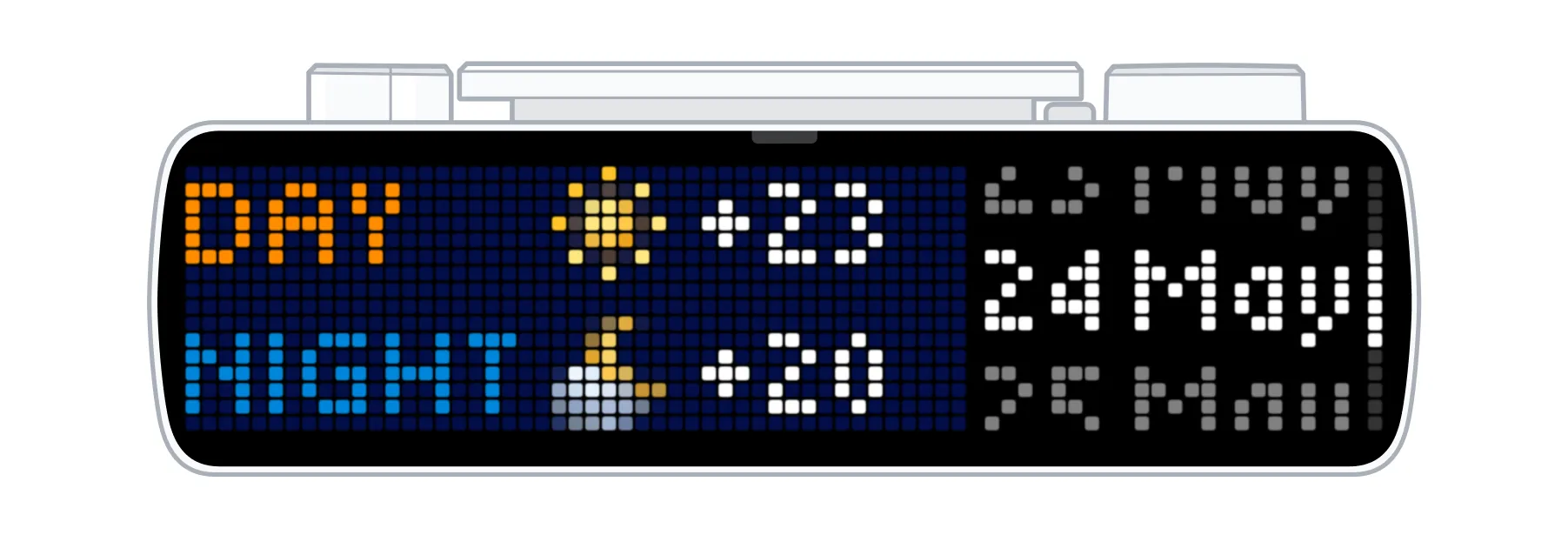 | Day and night conditions and temperatures for the days ahead |
To navigate the screens:
- Press
 Start / Pause or the
 scroll wheel to go to the next screen.
- Rotate the
 scroll wheel to step through hours on the Hourly screen or days on the Daily screen.
Change Weather settings
You can change app settings right on BUSY Bar or from its web interface.
Switch the mode selector to Apps.
Go to Weather.
Select Setup.
Configure the settings:
- Location: Set in the web interface only.
- Units: Select °C or °F.
- Show time: Disable to hide time.
- Show date: Disable to hide date.
Press Back. Settings are saved automatically.

Set your location
By default, the Weather app automatically detects your location. To set it manually, use the local web interface.
Connect BUSY Bar to PC via USB, and go to http://10.0.4.20
Or access the web interface via Wi-Fi.access the web interface via Wi-Fi.
Go to the  Apps tab.
Select Weather.
Choose how to set your location:
- Automatically: Enable Auto-detect location.
- Manually: Disable Auto-detect location, then find your city under Search city.
If the app is running, click Restart to apply the changes.