Apps Catalog
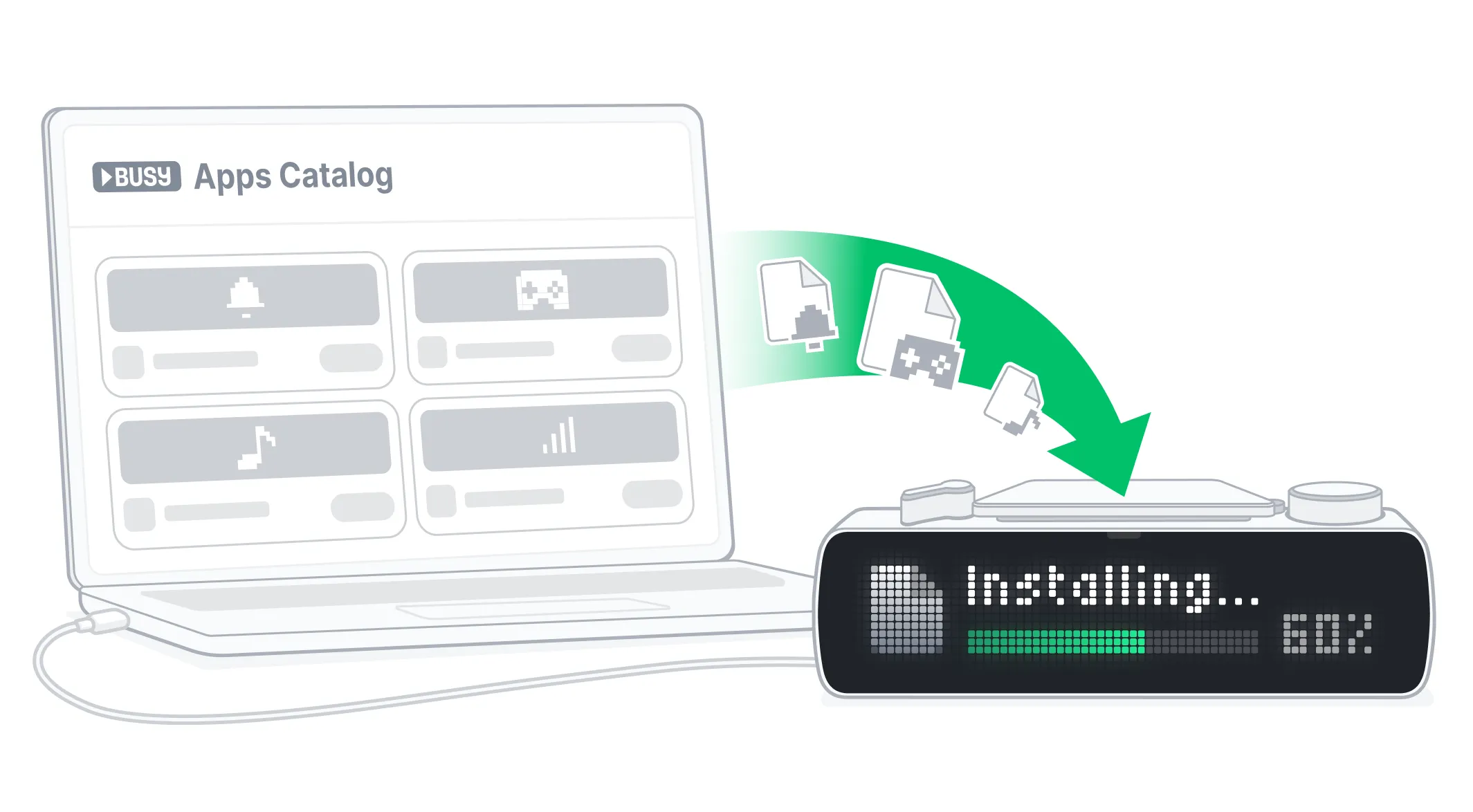
The Apps Catalog is a collection of BUSY Bar apps developed by the BUSY team and the community. Explore apps for productivity, live data, alerts, pixel art, and games. You can also create your own apps and publish them in the Apps Catalog for others to discover and use!
On this page:
- Apps Catalog overview%section%Apps Catalog overview%section%
- Install apps to BUSY Bar%section%Install apps to BUSY Bar%section%
- Update apps on BUSY Bar%section%Update apps on BUSY Bar%section%
- Publish your app in the Apps Catalog%section%Publish your app in the Apps Catalog%section%
Apps Catalog overview
The main page displays all available apps in the catalog. You can see a preview with a short description, or download an app directly from the main page. Search for apps by name or browse by category.
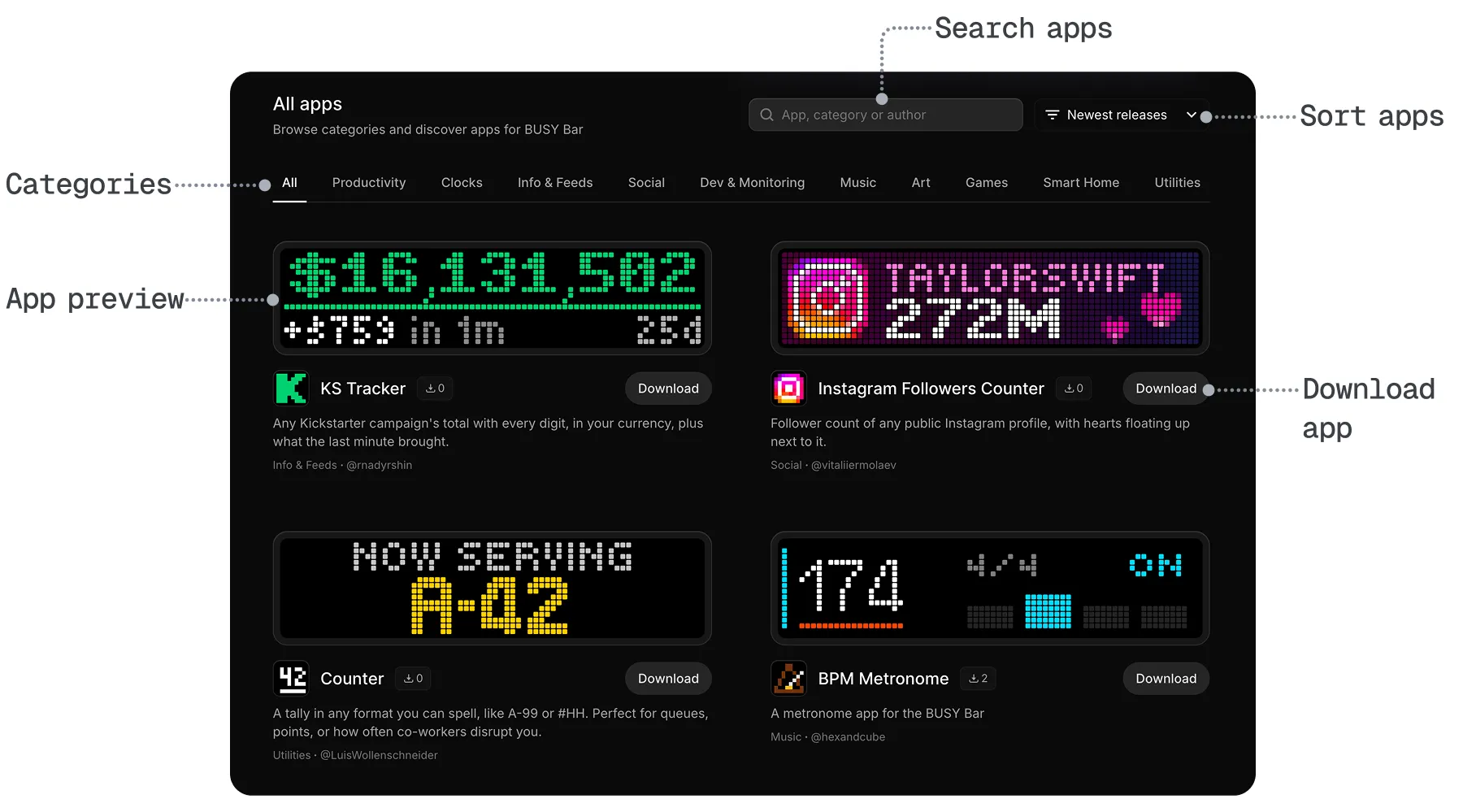
Each app has a dedicated page where you can download the app, view screenshots, and read what the app does and how to set it up. The page also includes the changelog, the compatible API version, and a link to the source code on GitHub.
Install apps to BUSY Bar
To install an app from the Apps Catalog on your BUSY Bar, first download it to your PC as a .tgz file, then upload it to your BUSY Bar through the web interface.
Go to the Apps Catalog: apps.busy.app
Browse the page and its categories to find apps you like.
or
Use Search to look for specific apps.
In the app’s preview, click Download — a .tgz file will download to your PC.
Connect BUSY Bar to PC via USB, and go to http://10.0.4.20
You can also access the web interface via Wi-Fi.access the web interface via Wi-Fi.
Go to the  Apps tab and click +Add app.
Select the app’s .tgz file and click Upload.
Click Install app to confirm.
 You've successfully installed the app
To run the app on your BUSY Bar, switch the  mode selector to
 Apps, then select your app and press
 Start / Pause.
Update apps on BUSY Bar
You can update the app by downloading a newer version from the Apps Catalog as a .tgz file, then upload it to your BUSY Bar through the web interface.
Go to the Apps Catalog: apps.busy.app
Find the app you want to update.
In the app’s preview, click Download — a .tgz file will download to your PC.
Connect BUSY Bar to PC via USB, and go to http://10.0.4.20
You can also access the web interface via Wi-Fi.access the web interface via Wi-Fi.
Go to the Apps tab.
Click the app, then click  Update app.
Select the new .tgz file and click Upload.
Click Update app to confirm.
You've successfully updated the app
To run the app on your BUSY Bar, switch the mode selector to Apps, then select your app and press Start / Pause.
Publish your app in the Apps Catalog
You can develop your own apps and publish them in the Apps Catalog! See our guides:
- Create apps for BUSY Bar%page%Create apps for BUSY Bar%page%